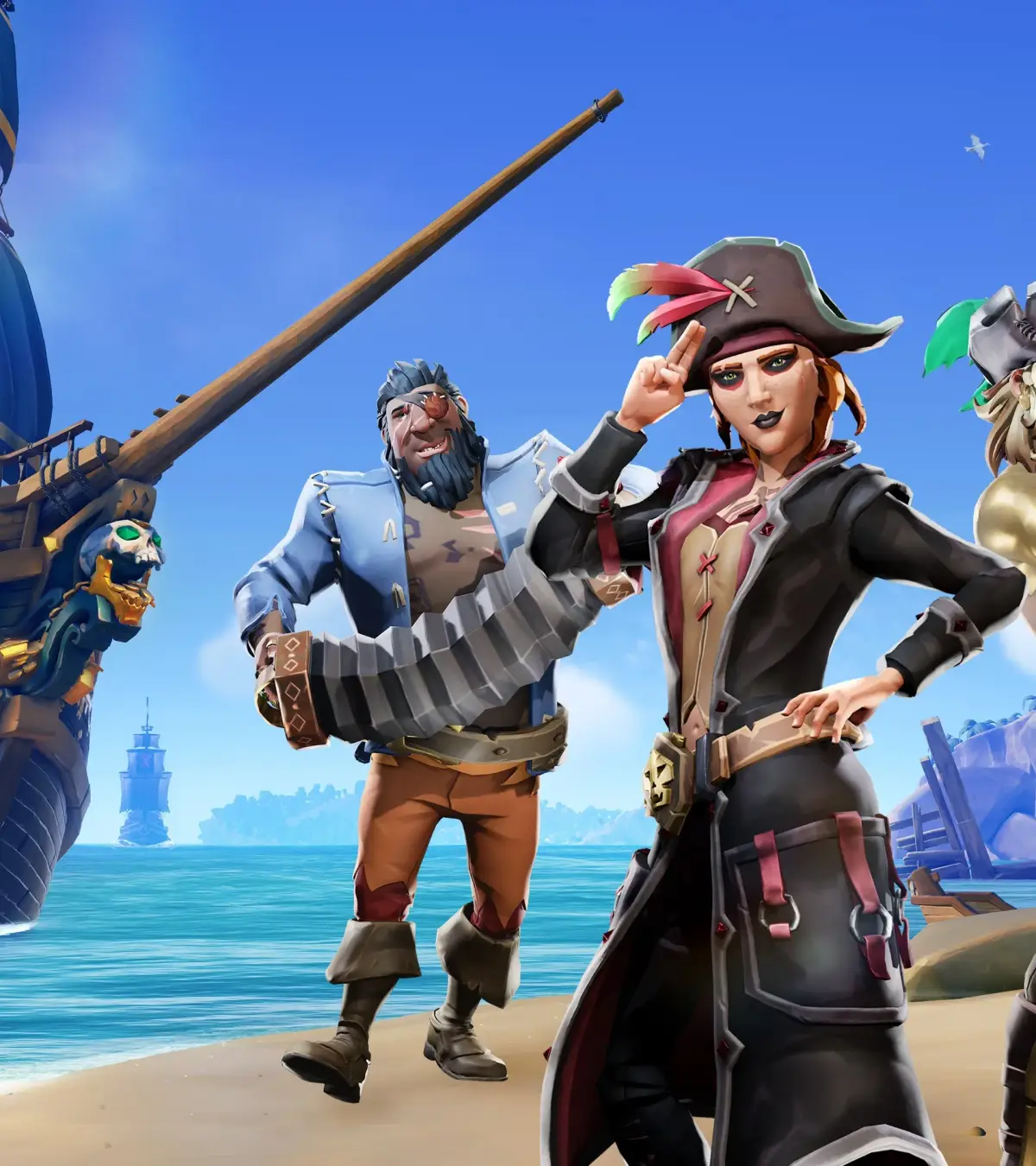
Optimize Sea of Thieves graphics for smooth gameplay. Learn to adjust settings like resolution, shadows, and anti-aliasing for better FPS and visual quality.
To ensure a smooth and visually appealing experience in Sea of Thieves, optimizing your graphics settings is crucial. Whether you're playing on a high-end PC or a more modest setup, adjusting these settings can significantly improve performance without sacrificing too much visual fidelity.
Finding the right balance between graphical quality and frame rate will allow you to react faster in combat, sail more smoothly, and enjoy the stunning beauty of the Sea of Thieves to its fullest. This guide provides recommendations for optimizing your graphics settings.
Understanding Key Graphics Settings
Sea of Thieves offers a range of graphics options that impact performance. Here's a breakdown of some of the most important ones:
- Resolution: Determines the overall sharpness of the image. Lowering the resolution can significantly boost FPS but will make the image appear less crisp. Aim for your monitor's native resolution if possible.
- Graphics Quality Preset: Sea of Thieves offers presets like 'Low', 'Medium', 'High', and 'Epic'. Start with a preset and then fine-tune individual settings.
- Texture Quality: Affects the detail of surfaces like ship hulls, rocks, and character models. Higher settings require more VRAM.
- Shadow Quality: Controls the detail and softness of shadows. This is often a demanding setting; lowering it can provide a substantial performance boost.
- Anti-Aliasing: Smooths out jagged edges on objects. Options like FXAA are less demanding than MSAA.
- Volumetric Fog: Affects the quality of fog and atmospheric effects. This can be quite performance-intensive.
- Water Quality: Impacts the visual fidelity of the ocean.
- Lighting Quality: Affects the realism of light sources and reflections.
- Draw Distance: Determines how far into the distance objects and details are rendered.
Recommended Optimization Strategies
Here are some strategies to optimize your graphics settings:
- Start with Presets: Begin by selecting a graphics preset that best suits your hardware. If performance is poor, start with 'Low' or 'Medium'.
- Prioritize Frame Rate: For a game like Sea of Thieves, a consistent frame rate (ideally 60 FPS or higher) is more important than ultra-high graphical settings.
- Lower Demanding Settings First: Settings like Shadow Quality, Volumetric Fog, and Anti-Aliasing often have the biggest impact on performance. Try lowering these first.
- Adjust Texture Quality: If you have sufficient VRAM (e.g., 4GB or more), you can often set texture quality to 'High' without a significant performance hit.
- Water and Lighting: While visually important, these can also be demanding. Experiment with lowering them if you need more FPS.
- Resolution Scaling: If your system struggles even with low settings, consider using resolution scaling options if available, or lowering the overall resolution.
- Disable Unnecessary Effects: Turn off or lower settings that don't significantly impact your gameplay experience.
- Keep Drivers Updated: Ensure your graphics card drivers are always up to date. Manufacturers frequently release driver updates that optimize performance for new games.
- Monitor Performance: Use in-game performance monitors or external tools (like MSI Afterburner) to track your FPS and identify which settings have the most impact.
Specific Settings for Different Hardware
- Low-End Systems: Focus on 'Low' presets, disable shadows and volumetric fog, use FXAA for anti-aliasing, and consider lowering resolution.
- Mid-Range Systems: Aim for 'Medium' or 'High' presets, experiment with shadow and fog quality, and use a moderate level of anti-aliasing.
- High-End Systems: You should be able to run the game on 'Epic' settings with high frame rates. Fine-tune for the best visual experience.
By carefully adjusting these settings, you can achieve a visually pleasing and smoothly performing Sea of Thieves experience tailored to your hardware.
100% Human-Written. AI Fact-Checked. Community Verified. Learn how AntMag verifies content