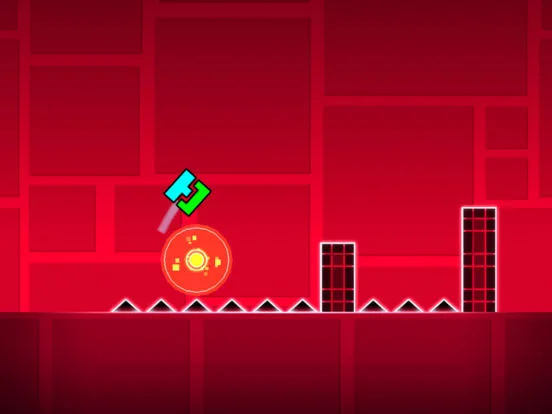
Fix Geometry Dash crashes & freezes. Learn to verify game files, update drivers, close background apps, and adjust settings for stable gameplay.
Encountering crashes or freezes in Geometry Dash? This guide provides common solutions, from checking game files and updating drivers to managing device resources. Get your game running smoothly again.
Geometry Dash is generally a stable game, but like any software, it can sometimes encounter issues such as crashing to the desktop, freezing during gameplay, or failing to launch. These problems can be frustrating, especially when you're in the middle of a challenging level or working on a creative masterpiece. Fortunately, most common issues can be resolved with a few troubleshooting steps.
1. Basic Checks & Restarts
- Restart the Game: The simplest solution often works. Close Geometry Dash completely and relaunch it.
- Restart Your Device: A full system restart can clear temporary glitches and free up system resources.
2. Verify Game Files (Steam/PC)
Corrupted or missing game files are a frequent cause of crashes. Verifying the integrity of game files ensures that all necessary components are present and correct.
- On Steam: Right-click Geometry Dash in your Steam Library > Properties > Local Files > Verify integrity of game files.
3. Update Graphics Drivers
Outdated graphics drivers are a common culprit for performance issues, including crashes and graphical glitches.
- Identify Your Graphics Card: (e.g., NVIDIA GeForce, AMD Radeon, Intel HD Graphics).
- Download Latest Drivers: Visit the manufacturer's website (NVIDIA, AMD, Intel) and download the latest drivers specifically for your graphics card model and operating system.
- Perform a Clean Installation: During the driver installation process, select the 'Clean Install' option if available. This removes old driver files before installing the new ones.
4. Close Background Applications
Geometry Dash, especially complex custom levels, can be resource-intensive. Other applications running in the background can consume CPU and RAM, leading to performance issues and crashes.
- Task Manager (Windows): Press Ctrl+Shift+Esc to open Task Manager. Go to the 'Processes' tab and end any unnecessary applications (e.g., web browsers with many tabs, other games, resource-heavy software).
- Activity Monitor (macOS): Search for 'Activity Monitor' and close non-essential applications.
5. Adjust In-Game Graphics Settings
If the game is running too demanding for your system, lowering the graphics settings can help.
- Quality Settings: In the game's 'Options' menu, try setting 'Quality' to 'Low' or 'Medium.'
- Disable V-Sync: Sometimes, disabling V-Sync can improve performance, though it might introduce screen tearing.
- Reduce Frame Rate: If available, limiting the frame rate can prevent your system from overheating or becoming overloaded.
6. Check for Game Updates
Ensure you have the latest version of Geometry Dash installed. Developers often release patches to fix bugs and improve stability.
- Steam: Games usually update automatically. You can check for updates manually in your Library.
- Mobile: Check your device's app store (Google Play Store or Apple App Store) for updates.
7. Reinstall Geometry Dash
If none of the above steps work, a complete reinstallation might be necessary. This will remove all game files and install a fresh copy.
- PC: Uninstall the game via Steam or your system's add/remove programs feature, then reinstall it.
- Mobile: Uninstall the app, then reinstall it from your app store. Ensure your progress is backed up if possible (e.g., via cloud save or account login).
8. Hardware Considerations
- Overheating: Ensure your device is properly ventilated. Overheating can cause performance throttling and crashes. Clean dust from fans and vents.
- Insufficient RAM/CPU: Very complex custom levels, especially those with many triggers or detailed art, can push older or lower-spec hardware to its limits. If crashes consistently happen on specific levels, it might be a hardware limitation.
By systematically working through these troubleshooting steps, you should be able to resolve most common crashes and freezes, allowing you to enjoy Geometry Dash without interruption.
100% Human-Written. AI Fact-Checked. Community Verified. Learn how AntMag verifies content