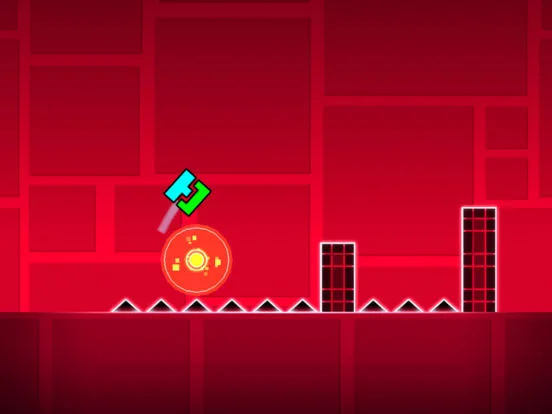
Master Geometry Dash music sync. Learn manual placement and automatic trigger techniques for Movement, Pulse, Color, and Spawn to create rhythmic levels.
Learn the art of syncing level elements to music in Geometry Dash. This guide covers both manual placement and automatic synchronization techniques using triggers and object properties.
The soul of Geometry Dash lies in its synchronization with music. A well-designed level feels intrinsically connected to its soundtrack, with gameplay elements, visual effects, and animations perfectly timed to the beat, melody, and rhythm. Achieving this synchronization can be done manually or with the help of automated tools within the editor. Understanding both approaches is key to creating truly immersive levels.
Manual Synchronization
Manual synchronization involves placing and timing every element by ear and by eye, directly to the music.
- Listen to the Music: Before placing any objects, listen to the song multiple times. Identify the main beat, the melody, and any significant changes or drops.
- Beat Matching: Place jump pads, obstacles, and platforms on the beats or key musical cues. For example, a jump might occur on a snare drum hit, or a series of obstacles might follow a melodic phrase.
- Visual Cues: Use visual elements like flashing lights or moving objects to emphasize musical accents.
- Rhythm and Flow: Ensure the gameplay flows naturally with the music. A fast-paced section of music should ideally correspond with challenging, fast-paced gameplay.
- Trial and Error: This is often the most time-consuming but rewarding method. Playtest your level repeatedly, adjusting timings and placements until they feel perfect.
Automatic Synchronization with Triggers
Geometry Dash's editor offers powerful triggers that can automate many synchronization tasks, making complex animations and effects much easier to implement.
1. Movement Trigger for Animations
The Movement trigger is essential for animating objects to the music.
- Duration and Easing: Set the 'Duration' of the movement to match the length of a musical phrase or beat. Use 'Easing' options like 'Ease In Out' for smooth, natural animations that can follow melodic curves.
- Looping Animations: By using Spawn triggers and Toggle triggers, you can create repeating animations that sync with rhythmic patterns.
- Syncing with Drops: Use a Movement trigger with a long duration and a dramatic easing effect to coincide with a musical drop, making a large object move or transform.
2. Pulse and Color Triggers for Visual Effects
These triggers are perfect for adding visual flair that syncs with the music.
- Pulse Trigger: Set the 'Duration' of the Pulse trigger to match the tempo of the music. A faster tempo might require shorter durations for rapid flashes, while a slower tempo allows for more sustained pulses. You can also set the 'Times' to repeat the pulse in sync with a repeating musical motif.
- Color Trigger: Change the background or object colors to match the mood of the music. A dramatic shift in music can be accompanied by a sudden color change. You can also use the 'Duration' to make color changes gradual, following a melodic progression.
3. Spawn Trigger for Sequential Events
The Spawn trigger is crucial for orchestrating sequences of events that are timed to music.
- Timed Activations: Place Spawn triggers at specific points in your level that correspond to musical cues. These triggers can then activate other triggers (like Movement or Color changes) at precisely the right moment.
- Complex Sequences: By chaining Spawn triggers with delays, you can create intricate sequences of animations and effects that unfold in sync with the music's progression.
4. Object Properties and Group IDs
Assigning Group IDs to objects allows you to control them collectively with triggers. This is fundamental for synchronized animations.
- Grouped Animations: Apply a Movement or Pulse trigger to a group of objects to make them animate or flash in unison, creating a cohesive visual effect that matches the music.
Best Practices for Syncing:
- Start with the Music: Always choose your music first and let it guide your des.
- Use Practice Mode: Constantly playtest your level in Practice Mode to fine-tune timings.
- Don't Overdo It: While sync is important, prioritize clear gameplay. Overly complex visual sync can sometimes distract from the player's objective.
- Experiment: Try different trigger durations, easing types, and object combinations to see what effects you can create.
By combining manual timing with the power of triggers, you can create Geometry Dash levels that are not only challenging but also a captivating audiovisual experience.
100% Human-Written. AI Fact-Checked. Community Verified. Learn how AntMag verifies content