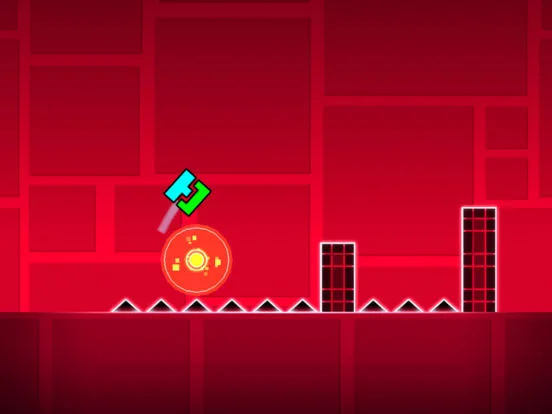
Learn how to upload and share your custom levels in Geometry Dash. Guide players through creating and submitting their Geometry Dash masterpieces to the commun.
Once you've poured your heart and soul into creating a masterpiece in the Geometry Dash editor, the next logical step is to share it with the world! Uploading your level allows other players to experience your creation, offer feedback, and potentially even rate it, contributing to its popularity and visibility. This section will guide you through the process, from preparing your level to understanding the sharing options.
Pre-Upload Checklist
Before you hit that upload button, ensure your level is polished and ready for public consumption. A well-tested and thoughtfully designed level is more likely to receive positive attention.
- Playtest Thoroughly: Play your level from start to finish multiple times. Look for:
- Unintended bugs or glitches.
- Frustration points or unfair sections.
- Synchronization issues with the music.
- Hidden paths or secrets that might not be obvious.
- Verify Mode: This is crucial! You *must* complete your level in Normal mode from start to finish in one attempt before you can upload it. This proves the level is possible. The "Verify" button is located in the editor's pause menu, usually near the "Save and Play" options.
- Add a Description: A good description can entice players. Include:
- A brief overview of the level's theme or style.
- Any special mechanics or challenges.
- Credits to collaborators or inspiration.
- A friendly message to players.
- Select Difficulty: Accurately assign a difficulty rating (e.g., Easy, Normal, Hard, Harder, Insane, Demon). While the community can re-rate it, your initial assessment helps set expectations.
- Choose Music: Ensure you've selected the correct song for your level. If using custom music, make sure it's properly uploaded and linked.
The Upload Process
Once your level is verified and ready, follow these steps to upload it to the Geometry Dash servers:
- Access the Editor: From the main menu, navigate to the "Create" section and open your desired level in the editor.
- Open the Pause Menu: While in the editor, tap or click the "Pause" icon (usually in the top right corner).
- Locate the Upload Button: In the pause menu, you'll find a button labeled "Upload" or an icon resembling an upward-pointing arrow. Tap this button.
- Fill in Level Details: A pop-up window will appear, prompting you for several pieces of information:
- Level Name: Give your level a clear and catchy title.
- Description: Enter the description you prepared earlier.
- Difficulty: Select your chosen difficulty from the dropdown menu.
- Game Mode: If applicable, choose the primary game mode (e.g., Cube, Ship, Ball).
- Music: Confirm the selected song.
- Password (Optional): If you want to prevent others from downloading and editing your level, you can set a password. This is useful for collaborations or protecting your work.
- Confirm Upload: After reviewing all the details, tap the "Upload" button within the pop-up.
- Receive Level ID: Upon successful upload, you will receive a unique Level ID. Make a note of this ID, as it's how You can directly search for your level.
Sharing Your Level
Once your level is uploaded, it's time to let others know about it! There are several ways to share your creation:
- In-Game Search: You can find your level by searching for its name or Level ID in the "Online" section of the game.
- Social Media: Share your Level ID and a screenshot or video of your level on platforms like Twitter, YouTube, or Discord. Many Geometry Dash communities exist where you can promote your work.
- Friends List: If you have friends in Geometry Dash, you can directly recommend your level to them.
- Featured Levels: If your level is exceptionally well-made and receives positive attention, it might even be "featured" by RobTop, the game's creator, giving it massive exposure!
Remember, patience is key. It might take some time for your level to gain traction, but consistent effort in creating quality content and actively sharing it will increase its chances of success.
100% Human-Written. AI Fact-Checked. Community Verified. Learn how AntMag verifies content