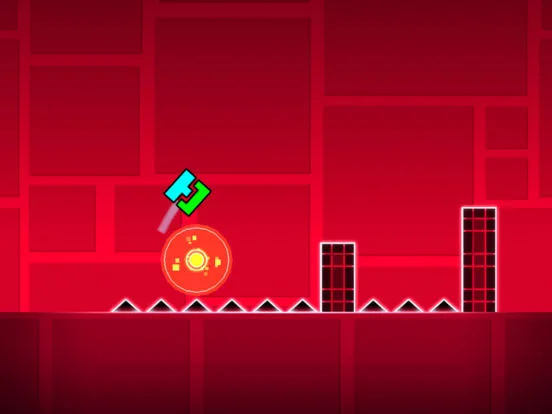
Build stunning Geometry Dash art. Learn techniques for layering, pixel art, 3D illusions, and using decorations to create visually complex levels.
Elevate your Geometry Dash creations by learning to build intricate structures and pixel art. This guide covers techniques for layering, detailing, and using objects effectively to create visually stunning levels.
Geometry Dash is not just about gameplay; it's also a powerful platform for artistic expression. Many creators use the editor to build stunning visual masterpieces, ranging from intricate geometric patterns to detailed pixel art and even complex 3D-like structures. Achieving this level of visual fidelity requires a deep understanding of the editor's capabilities and a creative approach to object placement and manipulation.
Understanding Layers and Depth
The editor operates on a layering system. Objects placed later appear in front of objects placed earlier. However, true depth is achieved through clever use of:
- Backgrounds and Foreground Elements: Use the background and foreground layers to create a sense of distance. Place distant objects on the background layer and closer objects on the foreground.
- Object Stacking: By carefully placing objects on top of each other, you can create the illusion of solidity and form. Think about how real-world objects are constructed.
- Perspective Tricks: Use objects that taper or shrink to suggest perspective. For example, a series of blocks that get progressively smaller can create the illusion of a road receding into the distance.
Pixel Art Techniques
Creating pixel art in Geometry Dash involves using small, blocky objects to form images. This requires patience and a good eye for detail.
- Grid System: Mentally (or physically, by using small blocks as a grid) divide your canvas.
- Color Palettes: Choose a limited color palette to maintain consistency and a retro feel.
- Block Selection: Use the smallest, most basic block objects. Experiment with different block types for texture.
- Outline: Often, a dark outline around your pixel art helps it stand out and defines its shape.
- Symmetry: For symmetrical art, build one half and then mirror it.
Creating 3D-Like Structures
While Geometry Dash is 2D, you can simulate 3D effects using:
- Shading: Use darker shades of a color on one side of an object and lighter shades on the other to suggest lighting and form.
- Depth Lines: Use diagonal lines or objects to create the impression of depth, like the edges of a cube or a receding hallway.
- Overlapping Objects: Strategically overlap objects to create the illusion that one is in front of another.
- Perspective Grids: Some advanced creators use carefully placed lines and objects to mimic a perspective grid.
Utilizing Decorations and Special Objects
The editor is filled with decorative elements that can add detail and life to your structures.
- Spikes as Textures: Small spikes can be used as textures on surfaces, like scales or rough patches.
- Orbs and Portals: These can be integrated into dess as glowing elements or interactive parts of a structure.
- Special Blocks: Blocks with unique textures or shapes can form the basis of complex dess.
Tips for Advanced Building:
- Group IDs: Use Group IDs extensively to manage complex structures and apply triggers for animation or effects.
- Copy/Paste: Master the copy and paste tools to duplicate sections of your art or structure efficiently.
- Zoom and Pan: Utilize the zoom and pan features to work on fine details and get an overview of your creation.
- Inspiration: Look at other creators' art levels for inspiration and to learn new techniques.
- Patience: Building complex art and structures takes time and iteration. Don't be afraid to experiment and refine your dess.
By applying these techniques, you can transform the Geometry Dash editor into a canvas for your artistic vision, creating levels that are as visually impressive as they are fun to play.
100% Human-Written. AI Fact-Checked. Community Verified. Learn how AntMag verifies content