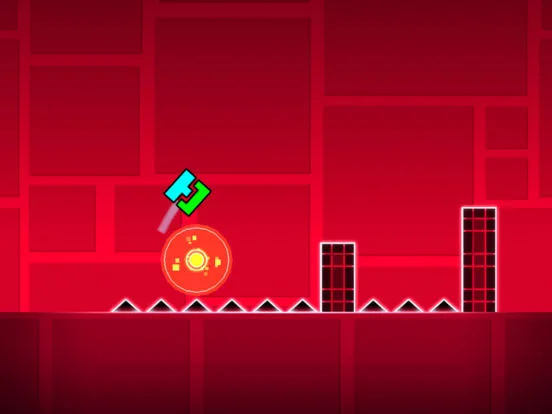
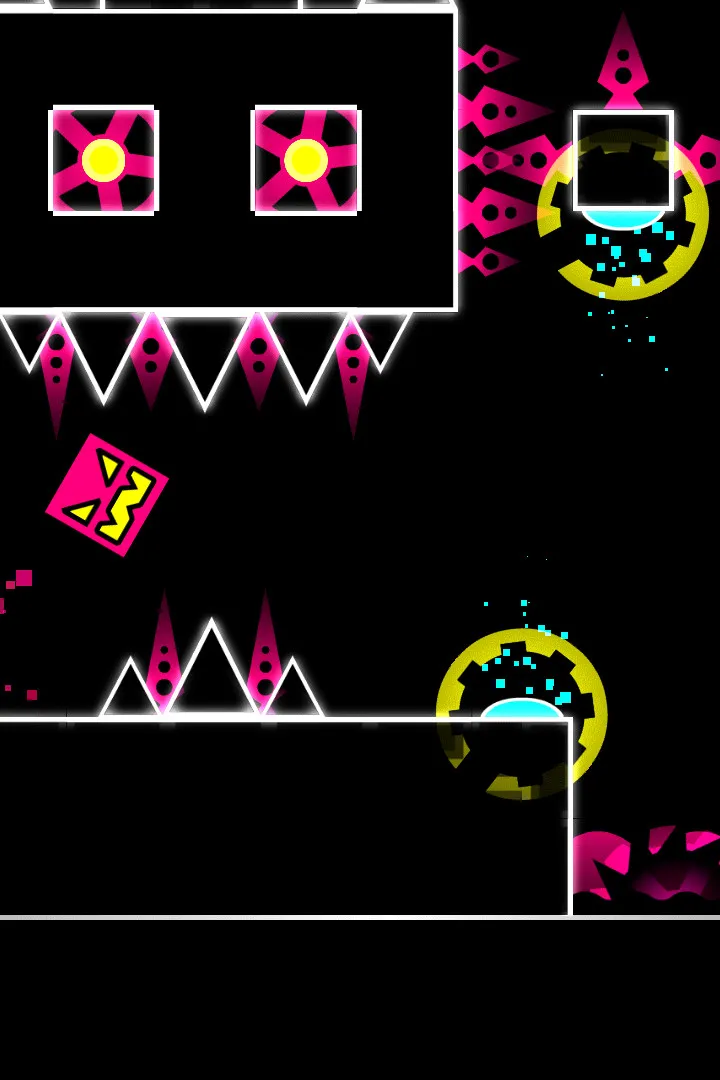
Navigate Geometry Dash's pulsing rhythms and driving melodies. Learn how official level tracks synchronize with gameplay for rhythm-based success.
The pulsating rhythms and driving melodies of Geometry Dash are not just background noise; they are integral to the gameplay experience. Each official level is meticulously synced to its unique soundtrack, making understanding and appreciating the music crucial for success. This section will guide you through the game's musical landscape, from official level tracks to custom song usage.
Official Level Soundtracks
Every pre-made level in Geometry Dash features a specific, often iconic, track that dictates the level's flow and timing. Mastering these levels involves internalizing the music's beat and anticipating obstacles based on auditory cues.
Level-Specific Music Strategies:
- Practice Mode Immersion: When struggling with a particular section, use Practice Mode. Focus less on the visual cues initially and more on the rhythm of the music. The moment a new beat drops or a melody changes often signifies an upcoming challenge or a shift in gameplay mechanics.
- Headphones Recommended: For optimal auditory feedback, playing with headphones is highly recommended. This allows you to pick up on subtle musical cues and bass drops that might be missed through external speakers, especially in complex or fast-paced sections.
- Memorize Key Sections: Certain parts of a song, like a prominent synth line or a drum fill, will consistently correspond to specific obstacles or jump timings. For example, the intense build-up in "Stereo Madness" often precedes a series of triple spikes.
Notable Official Tracks and Their Impact:
- "Stereo Madness" by ForeverBound: The iconic introductory track. Its simple, repetitive beat is perfect for learning basic timing. Pay attention to the consistent drum pattern for jump cues.
- "Back on Track" by DJVI: Features a more energetic, driving beat. The faster tempo requires quicker reflexes, often signaled by the rapid-fire synth melodies.
- "Polargeist" by Step: Introduces more complex rhythms and a slightly darker tone. The shifts in musical intensity often correspond to changes in gravity or vehicle sections.
- "Dry Out" by DJVI: Known for its distinct bassline and melodic hooks. The timing of jumps and orb activations often aligns directly with the prominent bass notes.
Custom Songs and the Level Editor
One of Geometry Dash's most powerful features is its integration with Newgrounds, allowing creators to use a vast library of custom music for their levels. This opens up endless possibilities for unique gameplay experiences, but also presents new considerations for players and creators alike.
Finding and Using Custom Songs:
When creating a custom level, you can select a song from the Newgrounds audio portal directly within the Level Editor. This process is straightforward:
- Open the Level Editor: From the main menu, navigate to the "Create" tab and select "New" or open an existing level.
- Access Song Selection: In the editor, tap the gear icon (Settings) in the top-right corner.
- Browse Newgrounds: Under the "Song" tab, you'll see options to "Select Song." Choose "Custom" and then "Search" to browse Newgrounds.
- Search and Download: You can search by song title, artist, or Newgrounds ID. Once you find a suitable track, tap "Download" to integrate it into your level.
Player Strategies for Custom Levels:
- First Playthrough - Focus on Flow: When encountering a custom level for the first time, try to get a feel for how the creator has synced the level to the music. Some creators are masters of "music sync," making the level feel like an extension of the song.
- Creator's Intent: Understand that custom levels can vary wildly in their musical synchronization. Some levels are perfectly timed, while others might use the music more as atmospheric background. Adjust your expectations accordingly.
- Sound Test in Practice Mode: If a custom level's timing feels off, use Practice Mode to isolate sections. Pay close attention to where the creator has placed triggers and objects relative to the song's beats. Sometimes, a level might be synced to a less obvious element of the track.
- Community Feedback: If you're struggling with a custom level's music sync, check the comments section or community boards (like those found on ) for tips or insights from other players who have completed the level. They might highlight specific sections where the sync is particularly tricky or unique.
Optimizing Your Audio Experience
Beyond just listening, there are settings within Geometry Dash that can enhance your auditory experience and, by extension, your gameplay.
In-Game Audio Settings:
- Music Volume: Found in the main settings menu (gear icon). Adjust this to your preference. Some players prefer the music louder to fully immerse themselves, while others keep it lower to hear sound effects more clearly.
- SFX Volume: Also in the main settings. Sound effects like jump clicks, orb activations, and death sounds can provide crucial feedback. Experiment with the balance between music and SFX to find what works best for you.
- Low Detail Mode (for performance): While not directly audio-related, enabling Low Detail Mode (found in the graphics settings) can sometimes reduce audio latency on less powerful devices, ensuring the music and gameplay remain perfectly in sync.
By paying close attention to the soundtrack and using these strategies, you'll not only enjoy Geometry Dash more but also significantly improve your ability to conquer even the most challenging levels.
100% Human-Written. AI Fact-Checked. Community Verified. Learn how AntMag verifies content