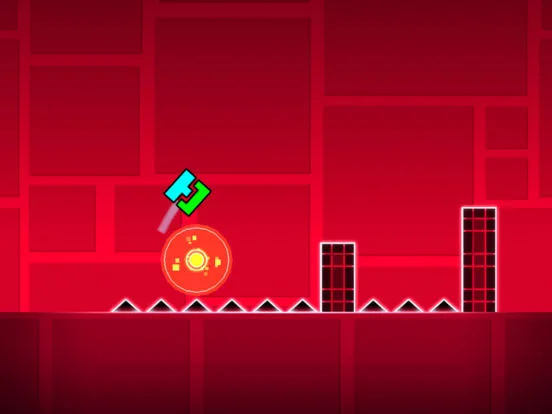
Master Geometry Dash groups & layers. Learn to organize objects, create animations, and manage complex levels for better design and functionality.
In Geometry Dash's editor, mastering groups and layers is essential for creating complex, dynamic, and well-organized levels. These tools allow creators to manage individual objects, create intricate animations, and ensure that their creations are both functional and visually appealing.
As levels become more elaborate, the sheer number of objects can become overwhelming. Groups and layers provide a structured approach to managing these elements. Groups allow you to link multiple objects together, treating them as a single unit for movement, activation, or other triggers. Layers, on the other hand, determine the visual stacking order of objects, preventing them from obscuring each other and allowing for sophisticated visual effects.
Understanding Groups:
Groups are numerical identifiers (1-2000) that you can ass to objects. Once assigned, you can use triggers to manipulate all objects within a specific group simultaneously.
- Assigning Groups: Select an object, tap 'Edit,' and then 'Group.' Choose an available group ID. You can ass multiple objects to the same group.
- Common Uses for Groups:
- Moving Platforms: Ass a group to a platform and use a 'Move' trigger to make it slide or move.
- Animated Decorations: Group decorative elements together and animate them to create dynamic visual effects.
- Interactive Objects: Group switches, buttons, or other interactive elements that trigger a specific action when activated.
- Disappearing/Appearing Objects: Group objects that need to appear or disappear simultaneously using 'Toggle' or 'Fade' triggers.
- Group IDs: Be mindful of the group IDs you use. It's good practice to keep a mental note or even a physical list of what each group ID controls, especially in large levels.
Understanding Layers:
Layers determine the visual depth of objects. Objects on higher layers appear in front of objects on lower layers.
- Layer Order: Objects are placed on layers 0 through 4 by default. Layer 0 is the background, and Layer 4 is the foreground.
- Assigning Layers: When placing an object, you can select its layer. You can also change an object's layer by selecting it, tapping 'Edit,' and then 'Layer.'
- Common Uses for Layers:
- Foreground Decorations: Place decorative elements on higher layers to make them appear in front of gameplay objects, adding depth.
- Background Elements: Use lower layers for background elements that should be behind everything else.
- Visual Effects: Create layered visual effects by placing transparent objects or particles on different layers.
- Preventing Overlap Issues: Ensure that important gameplay elements are on appropriate layers so they are always visible and interactable.
Advanced Organization Techniques:
- Sub-Groups: For very complex animations, you can use multiple groups within a larger group. For example, a complex moving platform might have one group for its base movement and another for animated decorative elements on top.
- Layered Triggers: While triggers themselves don't have layers in the same way objects do, their order of execution can be managed, and they can affect objects on different layers.
- Color Channels: Combine groups and layers with color channels to create sophisticated animated effects where colors change dynamically.
- Clear Naming Conventions (Mental): Even though there are no text labels for groups, try to develop a system for what each group ID represents.
By effectively utilizing groups and layers, creators can build incredibly intricate and organized levels, transforming complex ideas into polished, playable experiences.
100% Human-Written. AI Fact-Checked. Community Verified. Learn how AntMag verifies content