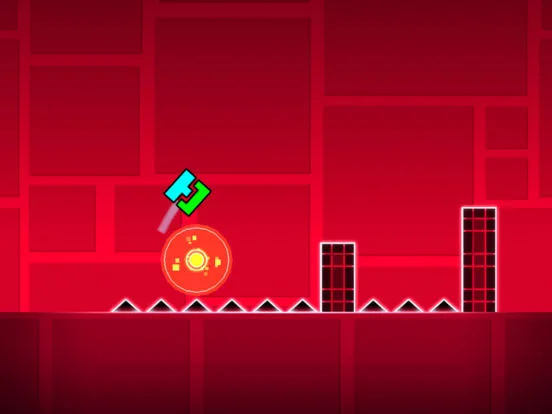
Animate your Geometry Dash levels. Learn to use Move, Alpha, Color, and Spawn triggers to create dynamic effects, moving platforms, and visual flair.
Bring your Geometry Dash levels to life with custom animations and effects. This section explores how to use triggers and objects to create dynamic visual elements that enhance gameplay and aesthetics.
Beyond basic object placement, Geometry Dash's editor offers powerful tools for creating dynamic animations and visual effects. These elements can transform a static level into an interactive spectacle, guiding players, adding atmosphere, or simply making the experience more engaging. The key to achieving these effects lies in understanding and creatively combining various triggers and objects.
Key Triggers for Animation and Effects:
- Move Trigger: The most fundamental animation tool. It allows you to move any object (or group of objects) from one position to another over a specified duration. By chaining multiple Move triggers or using them with repeating functions, you can create walking platforms, rotating obstacles, or even complex character movements.
- Rotate Trigger: Similar to the Move trigger, but it rotates objects. Essential for creating spinning saw blades, rotating gears, or any object that needs to turn.
- Scale Trigger: Allows you to change the size of objects. This can be used to make platforms grow or shrink, create pulsating effects, or even make objects appear or disappear gradually by scaling them to zero or from zero.
- Alpha Trigger: Controls the transparency (opacity) of objects. This is perfect for fading objects in and out, creating ghostly effects, or revealing hidden paths.
- Color Trigger: As mentioned previously, this trigger can dynamically change the color of objects, backgrounds, and grounds. This is crucial for creating mood shifts, highlighting gameplay elements, or creating visual sequences.
- Spawn Trigger: This trigger is often used to activate other triggers after a delay or when a specific condition is met. It's essential for sequencing animations and effects.
- Toggle Trigger: Can be used to turn objects or other triggers on or off, useful for controlling the visibility or activation of animated elements.
- Follow Trigger: Allows an object to follow the player's icon, useful for creating moving platforms that stay with You or dynamic camera effects.
Creating Specific Effects:
- Moving Platforms:
- Place a platform object.
- Ass it a unique Group ID (e.g., 1).
- Place a 'Move' trigger.
- Set the 'Target Group ID' to 1.
- Define the 'Move X' and 'Move Y' values to set the destination.
- Set the 'Duration' for how long the movement takes.
- Use a 'Spawn' trigger to activate the 'Move' trigger at the desired moment.
- Fading Objects:
- Place an object (e.g., a decoration).
- Ass it a Group ID (e.g., 2).
- Place an 'Alpha' trigger.
- Set 'Target Group ID' to 2.
- Set 'Opacity' to 0 to make it disappear, or 100 to make it fully visible.
- Adjust 'Duration' for a smooth fade.
- Dynamic Backgrounds:
- Use 'Color' triggers to change the background color over time.
- You can also use 'Move' triggers on background elements (like parallax layers) to create a sense of depth and movement.
- Interactive Elements:
- Combine 'Move' and 'Toggle' triggers to create obstacles that appear and disappear based on player actions or timed events.
- Use 'Follow' triggers on decorative elements to make them react to the player's movement.
- Organize Group IDs: Keep a clear system for assigning group IDs to objects and triggers to avoid confusion.
- Test Frequently: Use the playtest button constantly to see how your animations and effects look and function in real-time.
- Experiment with Easing: Many triggers have 'Easing' options (e.g., 'Ease In,' 'Ease Out,' 'Elastic'). These modify the speed and flow of animations, adding a professional touch.
- Layering: Combine multiple triggers (Move, Rotate, Alpha, Color) on the same object or group to create complex, multi-faceted animations.
By mastering these triggers and techniques, you can imbue your Geometry Dash levels with a level of polish and dynamism that will captivate and challenge your players.
100% Human-Written. AI Fact-Checked. Community Verified. Learn how AntMag verifies content