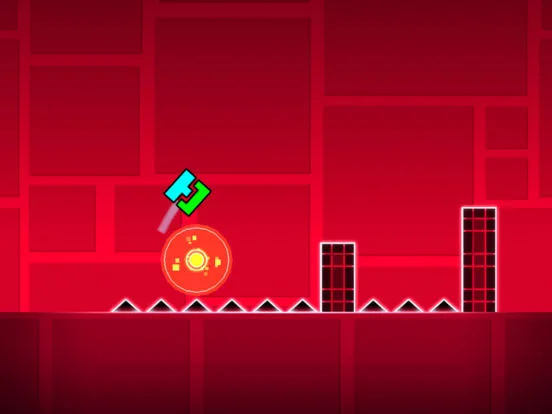
Master the Geometry Dash Editor. Learn about object placement, manipulation tools, layer system, and the essential workflow for creating levels.
Dive into the heart of Geometry Dash's creative power: the Editor. This section breaks down the user interface, explaining the tools, menus, and panels you'll use to build your own challenging levels. Master the Editor to bring your ideas to life.
The Geometry Dash Editor is where the magic happens, allowing players to craft their own levels from scratch. Upon entering the Editor, you'll be greeted by a grid-based workspace and several tools and menus. The main screen displays your level as you build it. To the right, you'll find the object panel, categorized into different tabs such as 'Blocks,' 'Decorations,' 'Hazards,' and 'Portals.' Each tab contains a vast array of elements you can place in your level.
Key Interface Elements:
- Object Panel: This is your primary source for all building elements. It's organized into tabs for easy navigation. You can select an object by clicking on it.
- Tool Palette: Located usually at the bottom or side, this palette contains tools for manipulating objects:
- Place/Select Tool: Used to place objects from the panel or select existing ones.
- Move Tool: Allows you to reposition selected objects.
- Rotate Tool: Rotates selected objects.
- Scale Tool: Resizes selected objects.
- Edit Special: For modifying object properties like color, alpha, and more.
- Layer System: Objects can be assigned to different layers, allowing for visual depth and complex interactions.
- Playtest Button: Crucial for testing your level as you build. It's usually a play icon.
- Save Button: Essential for preserving your progress.
- Undo/Redo: Standard functions for correcting mistakes.
Building Workflow:
- Select an Object: Browse the object panel and click on the desired block, decoration, or portal.
- Place the Object: Click on the grid in your level to place the selected object.
- Manipulate the Object: Use the tools to move, rotate, scale, or edit the object's properties.
- Test Frequently: Use the playtest button to see how your level plays and identify any issues.
- Save Regularly: Don't lose your hard work!
Understanding the grid system is fundamental. Each square on the grid represents a unit, and objects snap to this grid by default, making precise placement easier. You can also adjust the grid snap settings for finer control. The 'Edit Special' tool is particularly powerful, allowing you to ass unique IDs to objects and control their behavior with triggers.
100% Human-Written. AI Fact-Checked. Community Verified. Learn how AntMag verifies content