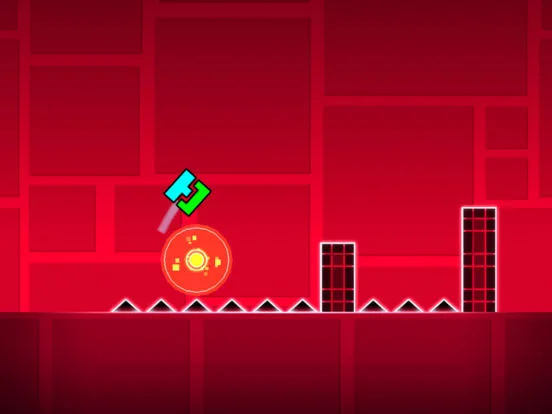
Refine your Geometry Dash skills using Practice Mode strategies. Learn to master difficult sections and time jumps without the pressure of a full attempt.
Practice Mode in Geometry Dash is an invaluable tool for mastering even the most challenging levels. It allows you to break down complex sections, identify problematic timings, and build muscle memory without the pressure of a full run. Utilizing it effectively is key to progressing from a struggling player to a confident victor.
Activating and Deactivating Practice Mode
To enter Practice Mode, simply click the green flag icon located in the top-right corner of the screen while playing any level. You'll notice a green bar appear at the top, indicating you are in Practice Mode. To exit, click the green flag icon again. Your progress in Practice Mode is separate from your normal mode attempts, meaning you won't lose any progress on your main run by practicing.
Strategic Checkpoint Placement
The core of Practice Mode lies in its checkpoint system. When you die, you'll respawn at your last placed checkpoint. If no checkpoint has been placed, you'll respawn at the beginning of the level or the last automatically generated checkpoint (usually at the start of a new section).
- Targeted Practice: Don't just spam checkpoints. Identify specific obstacles or sequences that consistently cause you trouble. Place a checkpoint just before this difficult section.
- Micro-Practice: For extremely tight timings or complex maneuvers, place checkpoints very close together, even within a single jump or orb sequence. This allows for rapid, repeated attempts at the exact moment of difficulty.
- Section Isolation: If a particular part of a level, like a wave section or a ship corridor, is proving difficult, place a checkpoint at its entrance and another at its exit. This allows you to practice that entire section in isolation.
- Progressive Checkpoints: As you master a section, move your checkpoint further along. For example, if you've mastered the first 10% of a level, place a checkpoint at 9% and practice from there, gradually extending your practice runs.
Utilizing the "Save & Load" Feature (Full Version)
For players with the full version of Geometry Dash, the "Save & Load" feature within Practice Mode is a game-changer. This allows you to save your exact position and progress within a level, including any placed checkpoints, and return to it later.
- Saving Progress: While in Practice Mode, pause the game and select the "Save" option. This will create a save point at your current location. You can have multiple save points per level.
- Loading Progress: To return to a saved point, pause the game and select "Load." You'll be presented with a list of your saved positions. This is incredibly useful for taking breaks or switching between different levels without losing your practice progress.
- Targeting Specific Sections: Use "Save & Load" to bookmark particularly nasty sections. If you're struggling with a specific 20% segment of a demon level, save your progress just before it. You can then quickly load that save point whenever you want to practice that segment, without having to navigate the earlier parts of the level.
The "Start Pos" Object
The "Start Pos" object, found in the editor, can be used in conjunction with Practice Mode for even more precise training. While not strictly a Practice Mode feature, it complements it perfectly.
- Editor Placement: Open the level in the editor, navigate to the desired starting point, and place a "Start Pos" object (found in the "Build" tab, usually under the first set of basic blocks).
- Instant Start: When you test the level from the editor, you will immediately begin at the "Start Pos" object. This is ideal for practicing a section repeatedly without having to play through the preceding parts or manually place checkpoints.
- Combining with Practice Mode: You can activate Practice Mode while starting from a "Start Pos" in the editor. This gives you the best of both worlds: an instant start at a specific point, coupled with the ability to place checkpoints for micro-practice within that section.
General Practice Mode Tips
- Don't Rush: The goal of Practice Mode is mastery, not speed. Take your time to understand the timings and movements required.
- Listen to the Music: Geometry Dash is a rhythm game. Pay close attention to the music and synchronize your actions with the beat. Practice Mode allows you to focus on this without the pressure of a full run.
- Break Down Complexities: If a section has multiple elements (e.g., a jump, then an orb, then a portal), practice each element individually before trying to string them together.
- Visualize the Path: Before attempting a difficult section, mentally trace your icon's path and anticipate upcoming obstacles.
- Consistency Over Luck: Aim for consistent execution. If you're only getting through a section by luck, you haven't truly mastered it.
100% Human-Written. AI Fact-Checked. Community Verified. Learn how AntMag verifies content