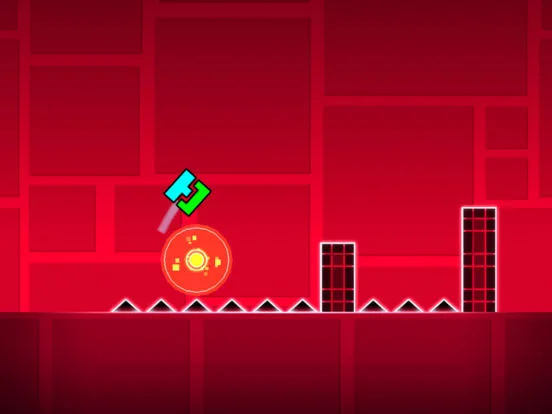
Geometry Dash Level Settings guide: Learn to set difficulty, choose music, select default game mode, and more for your created levels.
The Level Settings menu in Geometry Dash is where creators define the fundamental characteristics of their levels, including difficulty, music selection, and the primary game mode. Mastering these settings is crucial for shaping You experience and ensuring your level is properly categorized.
When you create a new level or edit an existing one, you'll access the Level Settings. This menu is your control panel for establishing the core identity of your creation. It's important to set these correctly to accurately represent the challenge and style of your level.
Difficulty:
This is arguably the most important setting. The difficulty you ass (Easy, Normal, Hard, Harder, Insane, Demon) influences how the level is perceived by other players and how it appears in search results. While the game provides a general guideline, the actual difficulty is ultimately determined by the level's des and complexity. For user-created levels, a certain number of Stars are required before you can ass a difficulty rating, and the level must be verified by another player beating it.
Music:
You can select a song from the game's extensive soundtrack to accompany your level. The music choice significantly impacts the mood and rhythm of the gameplay. Many creators synchronize their level's obstacles and visual elements with the beat and tempo of the chosen song. You can also adjust the music volume and choose whether the music loops or plays once.
Game Mode:
While individual game mode portals can change the player's icon mid-level, the 'Game Mode' setting in Level Settings determines the default game mode that You starts with. This is usually the Cube mode, but you can set it to Ship, Ball, UFO, Wave, Robot, Spider, or Swing/Grapple if your level is designed primarily around that mode.
Other Important Settings:
- Level Name: Give your level a descriptive and engaging name.
- Description: Add a brief description to provide context or instructions for players.
- Object Limit: Be aware of the object limit for your level. Exceeding it can lead to performance issues and prevent rating.
- Coins: You can choose whether to include Secret Coins in your level. For official levels, these are pre-determined. For user-created levels, you place them yourself.
How to Access and Modify Level Settings:
- Enter the Editor for your level.
- Tap the 'Edit' button (often a gear or wrench icon) typically located in the top-right corner of the editor screen.
- This will open the Level Settings menu.
- Make your desired changes to Difficulty, Music, Game Mode, Name, Description, etc.
- Tap 'Save' or 'Done' to apply your changes.
- Accurate Difficulty: Be honest with your difficulty rating. Assigning an Easy Demon when the level is actually Insane can frustrate players.
- Music Sync: Choose music that complements your level's des. Syncing gameplay to the beat is a hallmark of well-designed levels.
- Default Game Mode: Set the default game mode to match the primary mode of your level for a cohesive start.
- Clear Names and Descriptions: Make your level's title and description informative and appealing.
By carefully configuring your Level Settings, you ensure that your creation is presented to players in the most appropriate and engaging way possible, setting the stage for a successful and enjoyable gameplay experience.
100% Human-Written. AI Fact-Checked. Community Verified. Learn how AntMag verifies content