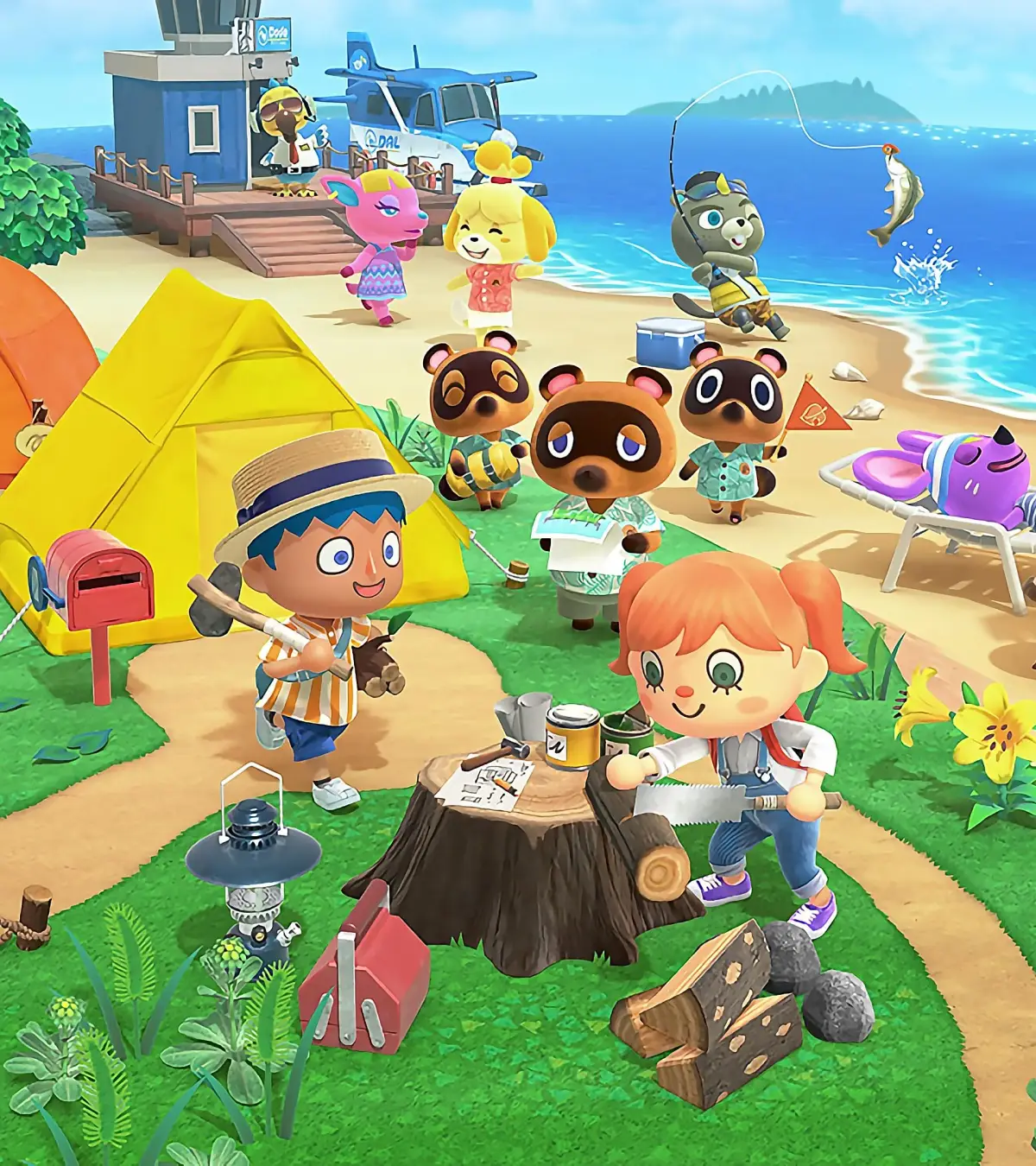
Learn how to use the Island Designer app in Animal Crossing: New Horizons! Get started with paths and unlock tools for terraforming your dream island.
Hey there! So you're ready to start shaping your island and making it truly your own? That's awesome! The Island Designer app is your key to doing just that, and it all starts with paths. Let's get you set up!
When you first get access to the Island Designer app, you'll only have the basic tools: a dirt path to lay down and a grass path that acts as an eraser. Think of it as your starting kit. To get your hands on the really cool stuff, like the cliff-construction and waterscaping tools, and even more path designs, you'll need to save up some Nook Miles. It's definitely worth the grind!
Here's a quick look at what you can get and how many Nook Miles they cost:
| Function | Cost (Nook Miles) |
| Waterscaping Permit | 6,000 |
| Cliff Construction Permit | 6,000 |
| Arched Tile Path | 2,000 |
| Brick Path | 2,000 |
| Dark Dirt Path | 2,000 |
| Terra-cotta Tile | 2,000 |
| Wooden Path | 2,000 |
| Stone Path | 2,000 |
| Sand Path | 2,000 |
| Custom Design Path | 2,300 |
Now, let's get to placing those first paths. To start, you'll need to open up the Island Designer app on your NookPhone. After a quick intro, you'll select the option to begin island construction. Just a heads-up, you'll have to wear a cute little construction hat while the app is open – it's part of the fun!
Ready to lay some path? Press the + button to bring up your tools, then select the dirt path design. When you press A, you'll place a path block right in front of your character. Here's a neat trick: if you press A on a spot that's at the end of an existing path, it'll automatically curve the edge to make a nice, smooth corner. Super handy!
However, if you press A on a path block that's in the middle of a longer path, it'll just delete that single block. If you want to remove a curved path edge, just press A on it again, and poof! It's gone.
Remember, when you first place a path, the edges will look straight. But with a little finesse, you can curve those paths to create softer, more natural-looking corners. It really makes a difference in how your island feels!
For the more advanced stuff, like building cliffs and creating waterways, you'll want to check out the dedicated Terraforming section of the guide. It goes into way more detail on those tools!
100% Human-Written. AI Fact-Checked. Community Verified. Learn how AntMag verifies content