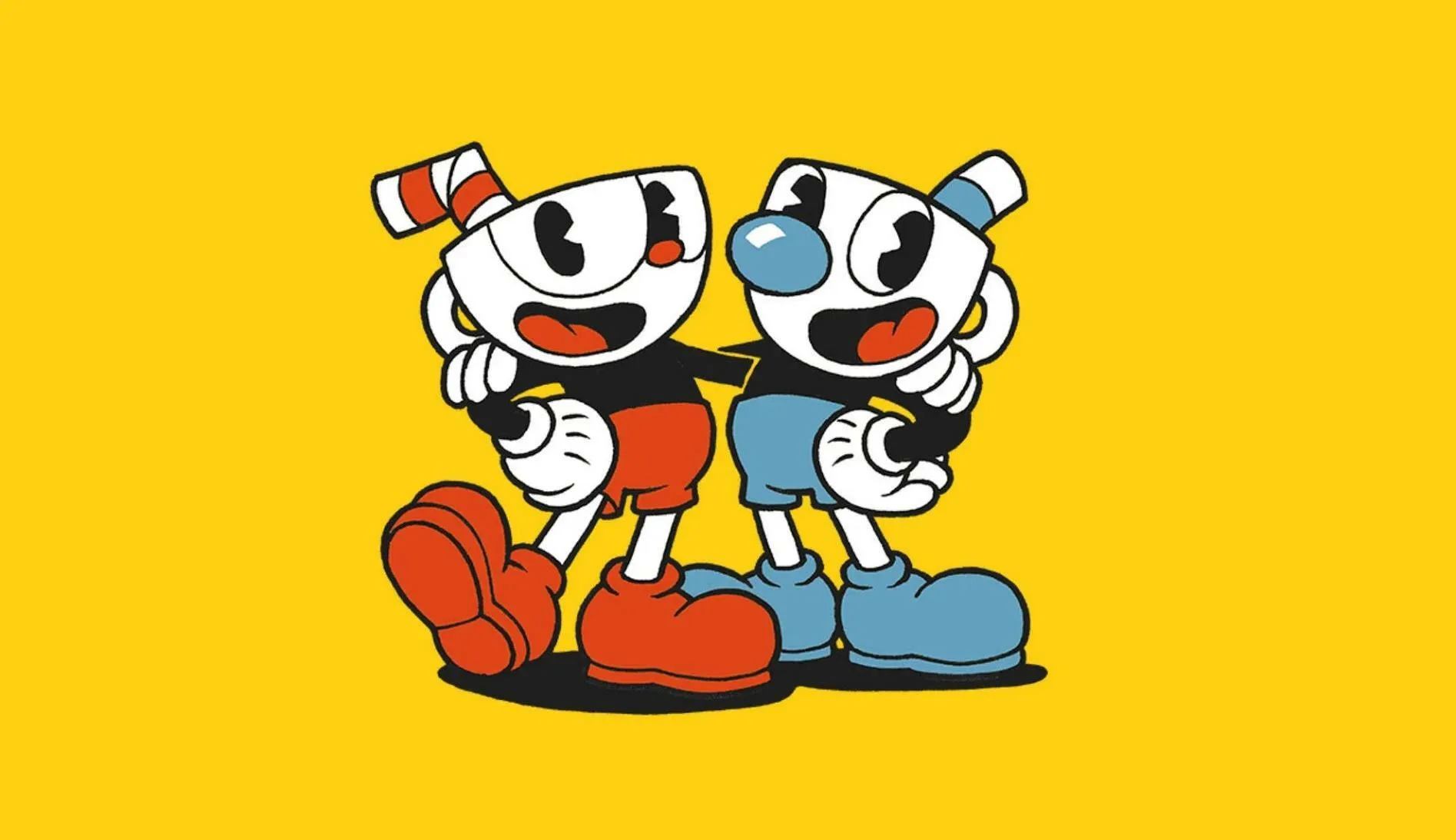
Welcome to Cuphead, a challenging 2D run-and-gun platformer known for its tough boss fights and stunning 1930s cartoon aesthetic. You'll play as Cuphead, navigating the treacherous Inkwell Isles, taking on a variety of formidable foes like The Root Pack and King Dice, and collecting coins to pay off your debt to the Devil. It's a demanding but rewarding experience that tests your reflexes and pattern recognition.
This guide is your essential companion for conquering Cuphead. We'll provide a complete walkthrough from start to finish, offering detailed strategies for every boss encounter, including those in the DLC's The Delicious Last Course. You'll also find the locations of all Gold Coins in the game's difficult run-and-gun levels, helping you achieve 100% completion and unlock all Steam Achievements.
Technical & Performance
Optimize Cuphead's performance. Troubleshoot frame rate, input lag, crashes, and audio issues for a smoother gameplay experience.
Technical & Performance
Optimize Cuphead's performance. Troubleshoot frame rate, input lag, crashes, and audio issues for a smoother gameplay experience.

PC System Requirements — Cuphead Guide
Check Cuphead PC system requirements. Minimum and recommended specs for smooth gameplay. Troubleshoot performance issues for optimal experience.
Ensuring your PC meets the minimum or recommended system requirements is crucial for a smooth and enjoyable Cuphead experience. Running the game on hardware that doesn't meet these specifications can lead to performance issues such as low frame rates, stuttering, and crashes, detracting from the game's fluid animation and challenging gameplay.
Cuphead PC System Requirements
Cuphead is known for its distinctive hand-drawn animation style, which, while visually stunning, can be demanding on older or lower-spec hardware. The developers, Studio MDHR, have provided clear guidelines for what your PC needs to run the game effectively. these are general recommendations, and actual performance can vary based on other background applications and specific hardware configurations.
Minimum System Requirements
These are the baseline specifications needed to run Cuphead. Meeting these will allow the game to function, but you may need to adjust graphical settings for optimal performance.
| Component | Minimum Requirement |
|---|---|
| OS | Windows 7, 8, 10 |
| Processor | Intel Core2 Duo E8400, 3.0GHz / AMD Athlon 64 X2 6000+, 3.15GHz |
| Memory | 2 GB RAM |
| Graphics | NVIDIA GeForce 9600 GT / AMD Radeon HD 3450 |
| DirectX | Version 9.0c |
| Storage | 20 GB available space |
| Sound Card | DirectX Compatible |
Recommended System Requirements
For a smoother and more visually appealing experience, it's recommended to meet these specifications. This will allow you to run the game at higher settings and maintain a consistent frame rate.
| Component | Recommended Requirement |
|---|---|
| OS | Windows 7, 8, 10 |
| Processor | Intel Core i3, 3.0GHz / AMD Phenom II X4, 3.0GHz |
| Memory | 4 GB RAM |
| Graphics | NVIDIA GeForce GT 430 / AMD Radeon HD 5570 |
| DirectX | Version 9.0c |
| Storage | 20 GB available space |
| Sound Card | DirectX Compatible |
Troubleshooting Performance Issues
If you are experiencing performance problems even after meeting the requirements:
- Update Graphics Drivers: Ensure your graphics card drivers are up to date.
- Close Background Applications: Shut down any unnecessary programs running in the background that might be consuming system resources.
- Adjust In-Game Settings: Lowering graphical settings like resolution, anti-aliasing, or V-Sync can improve performance.
- Check DirectX: Ensure you have the latest version of DirectX installed.
Meeting these system requirements will ensure that Cuphead's beautiful hand-drawn art style and challenging gameplay run as intended, providing the best possible experience.
Console Performance & Optimizations
Optimize Cuphead console performance. Learn display settings, TV Game Mode, and console-specific tips for smoother gameplay and reduced input lag.
Cuphead's distinctive art style and challenging gameplay can sometimes be impacted by console performance. Understanding how to optimize your settings and leverage console features can ensure a smoother and more responsive experience, crucial for a game that demands precise timing.
Understanding Console Performance
Consoles like the PlayStation and Xbox aim to provide a consistent gaming experience. However, the demanding visuals and fast-paced action of Cuphead can sometimes push hardware limits, leading to occasional frame rate drops or input lag. This is particularly noticeable during complex boss fights with numerous projectiles on screen.
Display Settings Optimization
Resolution: Ensure your console is set to output at the highest resolution your TV supports (e.g., 1080p or 4K). While Cuphead's art style is 2D, a higher resolution can sometimes lead to a sharper image. However, on older consoles, running at a lower resolution might slightly improve performance if frame drops are severe.
Refresh Rate (Hz): If your TV supports multiple refresh rates (e.g., 60Hz or 120Hz), ensure your console is set to match the highest stable refresh rate your TV can handle. A higher refresh rate generally leads to smoother motion. For Cuphead, aiming for a stable 60 FPS is ideal.
Game Mode: Many modern TVs have a 'Game Mode' that reduces input lag by disabling post-processing effects. Ensure this is enabled on your television for the most responsive controls.
Console-Specific Settings
PlayStation:
- Performance Mode vs. Resolution Mode: Some PS4 Pro and PS5 games offer performance modes that prioritize frame rate over graphical fidelity. Check Cuphead's in-game options or console settings for any such toggles.
- Rest Mode: While convenient, ensure your console fully shuts down or restarts periodically to clear temporary files that might impact performance.
Xbox:
- Xbox One X/Series X|S: These consoles often have enhanced performance options for games. Check the game's details in your library for any specific performance boosts or settings.
- Quick Resume: While useful, ensure that if you experience performance issues, you fully close and relaunch the game rather than relying solely on Quick Resume.
In-Game Settings
Cuphead itself has limited graphical settings. However, ensure that any visual options within the game are set to prioritize performance if available. The game is generally well-optimized, but these external settings can make a difference.
Troubleshooting Performance Issues
- Restart the Game: A simple restart can often resolve temporary performance glitches.
- Clear Cache: On some consoles, clearing the system cache can help resolve performance issues.
- Check for Updates: Ensure both your console's firmware and Cuphead itself are up to date, as patches often include performance improvements.
By optimizing your console and display settings, you can ensure that Cuphead runs as smoothly as possible, allowing you to fully appreciate its stunning visuals and demanding gameplay.
Graphics Settings & Customization
Customize Cuphead's visuals. Adjust resolution, film grain, color filters, and unlock the secret black & white mode for a unique aesthetic.
Cuphead's stunning hand-drawn animation and authentic 1930s cartoon aesthetic are central to its appeal. While the game is visually impressive out of the box, You can further customize their graphical experience through various settings. the available graphics options and how to adjust them for optimal visual fidelity and performance.
Cuphead offers several graphical settings that allow players to tailor the visual presentation to their preferences and hardware capabilities. These options are typically found within the game's 'Video' or 'Display' settings menu. Key settings include resolution, which should ideally be set to your monitor's native resolution for the sharpest image. Aspect ratio can also be adjusted, though most players will want to maintain the game's intended aspect ratio to avoid distortion.
Beyond basic display settings, Cuphead provides options that enhance its unique artistic style. The 'Film Grain' option adds a subtle layer of texture, mimicking the look of old film stock and further immersing You in the 1930s cartoon theme. A 'Color Filter' option allows players to alter the game's color palette, offering choices like sepia tones or desaturated visuals, which can provide a different aesthetic experience. For players sensitive to visual artifacts, V-Sync can be toggled on or off to synchronize the game's frame rate with the monitor's refresh rate, potentially reducing screen tearing at the cost of slight input lag. The game also features an unlockable 'Secret Mode' that presents the entire game in black and white, truly capturing the essence of early animation.
Key Graphics Settings:
- Resolution: Set to your monitor's native resolution.
- Aspect Ratio: Maintain the intended aspect ratio for proper display.
- Film Grain: Toggle on/off to enhance the retro aesthetic.
- Color Filter: Experiment with different color palettes (e.g., Sepia).
- V-Sync: Adjust to manage screen tearing and input lag.
- Secret Mode: Unlockable black and white visual filter.
By adjusting these graphics settings, You can fine-tune Cuphead's visual presentation to achieve the perfect balance of aesthetic fidelity and smooth gameplay performance.
Similar guides you might like




100% Human-Written. AI Fact-Checked. Community Verified. Learn how AntMag verifies content