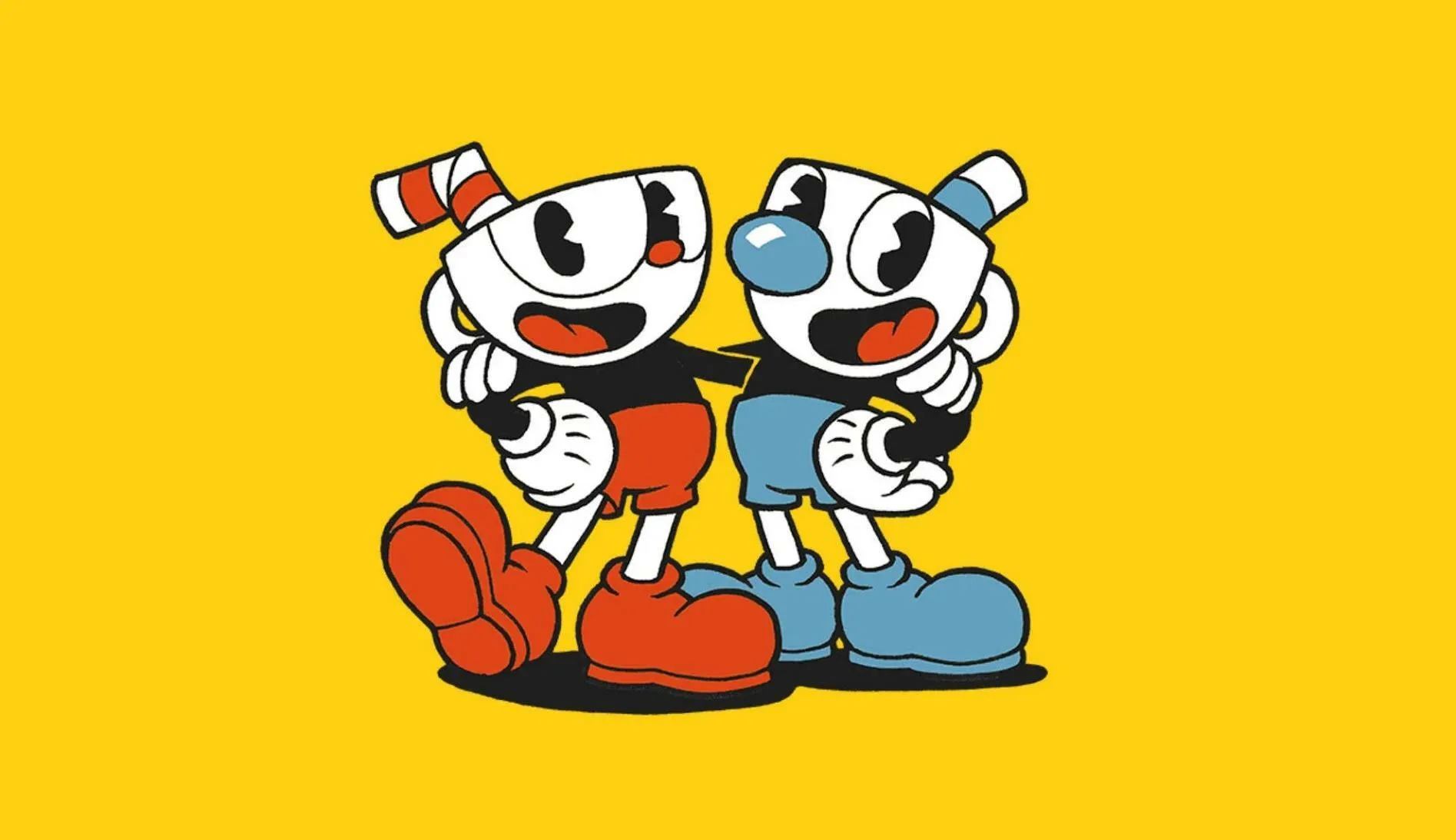
Minimize input lag in Cuphead by optimizing your system. Learn how controller connections and closing background apps directly impact Parry Slap timing.
Experiencing input lag or latency in Cuphead can turn a challenging boss fight into an insurmountable obstacle. This guide focuses on practical steps to minimize these issues, ensuring your button presses translate accurately to Cuphead's actions. The core of minimizing input lag lies in optimizing your system's performance and ensuring a direct connection between your controller and the game. For PC players, this often means disabling unnecessary background applications that consume CPU resources. Programs like Discord overlays, streaming software, or even excessive browser tabs can introduce delays. Prioritize closing these before launching Cuphead. Furthermore, ensure your graphics drivers are up-to-date, as outdated drivers can sometimes cause performance bottlenecks that manifest as input lag.
Controller choice and connection method are paramount. If using a wireless controller, consider switching to a wired connection. Wireless signals can be susceptible to interference, leading to dropped inputs or delayed responses. For PC, ensure your controller is connected directly to a USB 2.0 or 3.0 port, avoiding unpowered USB hubs. Some players report that certain USB ports are more responsive than others; experimentation may be necessary. For console players on PS4, Xbox One, or Nintendo Switch, ensure your controller is fully charged or connected via USB if possible. The game's built-in mechanics, such as the Parry Slap, require precise timing, and any delay can lead to missed parries and subsequent damage. Similarly, executing quick dodges or precise jumps is crucial for avoiding attacks from bosses like The Root Pack. If you're playing on PC and have a gaming mouse, ensure its polling rate is set to a high frequency (e.g., 1000Hz) to ensure rapid input registration. While Cuphead is not a twitch shooter, the responsiveness of your inputs directly impacts your ability to react to the game's demanding patterns.
Another factor to consider is the game's internal settings. While Cuphead doesn't offer extensive graphics options, ensure that any display settings are optimized for performance rather than visual fidelity. The game's art style is iconic, but if you're struggling with responsiveness, consider if any minor visual compromises can be made. For instance, if playing on a PC with a high-refresh-rate monitor, ensure the game is actually running at that refresh rate. Sometimes, games default to lower refresh rates, which can create a perceived lag even if the system is performing well. The goal is to create a seamless link between your intention and Cuphead's execution, whether it's collecting coins or performing a perfectly timed EX Attack.
100% Human-Written. AI Fact-Checked. Community Verified. Learn how AntMag verifies content