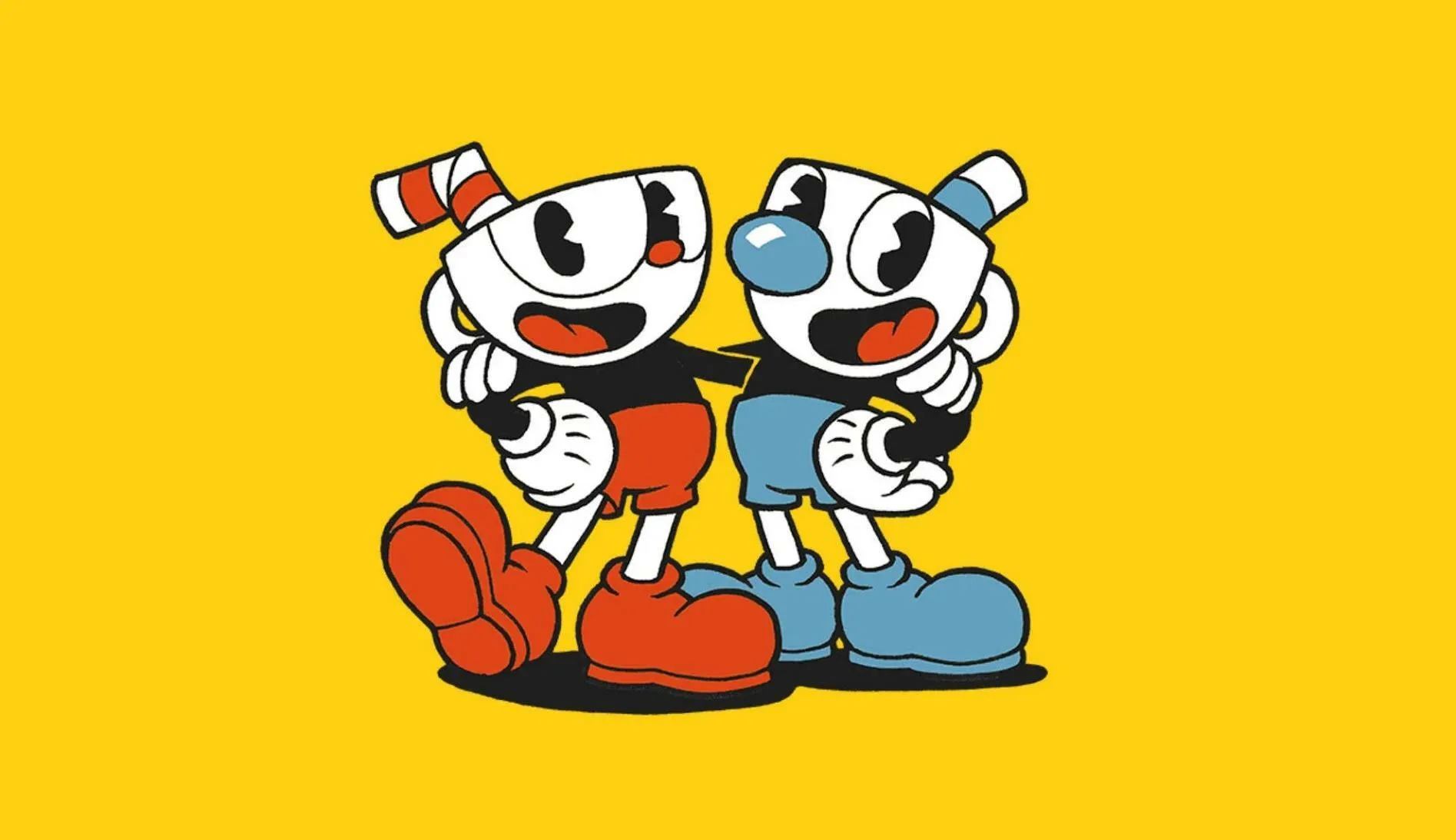
Customize Cuphead's visuals. Adjust resolution, film grain, color filters, and unlock the secret black & white mode for a unique aesthetic.
Cuphead's stunning hand-drawn animation and authentic 1930s cartoon aesthetic are central to its appeal. While the game is visually impressive out of the box, You can further customize their graphical experience through various settings. the available graphics options and how to adjust them for optimal visual fidelity and performance.
Cuphead offers several graphical settings that allow players to tailor the visual presentation to their preferences and hardware capabilities. These options are typically found within the game's 'Video' or 'Display' settings menu. Key settings include resolution, which should ideally be set to your monitor's native resolution for the sharpest image. Aspect ratio can also be adjusted, though most players will want to maintain the game's intended aspect ratio to avoid distortion.
Beyond basic display settings, Cuphead provides options that enhance its unique artistic style. The 'Film Grain' option adds a subtle layer of texture, mimicking the look of old film stock and further immersing You in the 1930s cartoon theme. A 'Color Filter' option allows players to alter the game's color palette, offering choices like sepia tones or desaturated visuals, which can provide a different aesthetic experience. For players sensitive to visual artifacts, V-Sync can be toggled on or off to synchronize the game's frame rate with the monitor's refresh rate, potentially reducing screen tearing at the cost of slight input lag. The game also features an unlockable 'Secret Mode' that presents the entire game in black and white, truly capturing the essence of early animation.
Key Graphics Settings:
- Resolution: Set to your monitor's native resolution.
- Aspect Ratio: Maintain the intended aspect ratio for proper display.
- Film Grain: Toggle on/off to enhance the retro aesthetic.
- Color Filter: Experiment with different color palettes (e.g., Sepia).
- V-Sync: Adjust to manage screen tearing and input lag.
- Secret Mode: Unlockable black and white visual filter.
By adjusting these graphics settings, You can fine-tune Cuphead's visual presentation to achieve the perfect balance of aesthetic fidelity and smooth gameplay performance.
100% Human-Written. AI Fact-Checked. Community Verified. Learn how AntMag verifies content