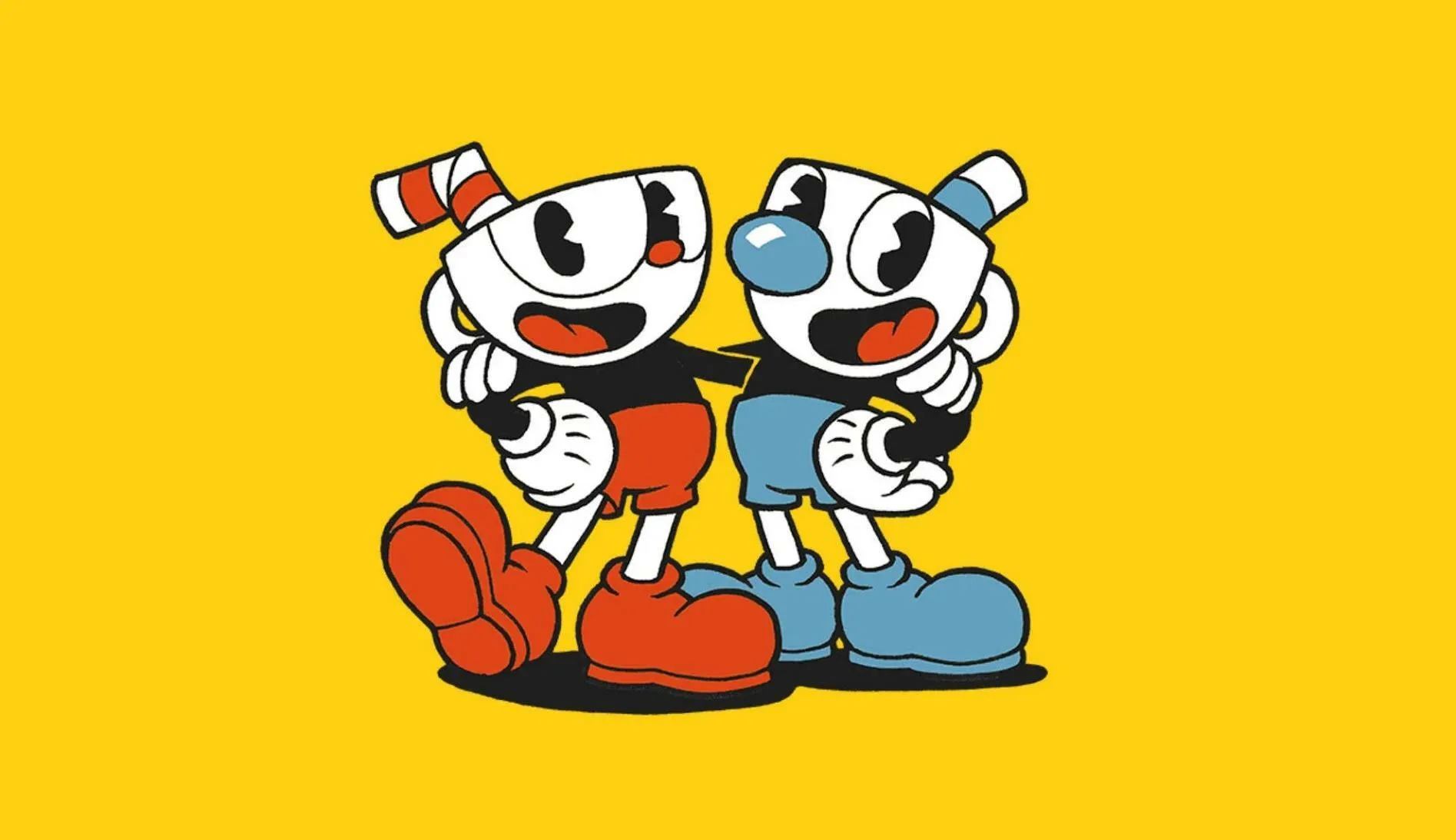
Troubleshoot Cuphead. Fix performance issues, controller lag, audio problems, crashes, and online connectivity with these solutions.
Even the most polished games can encounter occasional hiccups. Cuphead, while generally stable, might present some common issues for players. This guide aims to provide practical solutions to frequently encountered problems, ensuring your gaming experience remains as smooth and enjoyable as possible. From performance dips to control quirks, we've got you covered.
Many issues players face can be resolved with simple troubleshooting steps. Whether you're experiencing graphical glitches, audio problems, or connectivity issues, understanding the common pitfalls and their remedies can save you time and frustration. This section will help you get back to battling bosses and enjoying the stunning art style of Cuphead.
Performance Issues (Low FPS, Stuttering)
Issue: The game runs slowly, stutters, or has a low frame rate, especially during intense boss fights.
Solutions:
- Lower Graphics Settings: Reduce resolution, texture quality, anti-aliasing, and other graphical options in the game's settings menu.
- Close Background Applications: Ensure no unnecessary programs are running in the background that might be consuming system resources.
- Update Graphics Drivers: Outdated graphics drivers are a common cause of performance problems. Visit your graphics card manufacturer's website (NVIDIA, AMD, Intel) and download the latest drivers.
- Check System Requirements: Ensure your PC meets or exceeds the minimum system requirements for Cuphead.
- Verify Game Files (Steam): If using Steam, right-click Cuphead in your library, go to Properties > Local Files > Verify integrity of game files.
Controller/Input Lag
Issue: Your controller inputs feel delayed, making precise movements and parries difficult.
Solutions:
- Use Wired Connection: If using a wireless controller, try connecting it via USB.
- Disable Steam Input: For some controllers, Steam Input can cause conflicts. Try disabling it in Steam's Controller settings.
- Adjust Deadzone: Some controllers have adjustable deadzones in their software or in-game settings.
- Check for Interference: Ensure no other wireless devices are interfering with your controller signal.
- Update Controller Firmware: If applicable, check for firmware updates for your specific controller model.
Audio Problems (Missing Sound, Crackling)
Issue: Sound effects are missing, distorted, or crackling.
Solutions:
- Check Audio Output Device: Ensure your PC is set to output audio to the correct device (speakers, headphones).
- Update Audio Drivers: Similar to graphics drivers, outdated audio drivers can cause issues.
- Adjust Volume Mixer: Make sure Cuphead is not muted or set too low in your system's volume mixer.
- Restart the Game/PC: A simple restart can often resolve temporary audio glitches.
Game Crashes
Issue: The game unexpectedly closes or freezes.
Solutions:
- Update Graphics and Audio Drivers: As mentioned, this is crucial for stability.
- Run as Administrator: Right-click the Cuphead executable and select "Run as administrator."
- Disable Overlays: Overlays from platforms like Discord, Steam, or NVIDIA GeForce Experience can sometimes cause crashes. Try disabling them.
- Check for Windows Updates: Ensure your operating system is up to date.
Multiplayer/Online Issues (if applicable)
Issue: Problems connecting to friends or experiencing lag in co-op.
Solutions:
- Check Internet Connection: Ensure you have a stable and strong internet connection.
- Port Forwarding: Some games require specific ports to be opened on your router. Consult your router's manual or ISP for assistance.
- Firewall Settings: Ensure your firewall is not blocking Cuphead's network traffic.
- Restart Router/Modem: A simple power cycle of your network equipment can resolve connectivity issues.
If you continue to experience persistent issues, consider reaching out to the game's official support channels or community forums for further assistance.
100% Human-Written. AI Fact-Checked. Community Verified. Learn how AntMag verifies content