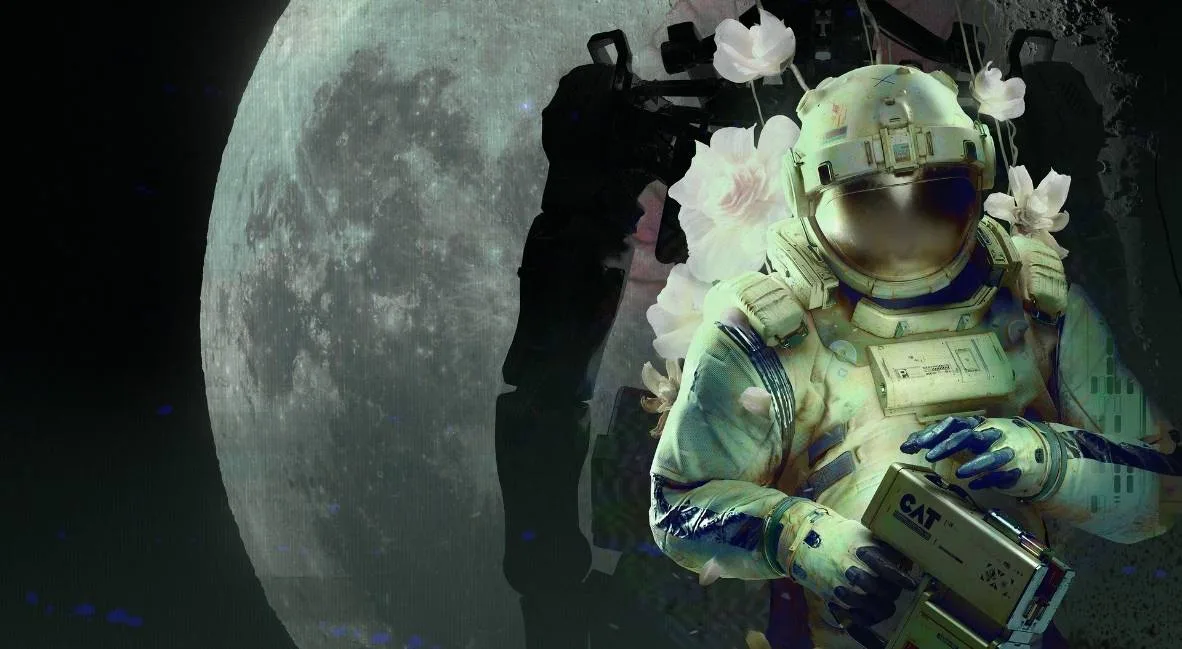
Follow this comprehensive walkthrough for Routine's 'Crash Site and First Steps' section, guiding you through printing your ID, using the C.A.T. tool, and navigating early game areas.
Walkthrough
- 1After the intro cutscene, approach your helmet on the wall and press E/M1.
- 2Look at the computer screen to the right. Click the FORM tab and complete the tutorial.
- 3Press the PRINT tab and PRINT ID. Grab the ID from the left side of the computer.
- 4Crouch (CTRL + Space + S) to pick up the fallen ID.
- 5Go to the computer beside the door and press OPEN DOOR. Leave your room and walk left towards the light.
- 6Approach the elevator door and use the computer. Instead, go into the room to the right (meeting room A01) and then the second door on your right.
- 7In the meeting room, go to the second table on the left and collect your C.A.T. tool.
- 8Go to the right side of the meeting room and use the computer to open another door. Find batteries (blue-colored) inside, potentially in the recycling center by crouching.
- 9Press R to view your C.A.T. tool's charge. Batteries have three uses.
- 10Connect your C.A.T. tool to the projection on the meeting room wall by pressing R, then the Wireless Access Point button.
- 11Go to the DATABASE page to find the elevator keycode (e.g., 4832 - this code is random per player).
- 12Go to the elevator door and enter the keycode. Press OPEN DOOR, then GATEWAY on the computer to proceed.
- 13Exit the elevator and walk left to the ASN terminal. Listen to the voice recording and view the screen for an access code.
- 14Return to the elevator and look right at the Tram Station. Follow cables from the gate to the box on the wall above the note. Aim with M2 and fire with M1 to open the gate.
- 15Walk through the opened gate to the Tram Station. Get on the tram and use the computer screen to select a location; choose the Mall.
- 16At the Mall, go to the front desk and press the IC assistance button. Follow the droid to the computer. Log in with your ID number (e.g., 9601 - this ID is unique to each player).
- 17Select Business or Pleasure as your purpose. An error will occur.
- 18Press the IC assistance button again and follow the IC bot to a different entrance. Climb down the ladder.
- 19At the bottom of the ladder, walk straight to the Wireless Access Point. To the right, find an electrical box connected to a hatch. Aim with M2 and fire with M1 to open the hatch. Press CTRL to climb through.
- 20Inside, a gate closes. Crouch and look under the Checkout desk for a red button. Press it, then hide behind the desk as a bot breaks the gate.
- 21Once the gate is open and the bot is clear, run left, then right towards Galaxy Video.
- 22Walk down the hall to the right of Galaxy Video to the security room. Read the note; the meeting is moved to MEGAZONE.
- 23Go back to the plant area before the video store, through Union Plaza, straight towards the panel of screens, then take a left.
- 24Go down the hall, take a right, and go around the center planter. Crouch (CTRL) to get under the shutters into MEGAZONE.
Tips
- Hostile bots roam the Mall area after the hatch sequence; you cannot fight them. Avoid them by running (SHIFT) or hiding behind obstacles.
- To get the 'Gunshow' achievement, find a powered-on arcade machine in MEGAZONE (back row with the Gunshow image) and interact with it. Follow the on-screen prompts to play the game.
- Remember that the elevator keycode and your ID number are randomized for each player. Always check the Database or your suit for the correct codes.
- Your C.A.T. tool has three uses per battery. Keep an eye on its charge by pressing R.
100% Human-Written. AI Fact-Checked. Community Verified. Learn how AntMag verifies content