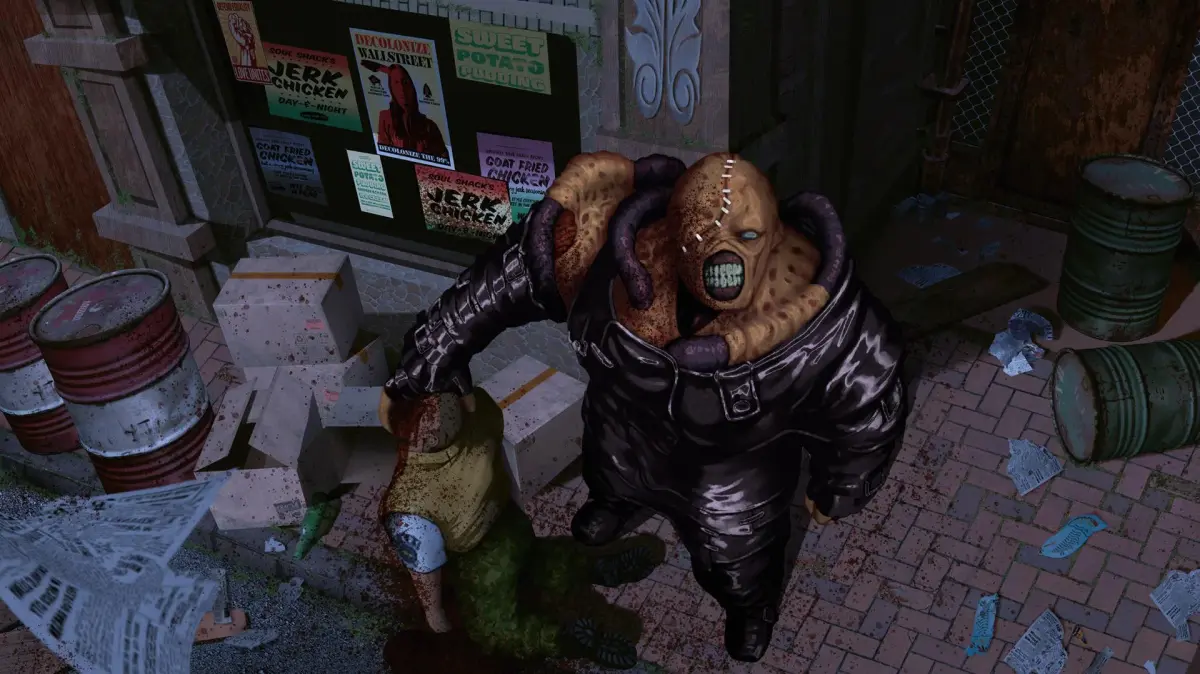
Resident Evil 3: Nemesis throws you into the zombie-infested streets of Raccoon City as Jill Valentine. This survival horror classic, known for its fixed camera angles and tank controls, tasks you with navigating treacherous environments, managing limited resources, and outsmarting relentless pursuers, most notably the terrifying Nemesis.
This guide is here to help you conquer every aspect of Jill's desperate escape. We'll cover detailed walkthroughs to get you through the game's challenges, strategies for defeating tough bosses like the Nemesis itself, and tips for uncovering all the secrets and collectibles scattered throughout the city. Whether you're aiming for a specific ending or just trying to survive, we've got you covered.
Part 1
Comprehensive guide for Resident Evil 3: Nemesis (PlayStation NA). Covers controls, weapons, enemies, survival tips, story, and a detailed walkthrough of all chapters.
Welcome to the Resident Evil 3: Nemesis guide, also known as Biohazard 3: Last Escape in Japan. This guide covers the original North American PlayStation release of RE3, with information generally applicable to Dreamcast, GameCube, and PC versions. Use your browser's 'Find' function with the Table of Contents (e.g., CTRL+F then paste [1.0]) to navigate easily.
This guide is exclusively permitted on gamefaqs.gamespot.com. Resident Evil / Biohazard is owned by Capcom.
Part 2
Learn the classic tank controls, button mappings, and advanced maneuvers for Resident Evil 3: Nemesis to survive the zombie-infested Raccoon City.
Reviewing the basic controls before diving into any new game is a good idea, especially when you're talking about the survival horror genre. It's worth mentioning that RE3 uses the classic "tank controls" setup established in the original game. In other words, movement is relative to the direction that your character is facing, as opposed to a more modern camera-relative movement system. Additionally, the left/right directional buttons pivot your character in place instead of strafing side-to-side.
Tank controls can be very awkward for players not used to this admittedly dated control scheme, so patience is recommended when starting out on a fresh playthrough. "They take some getting used to" would be a massive understatement; for anyone who didn't grow up with games like this (or perhaps even those of us who did), tank controls can be straight-up obnoxious, and they are a huge roadblock preventing many people from otherwise enjoying the early RE titles.
For newcomers to tank controls: be prepared to practice basic movement in the early game, and try not to get frustrated if you get eaten a few times along the way.
CONTROLS
Here's a handy reference diagram for RE3's default controls:
L1: Switch between targets (while aiming)
L2: View Map screen
R1: Aim at enemy only (hold), Dodge enemy attack (press)
R2: Aim at any object (hold), Dodge enemy attack (press)
SELECT: View Game Config screen, display Map menu (while in Map), skip cutscene
START: Pause game
D-PAD: Move forward/backward, turn left/right (digital mode)
LEFT ANALOG STICK: Move forward/backward, turn left/right (analog mode)
▲: Cancel
●: View Status screen
■: Run
X: Confirm, Action, Attack (while aiming), Open door, Zoom in/out (Map screen), Dodge (while aiming)
ADVANCED CONTROLS
R1/R2+UP: Aim weapon up (hold)
R1/R2+DOWN: Aim weapon down (hold)
DOWN+■: Quick 180° turn
As with many other PS1 titles, the X button has a variety of uses in this game, including confirmation of menu choices and performing context-sensitive actions in the game world. Pressing X near certain objects will cause Jill to examine and/or interact with the object; this is most commonly used to pick up items, open doors, or interact with the many puzzles throughout the campaign that must be solved to progress. However, there are other special interactions performed with the X button, such as climbing over objects (like the dumpster in front of Jill's apartment building). When in doubt, start pressing that X button!
Additionally, be sure to take note of the aiming up and down controls; you will need to use them to successfully attack enemies outside the normal range of most weapons, which tend to fire in a horizontal trajectory roughly positioned around your character's eye level. Enemies that usually require up/down aiming to score hits include prone/fallen Zombies, crawling Drain Deimoses at close range, and hanging Giant Spiders.
Finally, don't forget to mash the face buttons to escape when an enemy grabs you! Failure to escape an enemy's grab attack means they will continue to inflict additional damage, so you need to push the enemy off as quickly as possible before making some distance and/or counter-attacking.
Part 3
Master the controls and understand your status in Resident Evil 3: Nemesis. Learn about key configs, vibration, sound, monitor adjustments, and how health is displayed.
Alright, let's dive into the nitty-gritty of how to actually play Resident Evil 3: Nemesis! This section covers the essential controls and how to keep track of Jill's condition. Think of it as getting a feel for your controller and understanding what those colors on the status screen really mean.
Controls & Game Config:
First off, the PS1 version gives you three controller setups to choose from, called 'Key Config' profiles. You can't reassign buttons individually, but these profiles offer different layouts.
- Type A: This is the default setup.
- Type B: Same as Type A, but the Square button can also be used to back out of menus, not just to run.
- Type C: Like Type A, but automatic targeting is turned off. You'll need to use the Left/Right buttons to aim your shots manually when you're in aiming mode.
You can access these options from the title menu under 'Game Config,' or during gameplay by pressing the SELECT button. In that same 'Game Config' menu, you can also:
- Toggle VIBRATION ON or OFF.
- Set the SOUND to STEREO or MONO, and adjust the volume for background music (BGM) and sound effects separately.
- Use MONITOR ADJUST to calibrate your display's brightness for the best picture.
- RESET the game to the title screen. This is super handy if you want to do a quick 'soft' reset to reload a previous save.
Status Screen & Health:
Just like in the older Resident Evil games, you won't see an exact HP number. Instead, your character's condition is shown on the Status Screen (press Circle during gameplay) via an electrocardiogram (ECG) next to their portrait. This ECG color, along with how Jill moves, tells you everything you need to know about her health.
Here's the breakdown of what those colors mean:
- Green: Fine (51-100% health). Jill moves normally.
- Yellow: Caution (21-50% health). Jill will start holding her abdomen.
- Orange: Caution (11-20% health). She'll still be holding her abdomen.
- Red: Danger (1-10% health). Jill will limp slowly.
- Purple: Poisoned. Your health will slowly drain down to 1%. This purple color overrides the ECG, but you'll still notice the limp when you hit Danger status.
Even though you don't see the numbers, Jill and Carlos both have a maximum of 200 HP. This total HP is important for the game's logic and affects your final Rank at the end of the game.
Inventory Management:
Managing your items is key in Resident Evil 3. Everything you carry, except for Files and Maps, takes up an inventory slot – that includes weapons, healing items, and even single key items. Some things, like ammo, can stack up to a certain limit.
When you highlight an item in your inventory and press X, you'll get a few options:
- USE: Use the item.
- EQUIP: Equip or unequip a weapon.
- COMBINE: Select this to highlight the item for combining with another. This is how you mix herbs or reload some weapons.
- CHECK: Gives you a description of the item. Sometimes, checking a key item can give you clues!
Part 4
Learn about the map, files, item boxes, and saving system in Resident Evil 3: Nemesis. Jill starts with eight inventory slots.
Jill initially begins the campaign with eight inventory slots. She receives a Side Pack at the end of Chapter 3 that adds two more slots, making inventory management a bit easier. All weapons in Resident Evil 3: Nemesis occupy only a single inventory slot each.
- 1Access the Map during normal gameplay with the L2 button.
- 2Zoom in/out on certain maps with the X button.
- 3Use the D-pad to move the map.
- 4Press the Select button while viewing the map to open the Map Select menu and view maps of any other areas you have visited.
- 5The Map can also be accessed from the Status Screen.
- 6Rooms you have visited are automatically added to the Map via the auto-map feature.
- 7Find maps as items around Raccoon City for a full Map of the current area; these are often pinned up on walls or bulletin boards.
- 8On the Map screen, your character is represented by a blue arrowhead indicating facing direction.
- 9The room you currently occupy is red.
- 10Rooms you have already visited are solid green.
- 11Unexplored rooms are hollow gray outlines against the black background.
- 12Unlocked doors are marked as small yellow rectangles.
- 13Locked doors pulse red.
- 14Rooms containing major objectives flash blue.
- 15Save rooms containing a typewriter are marked with an "S".
- 16Important documents called Files can only be accessed from the Status Screen.
- 17Any Files obtained are automatically cataloged here; each of the thirty total Files has its own dedicated slot.
- 18Collecting all thirty Files and reading them will unlock a special reward near the end of the campaign.
- 19Item Boxes are large storage chests found in rooms with a typewriter, used to store excess items.
- 20Examine an Item Box to open its screen, displaying its contents on the left and your inventory on the right.
- 21Swap items between your inventory and the Item Box.
- 22All Item Boxes are linked together; items placed in one are accessible from all of them.
- 23You can store up to sixty-four items in the Item Box.
- 24Item Box contents are color-coded on a vertical scroll bar: blue for key items, tools, and Gunpowder; red for weapons and ammo; green for recovery items.
- 25Save your progress at typewriters using an Ink Ribbon item.
- 26A standard PS1 15-block Memory Card can hold a maximum of fifteen save files, as one RE3 save file equals one save block.
- 27Loading a save can only be done from the game's title menu.
- 28Selecting a "Next Game" save file allows options to CONTINUE, RESTART, access THE MERCENARIES, or view EPILOGUES.
- Finding maps as items provides a full map of the current area.
- Locked doors pulse red on the map.
- Rooms with major objectives flash blue on the map.
- Save rooms are marked with an "S" on the map.
- Collecting all thirty Files unlocks a special reward near the end of the campaign.
- All Item Boxes are linked together.
- Ink Ribbons are a limited resource during a HARD playthrough, allowing a limited number of saves.
- There are enough Ink Ribbons available to save a total of forty-five times.
- Ink Ribbons are usually found next to typewriters.
- Consider keeping multiple save files as a precaution.
Similar guides you might like





100% Human-Written. AI Fact-Checked. Community Verified. Learn how AntMag verifies content