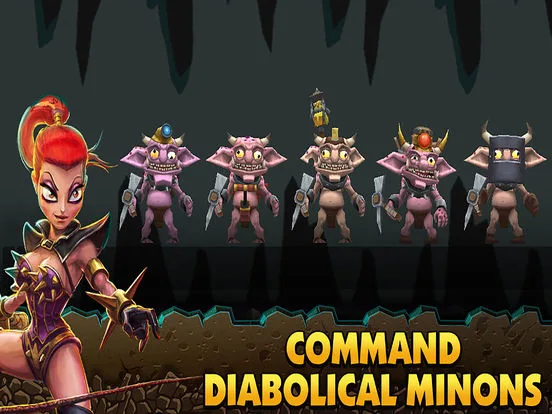
Welcome to Dungeon Keeper, the ultimate subterranean strategy game where you play as the bad guy! Your goal is to build and manage a thriving underground lair, dig out rooms, attract monsters, set devious traps, and defend your dungeon against the pesky heroes and armies of the surface world. It's a dark, challenging, and incredibly rewarding experience for anyone who enjoys deep strategy and a bit of evil.
This guide will help you conquer the challenges that await. We'll cover everything from mastering your initial imp management and designing efficient dungeon layouts to unlocking hidden levels and bonus missions. Whether you're aiming to defeat formidable foes like The Goodly King or simply want to achieve a perfect Gold Medal on every mission, this guide has the insights you need to build an unassailable underground empire.
GameFAQ status: 90%
Dungeon Keeper FAQ version history: First released November 5, 2012 (v0.9), with walkthroughs for all missions except Belial completed by November 4, 2012 (v0.85).
The initial version of the Dungeon Keeper walkthrough began on October 3, 2012. By November 4, 2012 (version 0.85), all missions except Belial were finished, though some markup was still needed. The first released version (v0.9) on November 5, 2012, included the description for Belial, with potential for additional general information and grammar checks.
- The FAQ has a status of 90% complete.
- The walkthrough covers missions 1 through 15, with Belial being the final mission.
- The author has owned the game for approximately 12 years.
Controls
Learn Dungeon Keeper controls: use the mouse to move the cursor, left-click to select, and hover for info.
You can move the cursor around with the mouse and click with the left mouse button (LMB) on certain parts to select rooms, spells, traps, and creatures. Hover the cursor over a specific part to get information about that topic.
- Hovering the cursor over elements provides detailed information.
- The left mouse button (LMB) is your primary interaction tool for selection.
Control panel
Master the Dungeon Keeper control panel with this comprehensive guide. Learn about the dungeon view, map icons, computer assistance, quitting, zooming, and all five tabbed panels: Info, Room, Spell, Manufacture, and Creature.
The control panel in Dungeon Keeper is divided into two main sections: the left pane displaying your dungeon view and the panel below it containing five tabbed sections.
The left pane shows your dungeon view with directional indicators relative to your map's rotation, helping you find north. A dotted line always points back to your Dungeon Heart for easy location. Around the map, you have five options: the Map icon for the overall land map, the letter 'C' to toggle computer assistance, the letter 'Q' for game options and quitting, and the Plus (+) and Minus (-) signs to zoom the mini-map.
The panel below contains five tabbed sections:
| Tab | Description |
|---|---|
| Info tab (Question mark) | At the top, toggle 'Imprison' and 'Flee' options (requires a Prison). Below this, a gauge shows remaining time to the next payday, with the total amount due displayed in red. Two more gauges track research and manufacture progress for spells, traps, and doors. Four tabs below show active Keepers in the region, their room and creature counts. The bottom shows a '?' query option; clicking it turns your cursor into a '?' to learn additional information about any creature (friend or foe), automatically centering the screen on its movement. |
| Room tab | Displays buildable rooms. Raised icons indicate built rooms, while '?' indicates rooms needing research in the Library. The bottom-right icon allows selling rooms by changing your cursor to a '$' icon. |
| Spell tab | Shows all researched spells. '?' depicts spells that still need to be researched. |
| Manufacture tab | Displays researched traps (top two rows) and doors (third row). The '$' icon can be used to sell doors and traps; only selling traps provides money. |
| Creature tab | Lists your creatures by activity: idle (left), working (center), and fighting (right). Clicking a number selects creatures of that activity. Right-clicking changes the view to that creature. Clicking an icon selects the highest-experienced creature of that type. |
Options menu
Learn about the options menu in Dungeon Keeper, including saving, visual settings, sound, computer assistance, and quitting.
The options menu in Dungeon Keeper can be accessed by pressing the 'Q' key in the top left corner or by hitting the 'Esc' key. From left to right, the options available are Load game, Save game, Set visual options, Set sound options, Set computer assistance, and Quit game.
Load and Save game
These options allow you to manage your game progress. You can pick any save file (out of 8 available) to save your current game data, enabling you to resume playing from that point later.
Set visual options
This section lets you tweak the game's performance by adjusting several visual settings. The game should run smoothly on machines built after 1997. The five visual options are:
- Shadows: Set how many shadows can be cast on a single object, with options ranging from 0 to 4.
- View distance: Adjust how much of the dungeon map (minimap (the small circular map in the bottom-left corner of your screen)) is visible.
- Field of view: Allows you to rotate the view in 90-degree steps or smoothly.
- Wall height: Raise or lower walls to make creatures stand out better.
- Gamma correction: Change the brightness of the dungeon view from dark to light.
Set sound options
Here you can independently adjust the volume for the BGM music and the Special effects, sounds and voice-over (SFX).
Set computer assistance
Computer assistance offers four different types of AI control, from left to right:
- Red - Aggressive: Builds rooms, uses spells & traps, and tries to attack.
- Yellow - Defensive: Builds rooms, uses spells & traps, but never tries to attack.
- Green - Construction: Can only build rooms.
- Blue - Movement: Can only slap and move creatures.
To activate computer assistance, click on the 'c' icon near the map radar (minimap).
Quit game
Select the trashcan icon to quit the current game and return to the main options screen.
- Experiment with the visual options to find the best balance between performance and graphical detail for your system.
- Consider using computer assistance if you are new to Dungeon Keeper or want to focus on specific aspects of dungeon management.
- Always save your game regularly, especially before undertaking risky actions or exploring new areas.
Similar guides you might like



100% Human-Written. AI Fact-Checked. Community Verified. Learn how AntMag verifies content