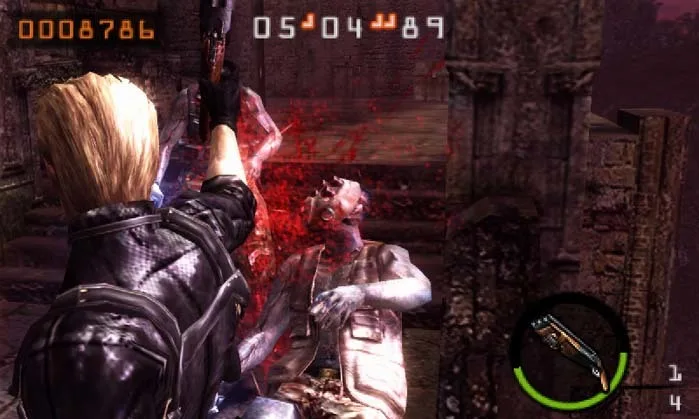
Resident Evil: The Mercenaries 3D HUD (Heads Up Display) details: score, time limit, life bar, equipment, item menu, and map.
The HUD (Heads Up Display) in Resident Evil: The Mercenaries 3D displays vital information to help you manage your gameplay.
Score
Your score is shown in the upper left-hand corner of the screen. You earn extra points by defeating enemies, chaining kills, and finishing a stage with leftover time for the highest scores.
Time Limit
The time limit is displayed in the top middle portion of the screen, indicating how much time you have left to complete the current mission. Any leftover time awards 1000 points per second.
Life Bar
The green bar circling the currently equipped weapon on the bottom right-hand portion of the screen represents your health. It turns red when your health is low. Use herbs to replenish this gauge. If your health is completely depleted by attacks, you will enter a dying status.
Equipment Icon
The icon for your currently equipped weapon is located in the middle of your health bar on the bottom right-hand portion of the screen. This displays the number of bullets currently in the chamber on the left and the amount of ammunition remaining in your inventory on the right.
Item Menu
Your character's inventory is shown on the left side of the bottom touch screen. You can select each item by touching it. Use the control pad up/down to cycle between gun weapons.
Map
The map of the current area, including your character's location, is displayed on the right side of the touch screen.
- Monitor your score in the upper left to track your progress.
- Keep an eye on the time limit in the top middle to ensure you complete missions on time.
- Replenish your health using herbs when the green bar on the bottom right turns red.
- Check the equipment icon for your current weapon's ammo count and your total remaining ammo.
- Use the item menu on the touch screen to quickly select weapons and items.
- Refer to the map on the touch screen to navigate the area and locate your character.
100% Human-Written. AI Fact-Checked. Community Verified. Learn how AntMag verifies content