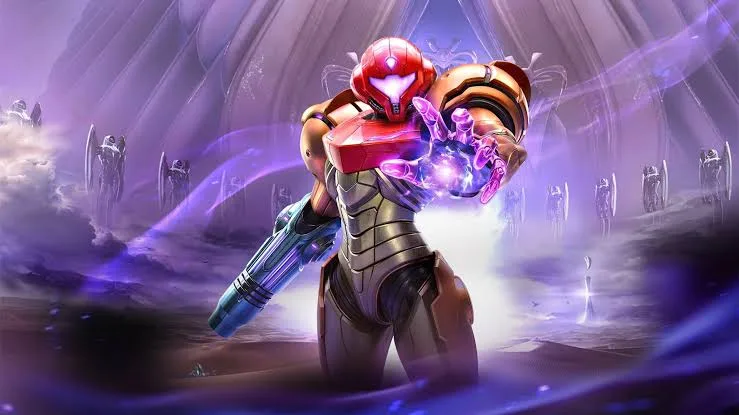
Explore the control schemes for Metroid Prime 4: Beyond, including Dual Sticks, Pointer, and Fusion options. Learn button mappings for FPS, Morph Ball, and Vi-O-La modes.
Metroid Prime 4: Beyond offers a variety of control schemes, building upon previous titles. The primary options are Dual Sticks, which mimics modern console FPS controls, and Pointer, which utilizes gyro aiming similar to the Wii iterations. The Nintendo Switch 2 version introduces "Fusion" options for both, allowing the Right Joy-Con's mouse function for aiming. Extensive fine-tuning options are available in the Setting Menu under Menus/Displays.
All controls, with the exception of the Minus Button for the Pause Menu, are remappable. Input types are fixed (sticks for stick functions, buttons for button functions).
FPS Controls
| Input | Dual Stick | Pointer |
|---|---|---|
| Movement | Up/Down: Walk forwards/backwards Left/Right: Strafe left/right | Up/Down: Walk forwards/backwards Left/Right: Strafe left/right |
| Camera | Move Camera | N/A |
| Jump/Dodge | Jump Dodge while Lock-On | Jump Dodge while Lock-On |
| Morph Ball | Enter Morph Ball Mode | Enter Morph Ball Mode |
| Primary Fire | Shoot Beam Hold for Charge Beam Interact | Shoot Beam Hold for Charge Beam Interact |
| Visors | Toggle Visors | Toggle Visors |
| Lock-On/Scan | Lock-On Grapple Beam Scan with Scan Visor | Lock-On Grapple Beam Scan with Scan Visor |
| Secondary Fire | Shoot Beam Hold for Charge Beam | Reset Camera or Cursor |
| Weapon Select | Jump Dodge while Lock-On | Jump Dodge while Lock-On |
| Weapon Select | Fire Secondary Weapon Hold to Charge Secondary Weapon | Fire Secondary Weapon Hold to Charge Secondary Weapon |
| Weapon Select | Select Ice Shot | Select Ice Shot |
| Weapon Select | Select Missile Launcher | Select Missile Launcher |
| Weapon Select | Select Thunder Shot | Select Thunder Shot |
| Weapon Select | Select Fire Shot | Select Fire Shot |
| Vehicle | Mount Vi-O-La | Mount Vi-O-La |
| Menu | Pause Menu | Pause Menu |
| Gyro | Free Aiming during Lock-On | Aim and Turn Free Aiming during Lock-On |
Morph Ball Controls
| Input | Dual Stick | Pointer |
|---|---|---|
| Movement | Roll (Up is away from camera) | Roll (Up is away from camera) |
| Bomb | Bomb | Bomb |
| Boost Ball | Boost Ball (Hold to charge, then release) | Boost Ball (Hold to charge, then release) |
| Exit | Exit Morph Ball Mode | Exit Morph Ball Mode |
| Spring Ball | Spring Ball | Spring Ball |
| Spider Ball | Spider Ball (Hold) | Spider Ball (Hold) |
| Reset/Bomb | Bomb | Reset Camera or Cursor |
| Boost Ball | Boost Ball (Hold to charge, then release) | Boost Ball (Hold to charge, then release) |
| Power Bomb | Power Bomb | Power Bomb |
| Vehicle | Mount Vi-O-La | Mount Vi-O-La |
| Menu | Pause Menu | Pause Menu |
| Gyro | Spring Ball | Spring Ball |
Vi-O-La Controls
| Input | Dual Stick | Pointer |
|---|---|---|
| Steering | Left/Right - Steer Up/Down - Move slowly forward/backward | Left/Right - Steer Up/Down - Move slowly forward/backward |
| Camera | Up/Down: Look down/up Left/Right: Look left/right | N/A |
| Boost | Engage Boost | Engage Boost |
| N/A | N/A | N/A |
| Fire | Fire Projectile | Accelerate |
| Visors | Toggle Visors | Toggle Visors |
| Lock-On/Scan | Lock-On Scan with Scan Visor | Lock-On Scan with Scan Visor |
| Accelerate/Reset | Accelerate | Reset Camera or Cursor |
| Brake | Brake | Brake |
| Accelerate/Fire | Accelerate | Fire Projectile |
| Radio | Radio: Play/Stop | Radio: Play/Stop |
| Radio | Radio: Next Track | Radio: Next Track |
| Radio | Radio: Previous Track | Radio: Previous Track |
| Minimap | Toggle Minimap | Toggle Minimap |
| Dismount | Dismount Vi-O-La | Dismount Vi-O-La |
| Menu | Pause Menu | Pause Menu |
100% Human-Written. AI Fact-Checked. Community Verified. Learn how AntMag verifies content