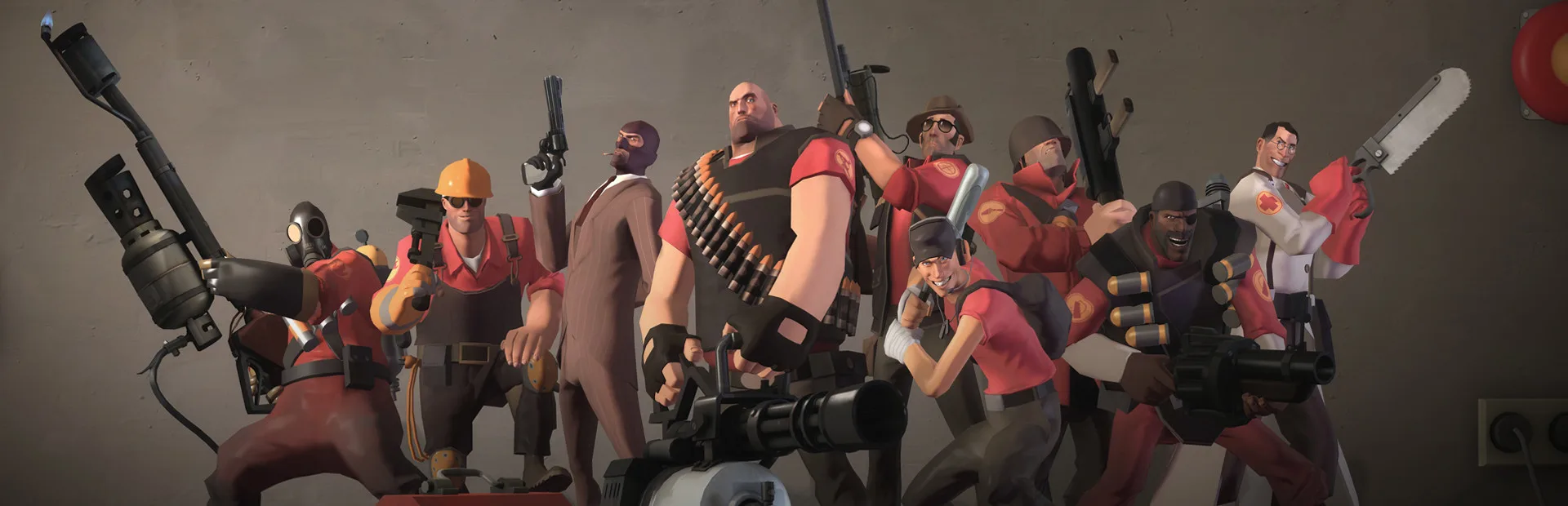
Learn essential Team Fortress 2 bot commands to spawn, configure, and manage bots for custom practice sessions and skill development in the developer console.
For players looking to practice their skills, test strategies, or simply have some fun without the pressure of a live server, bot commands in Team Fortress 2 offer a powerful and flexible solution. By opening the developer console, you can spawn bots, configure their behavior, and manipulate the game environment to create custom training scenarios. This section will guide you through the essential bot commands, allowing you to set up personalized practice sessions and deepen your understanding of the game's mechanics and maps.
To begin using bot commands, you first need to enable the developer console. This is typically done through the game's advanced options menu. Once enabled, you can open the console by pressing the tilde key (`~`). From here, you can start spawning bots. The most basic command is bot, which spawns a single bot of a random class. To specify a class, you can use commands like bot heavy, bot scout, or bot medic. You can also specify a team by adding red or blu, for example, bot medic blu.
Beyond simply spawning bots, you can control their behavior and numbers. The command bot_add is a more versatile version of bot, allowing you to specify class and team. For instance, bot_add soldier red will add a RED Soldier bot. To remove all bots, you can use the command bot_kick all. If you want to remove specific bots, you can use bot_kick [botname], though identifying bot names can be tricky. A simpler approach for removing specific bots is often to respawn them or restart the map.
You can also influence the difficulty and capabilities of the bots. The command bot_difficulty [0-3] sets the bot's skill level, with 0 being the easiest and 3 being the hardest. Harder bots are more accurate, react faster, and employ more advanced tactics. For practicing specific scenarios, you might want to limit the number of bots. The command bot_quota [number] sets the desired number of bots on the server. If you set it to 0, no new bots will spawn automatically.
For more advanced control, you can use commands to influence bot pathing and engagement. For example, bot_mimic [playername] makes a bot attempt to mimic the movements of a specified player. While this can be interesting, it's often less practical than direct control. For pure practice, focusing on spawning bots of specific classes and difficulties, and then kicking them when done, is usually sufficient. Remember that bots are not perfect and may exhibit unusual behavior, but they are an invaluable tool for honing your skills in a controlled environment.
| Command | Description | Example |
|---|---|---|
bot |
Spawns a random bot. | bot |
bot [class] |
Spawns a bot of a specific class. | bot heavy |
bot_add [class] [team] |
Spawns a bot of a specific class on a specific team. | bot_add scout blu |
bot_kick all |
Removes all bots from the server. | bot_kick all |
bot_difficulty [0-3] |
Sets the bot's skill level. | bot_difficulty 2 |
bot_quota [number] |
Sets the desired number of bots. | bot_quota 10 |
100% Human-Written. AI Fact-Checked. Community Verified. Learn how AntMag verifies content