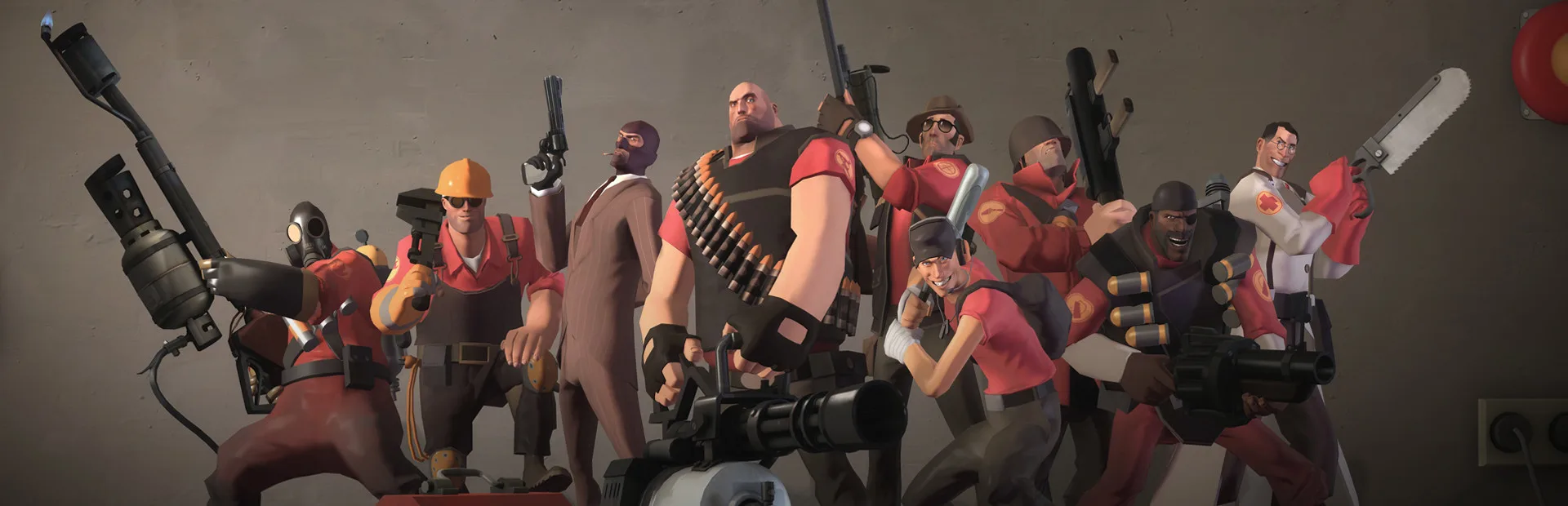
Set up your own Team Fortress 2 server for custom gameplay. Control game modes, maps, and player settings for unique multiplayer experiences.
Setting up your own Team Fortress 2 server allows for unparalleled customization, from game modes and maps to player counts and specific weapon restrictions. Whether you're hosting a private match for friends, experimenting with unique gameplay, or running a community hub, understanding the server creation process is key. This guide will walk you through the essential steps, from initial setup to essential configuration options, empowering you to craft your ideal TF2 experience.
Creating your own Team Fortress 2 server offers a gateway to personalized gameplay. You can host private matches, experiment with custom maps and game modes, or even set up community servers with unique rules. This guide will cover the fundamental steps to get your server up and running, allowing you to tailor the TF2 experience to your exact preferences.
Server Setup Essentials
Before diving into advanced configurations, you'll need to ensure your system is ready. This involves downloading the necessary server files from Valve and opening specific network ports on your router. The most common method involves using the SteamCMD tool, a command-line interface for downloading and updating Steam games and dedicated servers.
Using SteamCMD
- Download SteamCMD: Obtain the SteamCMD executable from the official Valve Developer Community website.
- Create a Directory: Make a new folder for your TF2 server files.
- Run SteamCMD: Execute SteamCMD and log in anonymously or with your Steam account.
- Install TF2 Server: Use the `app_update 440 validate` command to download and verify the Team Fortress 2 dedicated server files.
Basic Server Configuration
Once the server files are downloaded, you'll need to configure your server's core settings. This is primarily done through the server.cfg file, located in the tf/cfg directory of your server installation. Key settings include:
| Setting | Description | Example Value |
|---|---|---|
hostname |
The name displayed for your server in the server browser. | My Awesome TF2 Server |
rcon_password |
Password for remote console access, used for server administration. | supersecretpassword |
sv_password |
Password required to join the server (leave blank for public). | friendsonly |
mp_maxplayers |
The maximum number of players allowed on the server. | 24 |
sv_gravity |
Adjusts the gravity on the server. | 600 (default) or 300 (low gravity) |
Port Forwarding
For other players to connect to your server, you'll need to configure port forwarding on your router. The default ports for TF2 are 27015 (UDP/TCP) for the game and 27005 (UDP) for RCON. Consult your router's manual for specific instructions on how to forward these ports.
Running Your Server
To launch your server, navigate to your TF2 server directory and run the srcds.exe executable with appropriate command-line arguments. A common launch command might look like this:
srcds.exe -game tf -console -autoupdate -game tf +map de_dust2 +maxplayers 24Remember to replace de_dust2 with your desired starting map and adjust maxplayers as needed. You can also specify a custom server.cfg file using the +exec server.cfg argument.
Advanced Customization
Beyond basic settings, you can install custom maps, game modes (like custom Payload or CTF variants), and plugins using SourceMod. This opens up a world of possibilities for unique and engaging gameplay experiences that go beyond the standard TF2 offerings.
100% Human-Written. AI Fact-Checked. Community Verified. Learn how AntMag verifies content