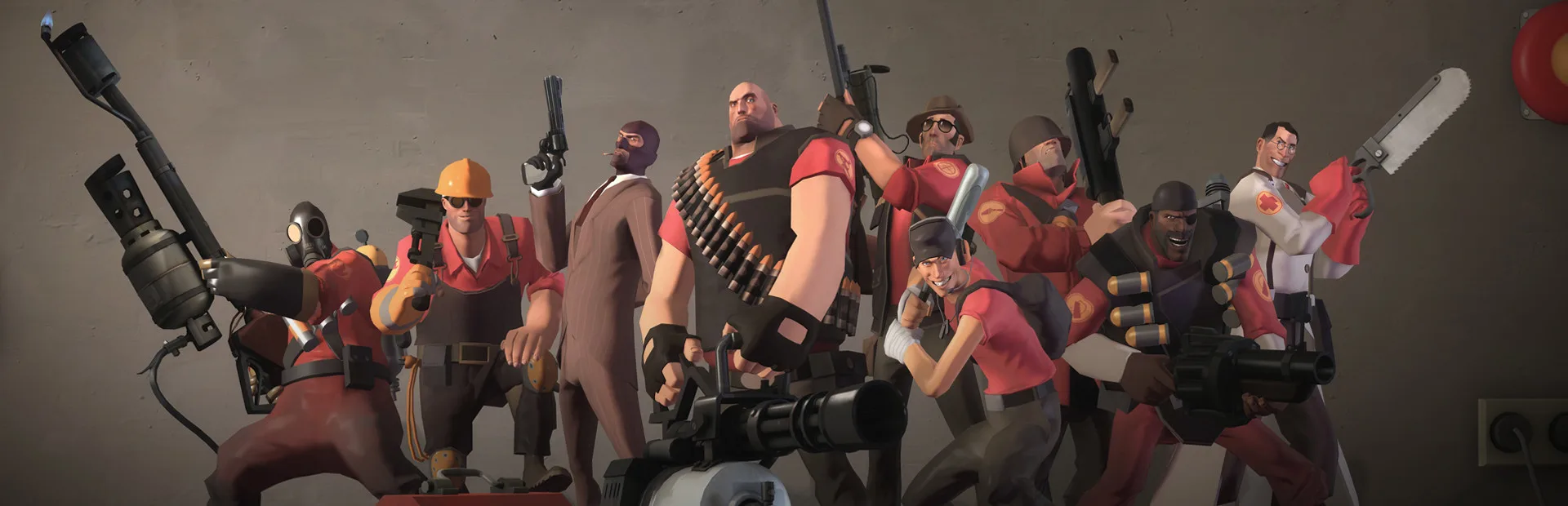
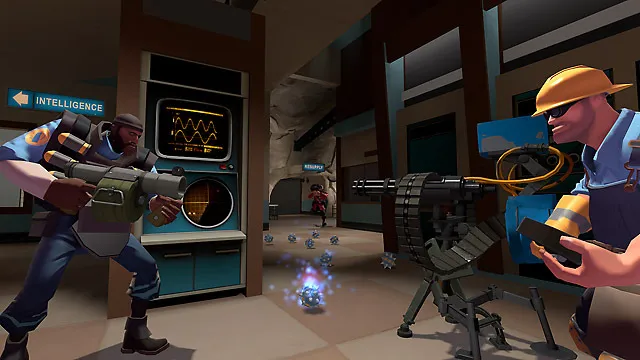
Master Team Fortress 2's Basic Controls & Movement. Learn essential inputs and nuanced mechanics for every aspiring mercenary's optimal gameplay.
Mastering the fundamental controls and understanding movement mechanics are paramount to success in Team Fortress 2. While the game offers intuitive defaults, a deeper dive reveals nuances and essential actions that every aspiring mercenary should internalize. This section will guide you through the core inputs, explain their functions, and offer tips for optimal use.
Core Movement & Action Controls
These are the absolute basics you'll use constantly, regardless of your chosen class.
- W, A, S, D: These keys control your character's movement.
- W: Move Forward
- A: Strafe Left
- S: Move Backward
- D: Strafe Right
Strategy Tip: Rely heavily on strafing (A and D) during combat to make yourself a harder target. Constant forward/backward movement in a straight line is predictable and often fatal.
- Spacebar: Jump.
Strategy Tip: Jumping can help you clear small obstacles, reach higher ground, or evade certain attacks (like rockets or grenades). However, jumping too predictably in combat can also make you an easier target for skilled players.
- Left Mouse Button (LMB): Primary Fire. This activates the main attack of your currently equipped weapon. For most classes, this is their primary damage output.
- Right Mouse Button (RMB): Alternate Fire / Secondary Function. This key's function varies significantly by class and weapon. Understanding these contextual uses is crucial.
- Scout: No alt-fire on most weapons.
- Soldier: No alt-fire on most weapons.
- Pyro: Airblast (reflect projectiles, push enemies, extinguish allies).
- Demoman: Detonate sticky bombs (when using the Stickybomb Launcher).
- Heavy: Spin up Minigun (before firing).
- Engineer:
- With a wrench equipped: Bring up the Build Menu for structures (Sentry Gun, Dispenser, Teleporter Entrance/Exit).
- With a PDA equipped: Bring up the Destroy Menu for structures.
- Medic: Activate ÜberCharge (when using the Medigun and charge is full).
- Sniper: Zoom in with sniper rifles.
- Spy:
- With a Disguise Kit equipped: Bring up the Disguise Menu.
- With a Sapper equipped: Place a Sapper on enemy buildings.
Common Pitfall: New players often forget the powerful secondary functions of weapons like the Pyro's airblast or the Medic's ÜberCharge. Practice using these regularly!
Weapon Management & Utility Controls
These keys allow you to switch between your arsenal and perform essential utility actions.
- 1, 2, 3 (and sometimes 4, 5): Weapon Slot Selection. These keys directly select weapons from your equipped loadout.
- 1: Primary Weapon Slot
- 2: Secondary Weapon Slot
- 3: Melee Weapon Slot
- 4: Often used for utility items like the Engineer's PDA or the Spy's Disguise Kit.
- 5: Less common, sometimes used for specific items or custom keybinds.
- Q: Quick Switch to Last Used Weapon. This is incredibly useful for fast weapon swaps, such as switching from a primary weapon to melee for a quick hit, then back to primary.
- R: Reload. Most projectile and bullet-based weapons require reloading. Pressing R will initiate a reload animation.
Strategy Tip: Always try to reload during downtime or when you're safely behind cover. Being caught with an empty clip in a firefight is a common mistake.
- Ctrl (Left Control): Crouch. Crouching reduces your hitbox size, makes you move slower, and can allow you to pass under certain obstacles.
Strategy Tip: Crouch-jumping (jumping while holding crouch) can allow you to reach slightly higher ledges or clear certain gaps that a regular jump cannot. It's also vital for "crouch-strafing" to dodge incoming fire more effectively.
- G: Taunt. Each class and many weapons have unique taunts. Some taunts can even deal damage (e.g., the Pyro's Hadouken or the Heavy's Showdown).
Common Pitfall: Taunting in the open or during active combat is often a death sentence. Use taunts strategically after a successful play or when safely behind lines.
- Z, X, C: Voice Commands. These keys open menus for various pre-recorded voice lines.
- Z: Basic communication (e.g., "Medic!", "Help!").
- X: Tactical communication (e.g., "Go!", "Incoming!").
- C: Responses and other commands (e.g., "Thanks!", "Good Job!").
Strategy Tip: Use voice commands, especially "Medic!", to communicate your needs to your team without typing. This can be a lifesaver!
- Tab: Scoreboard. Displays current game scores, player lists, and other match information.
- M: Change Class/Spectate. Allows you to switch to a different class or enter spectator mode during a round.
- ~ (Tilde Key): Console. For advanced users, pressing the tilde key (usually above Tab) opens the developer console. This allows for custom commands, script execution, and advanced game settings. While not essential for basic play, it's a powerful tool for customization.
Optimizing Your Setup
Team Fortress 2 offers extensive customization options for controls. It's highly recommended to explore these to find what works best for you.
Step-by-Step: Adjusting Keybinds
- From the main menu, click on "Options."
- Navigate to the "Keyboard" tab.
- Click "Customize..." to view and change individual key assignments.
- Experiment with different binds for actions you use frequently. For example, some players prefer to bind "Jump" to the scroll wheel for advanced jump techniques like "bunnyhopping."
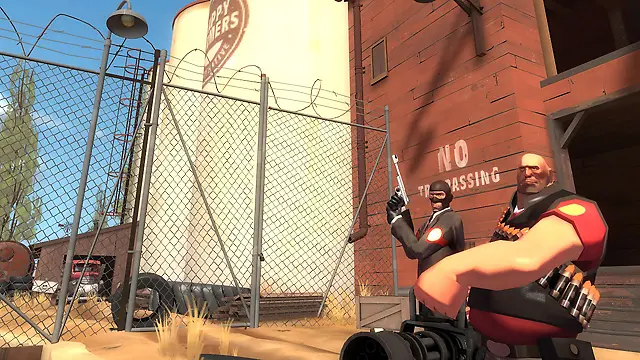
By understanding and practicing these basic controls, you'll lay a solid foundation for becoming a formidable player in Team Fortress 2. Don't be afraid to experiment with keybinds and spend time in the training mode or on community servers to get a feel for each class's unique control scheme.
100% Human-Written. AI Fact-Checked. Community Verified. Learn how AntMag verifies content