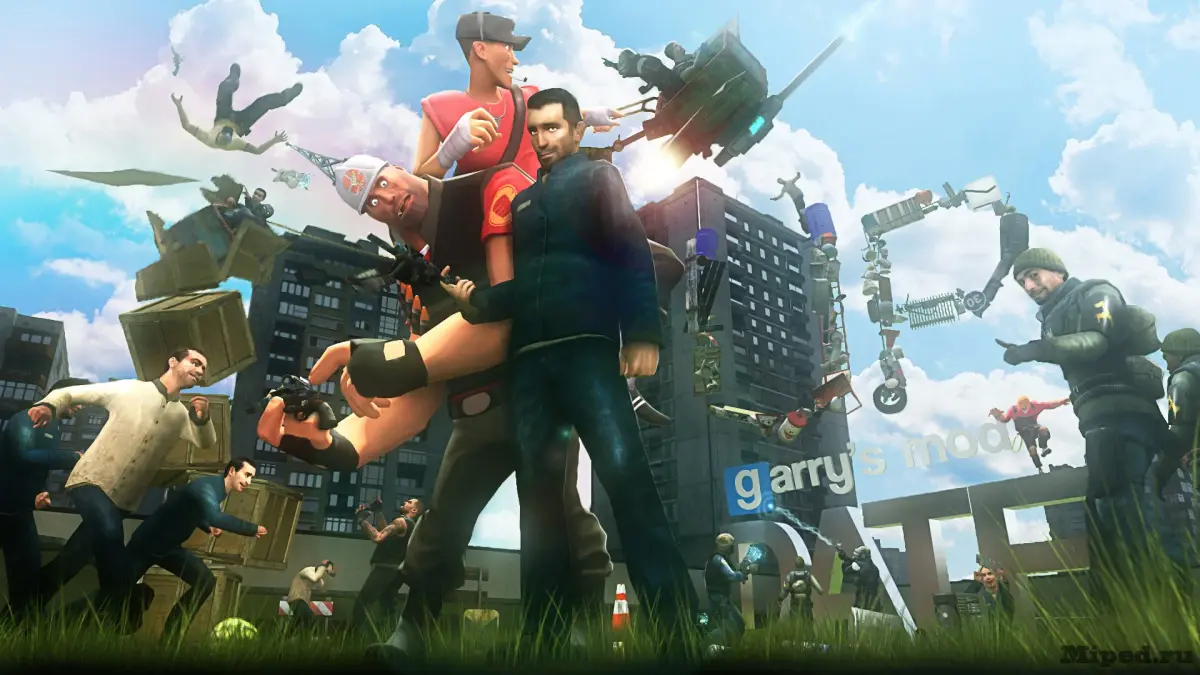
Manipulate Garry's Mod physics with essential tools and techniques. Master the Physgun and other methods for crafting contraptions and complex machines.
Garry's Mod, at its core, is a physics sandbox. Understanding how to manipulate objects and their physical properties is fundamental to creating anything from simple contraptions to complex machines. This section will guide you through the essential tools and techniques for interacting with the game's physics engine.
The Physgun: Your Primary Tool
The Physgun is your most versatile tool for direct physics manipulation. It allows you to grab, move, rotate, and freeze objects in place. To equip the Physgun, press Q to open the Spawn Menu, navigate to the "Weapons" tab, and select "Physgun" under the "Tools" category. Alternatively, you can typically find it in your default weapon selection (often slot 3 or 4).
- Grabbing and Moving Objects:
- Point the Physgun at an object and hold down Left-Click. The object will highlight, indicating it's selected.
- While holding Left-Click, move your mouse to reposition the object.
- Release Left-Click to drop the object.
- Rotating Objects:
- Grab an object with Left-Click.
- While holding Left-Click, use the W, A, S, D keys to rotate the object along different axes.
- For more precise rotation, use the Q key to open the Spawn Menu while holding the object. This will temporarily pause the object's movement, allowing you to adjust your view for better rotation.
- Freezing Objects (No-Collide):
- Point the Physgun at an object and press Right-Click. The object will become "frozen" in place, indicated by a blue glow. Frozen objects will not move or fall, and other objects will pass through them (no-collide).
- To unfreeze an object, point the Physgun at it and press Right-Click again.
- Strategy: Freezing objects is crucial for construction. You can freeze a base object, then attach other props to it without them collapsing.
- Welding Objects (Permanent Attachment):
- While not strictly a Physgun function, the Weld Tool (found in the "Tools" tab of the Spawn Menu) is often used in conjunction with the Physgun.
- Select the Weld Tool.
- Left-Click on the first object you want to weld.
- Left-Click on the second object. The two objects will now be permanently attached, behaving as a single physical entity.
- Tip: Weld objects together after positioning them with the Physgun to create stable structures.
The Tool Gun: Advanced Physics Properties
The Tool Gun (also found in the "Tools" tab of the Spawn Menu) offers a vast array of functions for modifying object properties beyond simple movement. We'll focus on a few key physics-related tools here.
Weight Tool
The Weight Tool allows you to adjust the mass of an object, directly impacting its physics behavior.
- Location: Spawn Menu (Q) -> Tools -> Physics -> Weight.
- Usage:
- Select the Weight Tool.
- Adjust the "Weight" slider in the Tool Gun's context menu (usually on the left side of your screen when the Tool Gun is active).
- Left-Click on an object to apply the selected weight.
- Strategy: Increase weight for objects that need to be stable or heavy (e.g., a foundation). Decrease weight for objects you want to be easily moved or launched (e.g., a projectile).
Gravity Tool
This tool lets you toggle gravity on or off for individual objects, or even reverse its direction.
- Location: Spawn Menu (Q) -> Tools -> Physics -> Gravity.
- Usage:
- Select the Gravity Tool.
- In the Tool Gun's context menu, choose your desired gravity setting (e.g., "Normal," "No Gravity," "Reverse").
- Left-Click on an object to apply the gravity setting.
- Creative Use: Disable gravity on props to make them float, or reverse it to create upward-moving elements in your contraptions.
Thruster Tool
Thrusters are essential for creating moving vehicles, rockets, or anything that requires propulsion.
- Location: Spawn Menu (Q) -> Tools -> Entities -> Thruster.
- Usage:
- Select the Thruster Tool.
- In the context menu, adjust "Force" (power of the thruster) and "Key" (the key that activates the thruster).
- Left-Click on an object to place a thruster. The arrow on the thruster indicates the direction of thrust.
- Tip: Place multiple thrusters and assign them to different keys (e.g., W for forward, S for backward, A/D for turning) to create steerable vehicles.
Understanding Constraints
Constraints are powerful tools that define how objects interact physically without directly welding them. They allow for movement within specific parameters.
- Rope Tool: Connects two objects with a flexible rope.
- Location: Spawn Menu (Q) -> Tools -> Constraints -> Rope.
- Usage: Left-Click on the first object, then Left-Click on the second object. You can adjust "Length" and "Elasticity" in the context menu.
- Axle Tool: Creates a rotating connection between two objects. Ideal for wheels or rotating platforms.
- Location: Spawn Menu (Q) -> Tools -> Constraints -> Axle.
- Usage: Left-Click on the center point of the first object, then Left-Click on the center point of the second object.
- Slider Tool: Allows an object to slide along a defined axis.
- Location: Spawn Menu (Q) -> Tools -> Constraints -> Slider.
- Usage: Left-Click on the first object, then Left-Click on the second object, defining the direction of the slide.
Experiment with these tools and their various settings. The true power of Garry's Mod lies in combining these basic physics manipulations to build increasingly complex and imaginative creations!
100% Human-Written. AI Fact-Checked. Community Verified. Learn how AntMag verifies content