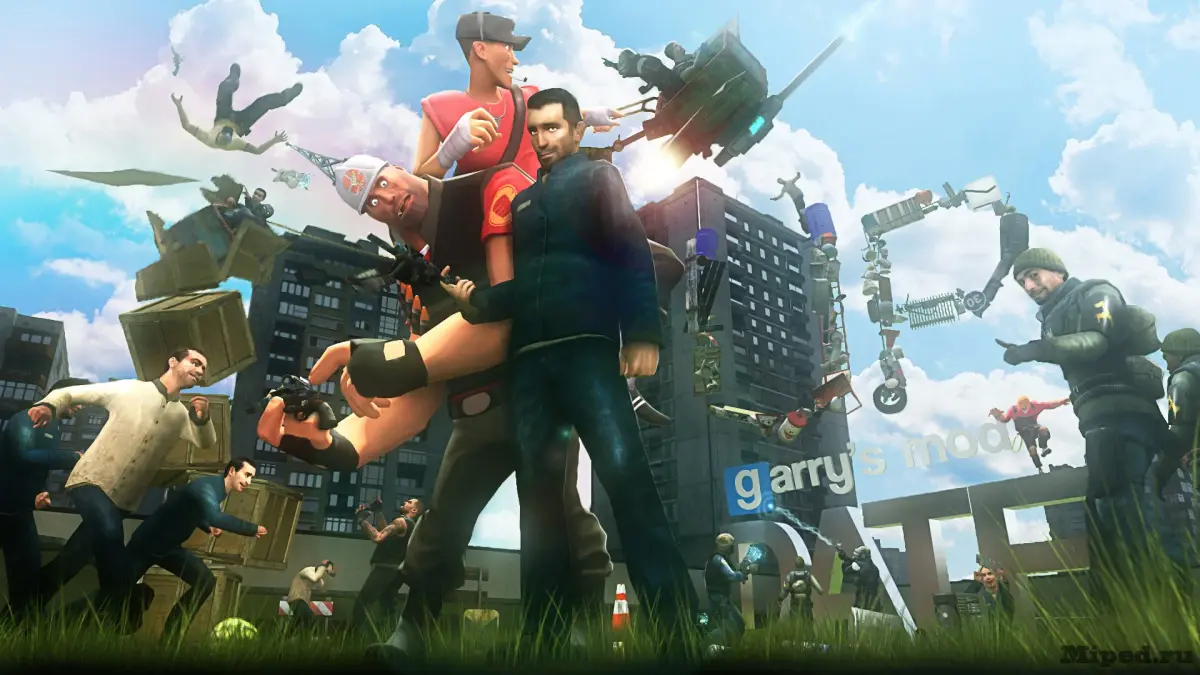
Create & upload Garry's Mod addons. Learn addon structure, Lua scripting, asset creation, and how to use the Steam Workshop Manager for your creations.
The Garry's Mod Workshop is a vibrant ecosystem fueled by user-created addons, ranging from simple prop packs to complex gamemodes. Understanding the basics of creating and uploading your own addons allows you to contribute to this community and share your creations with others.
An addon in Garry's Mod is essentially a collection of files—Lua scripts, models, textures, sounds, maps, etc.—that modify or add content to the game. The most common way to create addons is by organizing these files into a specific folder structure within your Garry's Mod `addons` directory.
The Basic Addon Structure:
A typical addon will have a root folder (named after your addon, e.g., `my_awesome_addon`). Inside this folder, you'll place your content:
- `lua/`: Contains all your Lua scripts. This is where the logic for your addon resides.
- `models/`: For custom 3D models.
- `materials/`: For custom textures and materials.
- `sound/`: For custom sound files.
- `maps/`: For custom maps.
- `gamemodes/`: If your addon is a new gamemode.
Creating Content:
- Lua Scripting: This is the backbone of most addons. You'll write scripts to define new entities, weapons, gamemode rules, UI elements, and more.
- 3D Modeling & Texturing: Use software like Blender (for models) and GIMP/Photoshop (for textures) to create custom assets. Ensure they are compatible with the Source engine (e.g., `.mdl` for models, `.vmt` and `.vtf` for materials).
- Sound Des: Add custom sound effects or music.
Uploading to the Steam Workshop:
Once your addon is ready and organized in your local `garrysmod/addons` folder, you can upload it using the Garry's Mod Workshop tools.
- Prepare Your Addon: Ensure all files are correctly placed and tested.
- Use the Workshop Manager: In Garry's Mod, go to the "Addons" menu and find the "Workshop" tab.
- Create New Addon: Select "Create New Addon."
- Configure Addon Details: Provide a title, description, preview image, and tags for your addon.
- Select Files: Choose the root folder of your addon.
- Upload: Click "Upload." Garry's Mod will package your addon and upload it to the Steam Workshop.
Important Considerations:
- Dependencies: If your addon requires other content (e.g., specific game assets like CS:S, or other Workshop addons), clearly state these dependencies in your addon's description.
- Copyright: Only use assets you have the right to distribute.
- Updates: You can update your addon by making changes locally and then using the "Update" option in the Workshop Manager.
- Testing: Thoroughly test your addon in various scenarios before uploading.
Addons like "Halo CE Vehicles Expansion" or "ASTW2" are examples of content that has been successfully created and uploaded, showcasing the diverse possibilities available to creators.
100% Human-Written. AI Fact-Checked. Community Verified. Learn how AntMag verifies content