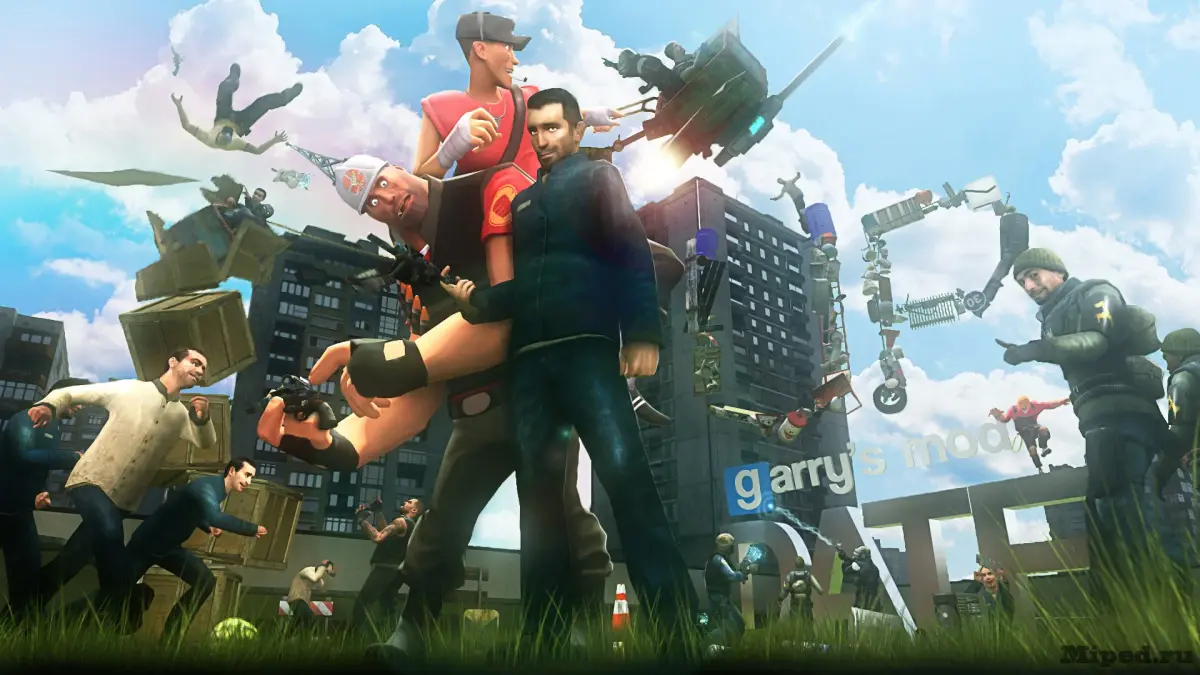
Unlock the secrets of Garry's Mod! This guide breaks down the Q Menu (Spawn Menu) so you can easily find and spawn props, entities, and more to create your wildest sandbox dreams.
Hey there! So you're diving into Garry's Mod and want to get a handle on the Spawn Menu, huh? That's awesome! This menu, often called the 'Q Menu' because that's usually the key to open it, is your gateway to pretty much everything you can put into your game world. Think of it as your ultimate sandbox toolkit. We're going to walk through what you'll find in there so you can start building, experimenting, and having a blast!
What's in the Spawn Menu?
When you hit 'Q' (or whatever key you've bound it to), a big menu pops up. It's organized into different tabs to help you find what you're looking for. Here's a quick rundown:
- Entities: This is where you'll find all the interactive bits and bobs. Think NPCs (non-player characters), props that you can move around, contraptions, and even things like cameras or lights. It's super diverse!
- Weapons: Obviously, this is where you grab all the guns and tools. From your standard pistol to more wacky Garry's Mod specific weapons, they're all here.
- Tools: These are your creative instruments. The physics gun, the tool gun, the spawn gun – these are essential for manipulating everything in the game.
- Post Processing: Want to change the look of your game? This tab lets you add visual effects like color correction, bloom, or depth of field.
- Scenes: This tab is for loading pre-made Garry's Mod scenes, which are essentially saved arrangements of props and entities.
- All: This tab shows you everything available, sorted alphabetically. It can be a bit overwhelming, but it's handy if you know exactly what you're looking for and can't remember which category it falls into.
How to Use the Spawn Menu Effectively
The key to mastering the Spawn Menu is understanding its organization. Don't be afraid to click around and explore each tab. If you're looking for a specific prop, try searching in the 'Entities' tab first. If you can't find it, the 'All' tab is your next best bet. Remember, you can also type keywords into the search bar at the top of the menu to quickly filter results. This is a lifesaver when you're dealing with thousands of items!
Pro-Tip: Sometimes, add-ons you download will add their own categories or items to the Spawn Menu. Keep an eye out for those – they can add a ton of new possibilities to your game!
100% Human-Written. AI Fact-Checked. Community Verified. Learn how AntMag verifies content