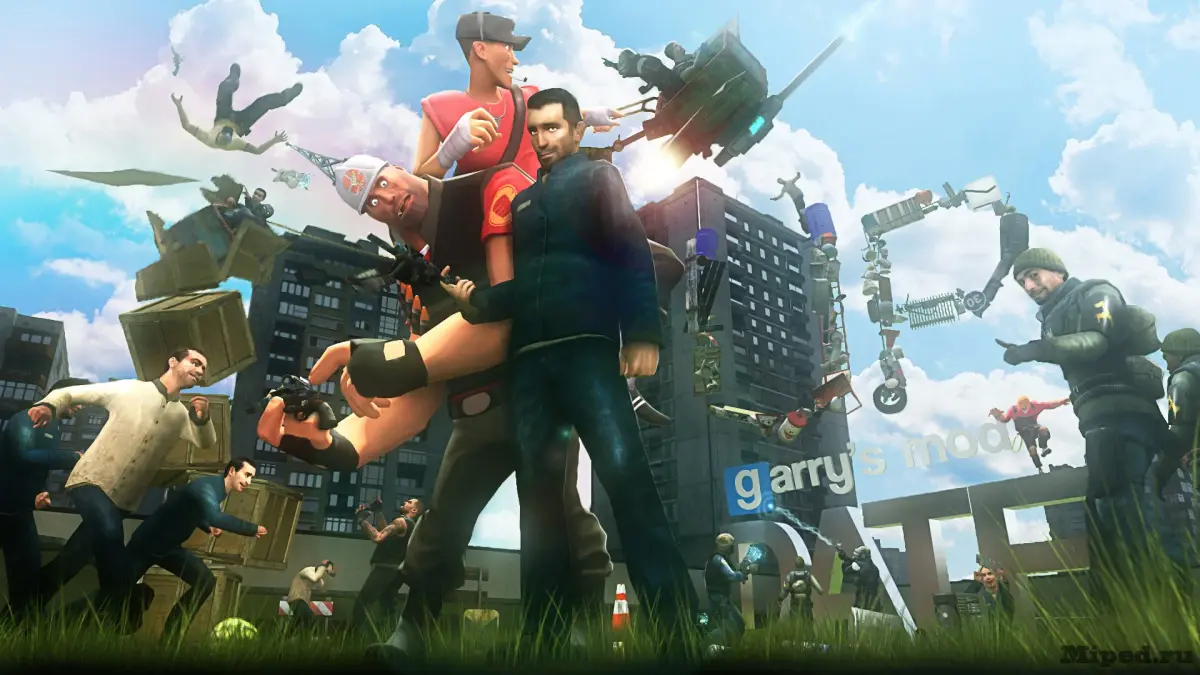
Customize your look in Garry's Mod. Learn to change player models and skins using the spawn menu and Steam Workshop.
10.1. Changing Player Models and Skins
Personalizing your in-game appearance is a fundamental aspect of online interaction. This section explains how to change your player model and skin in Garry's Mod, allowing you to stand out from the crowd or adopt a specific character.
Your player model determines your character's visual representation in the game world. Garry's Mod supports a vast array of player models, both default ones included with the game and custom models downloaded from the Steam Workshop or other sources. Changing your model is a straightforward process, accessible through the spawn menu.
Changing Your Player Model:
- Press 'Q' to open the spawn menu.
- Navigate to the 'Playermodel' tab.
- You will see a list of available player models. These can be categorized into default models and any custom models you have subscribed to via the Steam Workshop.
- Click on You model you wish to use. Your character will immediately update to that model.
Custom Player Models:
- Steam Workshop: The easiest way to get new player models is by subscribing to them on the Steam Workshop. Search for 'playermodel' or specific character names. Once subscribed, they will appear in your spawn menu.
- Manual Installation: Some custom models might come as `.gma` files or folders that need to be placed in your `garrysmod/addons/` directory.
Skins and Textures:
Some player models come with multiple 'skins' or texture variations. These are often accessible through the same 'Playermodel' tab or sometimes through a separate 'Skin' selection menu that appears after choosing a model. These skins can change the color, clothing, or other visual details of your chosen model.
Important Considerations:
- Server Restrictions: On many multiplayer servers, administrators may restrict the use of certain player models, especially those that might be offensive, disruptive, or provide a competitive advantage (e.g., very small or camouflaged models).
- Performance: While most player models are optimized, extremely high- models or those with complex textures can slightly impact performance.
- Compatibility: Ensure that any custom player models you download are compatible with your version of Garry's Mod.
Experiment with different player models to find ones that suit your style and the gamemode you're playing. A unique player model can be a great way to express yourself in the GMod community.
100% Human-Written. AI Fact-Checked. Community Verified. Learn how AntMag verifies content