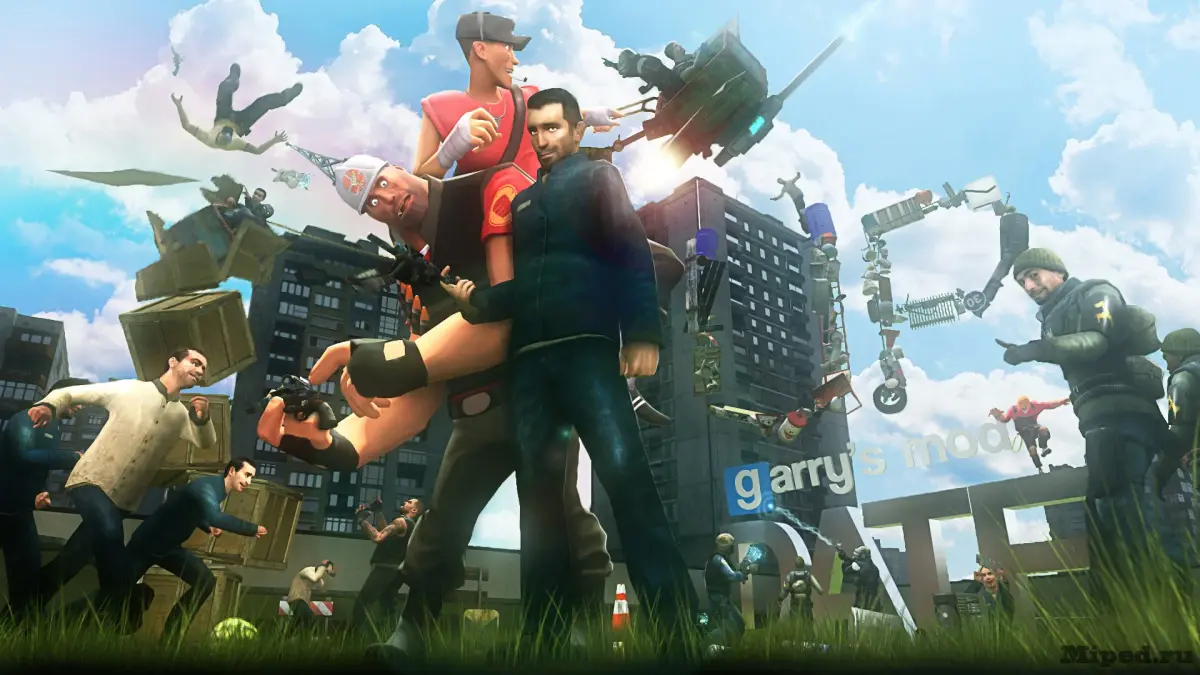
Master the Garry's Mod Camera tool. Learn to place, animate, and record cinematic shots for machinima and showcases.
9.1. The Camera Tool: Cinematic Shots and Recording
The Camera tool is an indispensable asset for any creator looking to capture high-quality footage, whether for machinima, showcasing builds, or creating stunning visual art. This section details how to effectively use the Camera tool for cinematic shots and recording gameplay.
The Camera tool, found within the Tool Gun menu, allows you to place and control virtual cameras within the game world. These cameras can be animated, follow targets, and record their perspective, providing a level of control far beyond standard gameplay camera movement. It's the key to achieving professional-looking video content directly within Garry's Mod.
Placing and Controlling Cameras:
- Open the Tool Gun ('Q').
- Navigate to the 'Camera' tool category.
- Select the 'Camera' tool.
- Left-click in the world to place a camera.
- Once placed, you can select the camera using the Physics Gun.
- With the camera selected, you can move, rotate, and scale it like any other prop.
Camera Tool Modes:
| Mode | Description |
|---|---|
| Camera | Places a standard camera entity. |
| Camera Path | Allows you to create a path for the camera to follow. You define waypoints, and the camera interpolates movement between them. |
| Camera Record | Enables recording of camera movements and animations. |
Creating Cinematic Shots:
- Framing: Use the camera's perspective to compose shots, applying principles of photography like the rule of thirds.
- Movement: Utilize the Camera Path tool to create smooth pans, tilts, and dollies. Avoid jerky movements unless intentional.
- Focus: While GMod doesn't have a true depth-of-field effect built into the Camera tool itself, you can simulate it by carefully positioning your camera and subject.
- Targeting: You can make a camera follow a specific prop or NPC. Select the camera, then use the Physics Gun to drag it onto the target.
Recording Footage:
To record, select the Camera Record mode. You can then animate the camera's position and rotation over time. Press 'E' while the camera is selected to start and stop recording its animation. The recorded animation can be played back. For actual video capture, you'll typically use external screen recording software (like OBS Studio or Nvidia ShadowPlay) while the camera is active and rendering its view.
100% Human-Written. AI Fact-Checked. Community Verified. Learn how AntMag verifies content