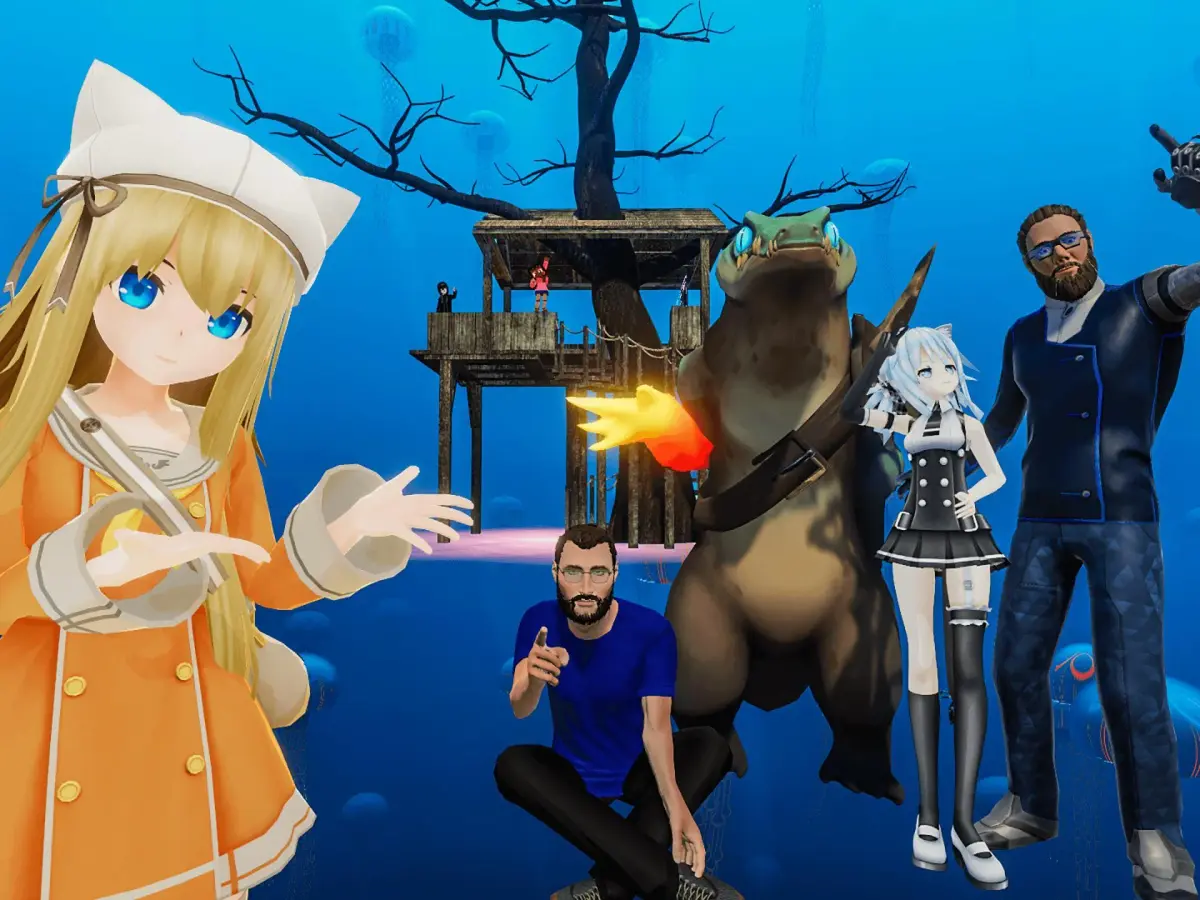
Struggling with VRChat lag? Learn how to combat the 'Lag Monster' and optimize your performance with this easy-to-follow walkthrough. Improve your VRChat experience today!
Hey there! So you're diving into VRChat and running into some performance issues, huh? It's super common, and honestly, sometimes it feels like a giant 'Lag Monster' is just messing with your game. Don't worry, though! We're going to walk through how to tackle this beast and get VRChat running much smoother for you. Think of me as your buddy guiding you through it, step-by-step.
- 1
Identify the Cause: First off, you need to figure out what's causing the lag. Is it your PC struggling, a specific world you're in, or maybe even other players' avatars? Usually, it's a combination of things. Worlds with tons of complex avatars or unoptimized content are the biggest culprits. You'll notice your frame rate dropping, your game freezing, or even getting kicked out for being 'unstable'.
- 2
Optimize Your Settings: Let's start with the easy stuff. Head into your VRChat settings. Look for graphics options. Lowering things like shadows, anti-aliasing, and texture quality can make a huge difference. You don't need everything on ultra to have a good time! Also, make sure VRChat is set to high performance in your PC's graphics settings.
- 3
Avatar Optimization: This is a big one in VRChat. Some avatars are just performance hogs. If you're in a crowded world and start lagging, try switching to a simpler avatar. You can even optimize your own avatars if you create them. Look for things like too many lights, complex shaders, or high-poly meshes. Tools within VRChat's SDK can help you check and improve avatar performance scores.
- 4
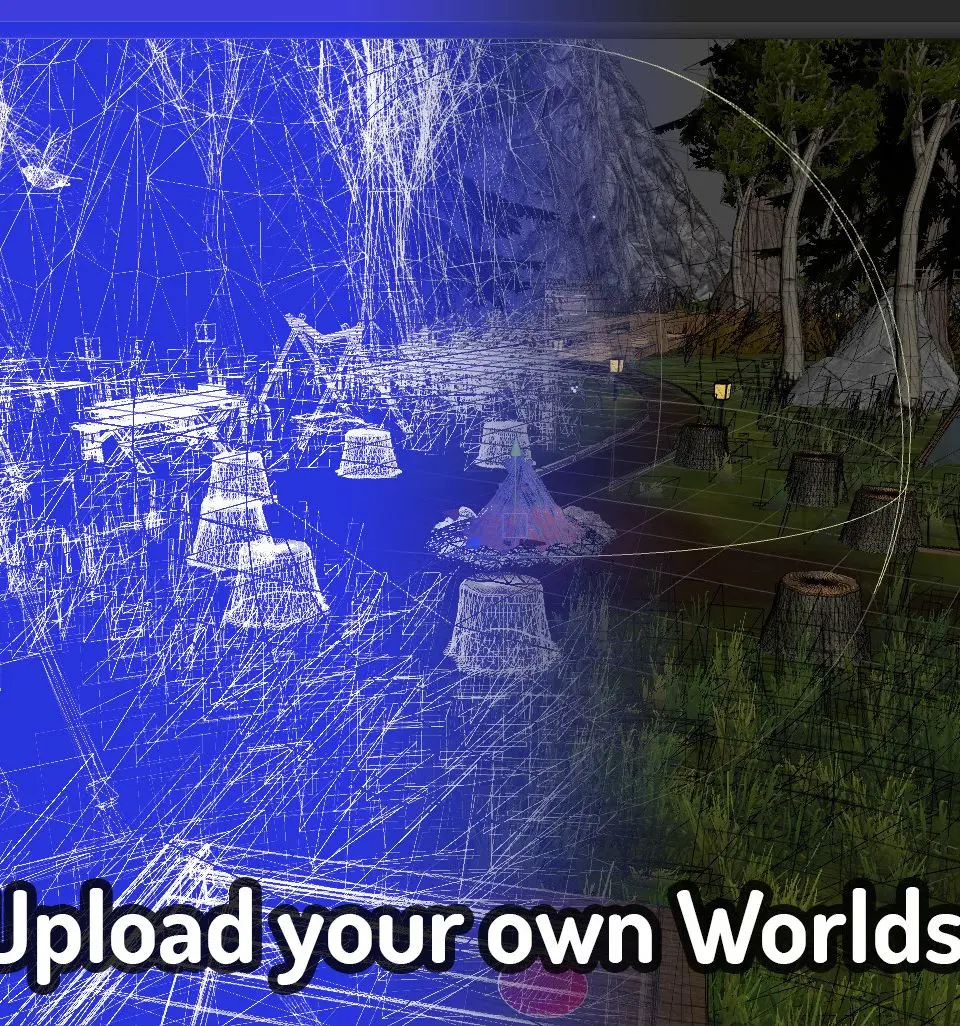
World Optimization: When you enter a new world, pay attention to the performance indicators if the creator has added them. If a world is known to be laggy, you might want to limit your time there or avoid it altogether if you're really struggling. Creators are getting better at optimizing, but some older or very complex worlds can still be tough on your system.
- 5
Manage Your Instances: Sometimes, the number of players in an instance can cause lag. If you're in a public world that's packed, try joining a different instance or creating your own private one. This reduces the load on your system.
- 6
Keep Your System Clean: Make sure your PC isn't bogged down by other programs running in the background. Close unnecessary applications, especially resource-heavy ones, before launching VRChat. Regularly clean up your hard drive and restart your computer to clear out temporary files and processes.
- 7
Update Your Drivers: Always keep your graphics card drivers up to date. Nvidia, AMD, and Intel all release regular updates that can improve performance in games and fix known issues. Check the manufacturer's website for the latest drivers.
Tips:
- If you're on PC VR, try using the
100% Human-Written. AI Fact-Checked. Community Verified. Learn how AntMag verifies content