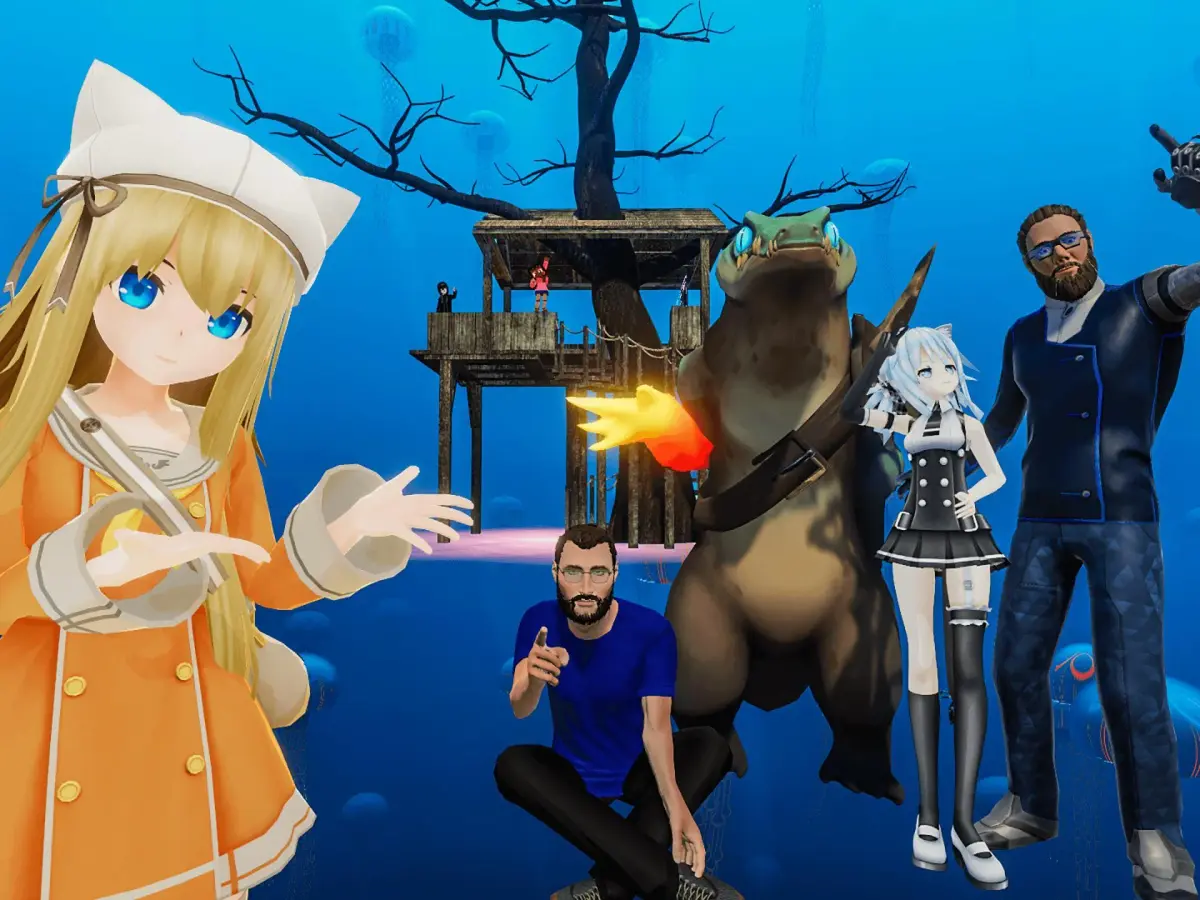
Understand VRChat avatar attributes and how they influence performance and social standing. Master avatar elements to enhance your VRChat experience.
Welcome, fellow VRChat adventurer, to the definitive guide on optimizing your character's stats and abilities! While VRChat doesn't feature traditional RPG leveling or stat points, your "character" is your avatar, and its performance, utility, and even social standing are directly tied to its attributes. Mastering these elements will elevate your experience from a casual user to a true VRChat connoisseur.
Understanding Your Avatar's Core Stats
Think of these as your avatar's inherent properties, influencing how you interact with the world and how others perceive you. These aren't numerical values you can directly increase, but rather qualities you choose and manage.
- Performance Rank (Optimization): This is arguably the most crucial "stat" in VRChat. A higher performance rank means your avatar is well-optimized, leading to smoother experiences for everyone in the instance.
- Actionable Step: Access your avatar's details by opening the Quick Menu (usually by pressing 'Esc' on PC or the menu button on your VR controller), navigating to the "Avatars" tab, and selecting your current avatar. Look for the performance rank indicator (Excellent, Good, Medium, Poor, Very Poor).
- Strategy: Aim for "Good" or "Excellent" whenever possible. Avoid "Poor" or "Very Poor" avatars in public instances, as they can cause significant lag for other players, especially on lower-end hardware (like some Android or iOS devices running VRChat Mobile, or even PC users with less powerful GPUs).
- Item Name/Location: Many community-created worlds, such as "Avatar Performance Testing" or "Optimization Station," offer tools to analyze your avatar's poly count, material slots, and other performance-impacting metrics.
- s (Complexity): The number of triangles making up your avatar's mesh. High counts are a primary cause of poor performance.
- Strategy: For general use, try to keep avatars under 70,000 s. For highly detailed or custom avatars, consider using LODs (Levels of Detail) if you're an experienced creator.
- Tool: Blender (PC) is the industry standard for 3D modeling and optimization.
- Material Slots (Draw Calls): Each unique material on your avatar requires a "draw call" from the GPU. Too many draw calls can significantly impact performance.
- Strategy: Consolidate materials where possible. Many creators use texture atlases to combine multiple textures into one, reducing material slots. Aim for under 8-10 material slots for optimal performance.
- PhysBones (Dynamic Elements): These add realistic physics to hair, clothing, and other parts. While visually appealing, excessive PhysBones can be resource-intensive.
- Strategy: Use PhysBones judiciously. Limit the number of components and colliders. Test your avatar in crowded worlds to see its impact.
Avatar Abilities and Interactivity
These are the dynamic features and functions built into your avatar, enhancing your social interactions and utility within VRChat worlds.
- Emotes & Gestures: Pre-programmed animations that allow you to express emotions and actions.
- Actionable Step: Access emotes through the Quick Menu, under the "Emotes" tab. Many avatars also have custom gestures triggered by hand movements in VR.
- Strategy: Learn your avatar's unique emotes. Some avatars have "hidden" emotes or interactive elements that can be discovered by experimenting with hand gestures or specific world interactions.
- Toggles & Customization: Many avatars feature in-game menus (often accessed via the Quick Menu's "Expression" tab or a dedicated radial menu) that allow you to toggle clothing, accessories, hair styles, or even alter body proportions.
- Item Name/Location: Look for "Avatar 3.0" avatars, as these offer the most robust customization options through their Expression Menus. Worlds like "Avatar Testing World" often have mirrors and lighting setups to help you preview changes.
- Strategy: Experiment with toggles to adapt your avatar to different social situations or world themes. A formal outfit for a club world, or a casual look for a chill hangout.
- Prop Spawning & Tools: Some avatars come equipped with the ability to spawn props (e.g., pens, drinks, instruments) or even functional tools (e.g., a working camera, a drawing tablet).
- Strategy: These abilities are often found within the avatar's Expression Menu. Pay attention to the avatar's description or creator notes, as they often highlight these unique features.
- Example: An avatar with a "Pen Tool" can be incredibly useful in collaborative drawing worlds like "The Black Cat" or "Draw & Guess."
- Audio Links & Soundboards: Avatars can sometimes have built-in audio players or soundboards, allowing you to play music or sound effects.
- Caution: Use soundboards responsibly. Excessive or inappropriate audio can be disruptive and lead to mutes or blocks from other players.
- Strategy: If your avatar has an audio link, ensure you have appropriate content and use it sparingly and contextually.
Enhancing Your "Character" Beyond the Avatar
While your avatar is central, your VRChat "character" also encompasses your social skills and knowledge of the platform.
- Social Dexterity (Communication): Your ability to engage in meaningful conversations, understand social cues, and build connections.
- Strategy: Practice active listening, ask open-ended questions, and be mindful of personal space (even virtual). Join communities and boards (like those found on or community Discord servers) to learn about VRChat etiquette and popular worlds.
- World Knowledge (Exploration): Familiarity with popular worlds, hidden gems, and their unique mechanics.
- Actionable Step: Regularly explore the "Worlds" tab in your Quick Menu. Check out the "Hot," "New," and "Community Labs" sections.
- Item Name/Location: Worlds like "The Great Pug," "Black Cat," "Murder 4," and "Chill Out" are excellent starting points for social interaction and understanding common VRChat world types.
- Technical Proficiency (Troubleshooting): Understanding basic VRChat settings, performance optimization, and common issues.
- Strategy: Familiarize yourself with the "Settings" menu in your Quick Menu. Learn how to adjust graphic quality, audio input/output, and safety settings. Consult online guides and community forums (like the PC boards for VRChat discussions) for troubleshooting tips.
By thoughtfully selecting and managing your avatars, understanding their built-in abilities, and cultivating strong social and technical skills, you'll truly master your VRChat "character" and unlock a richer, more engaging experience.
100% Human-Written. AI Fact-Checked. Community Verified. Learn how AntMag verifies content