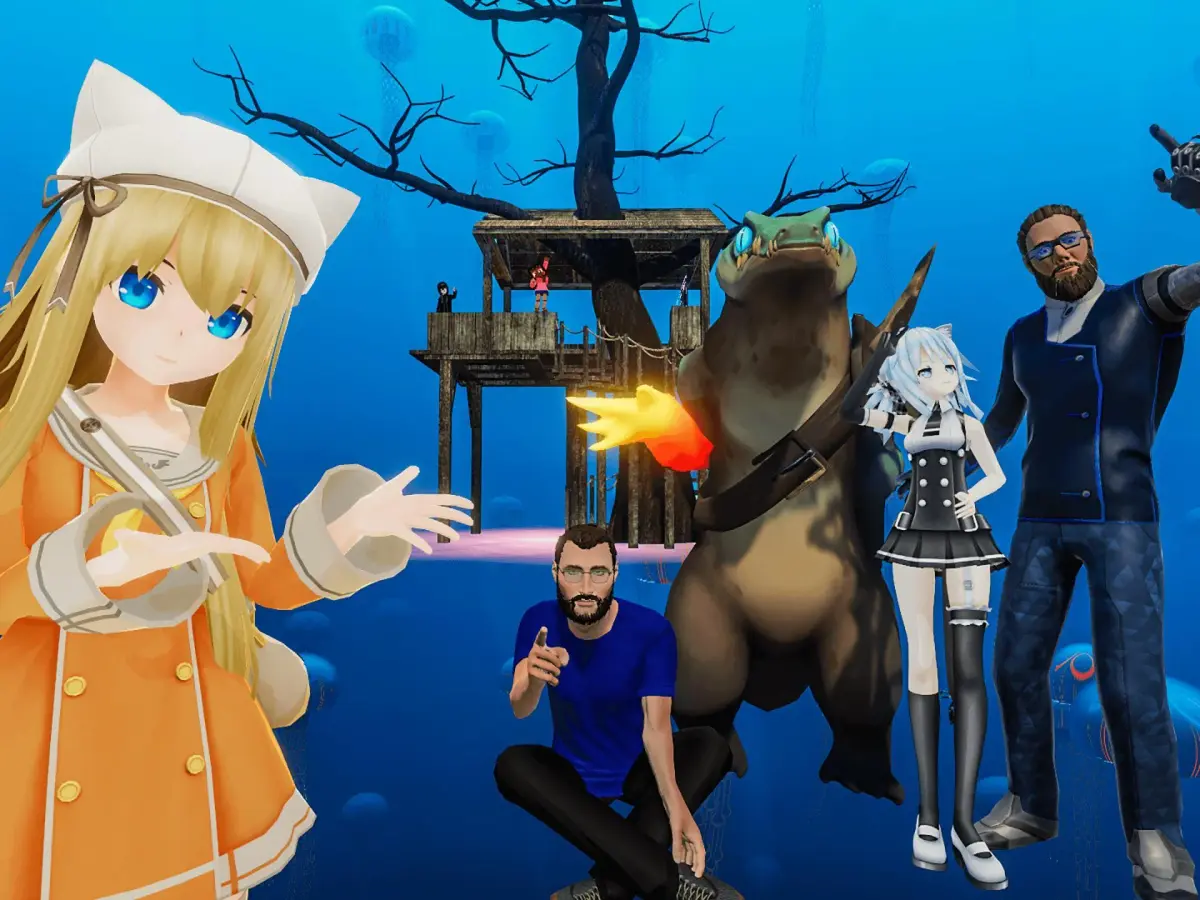
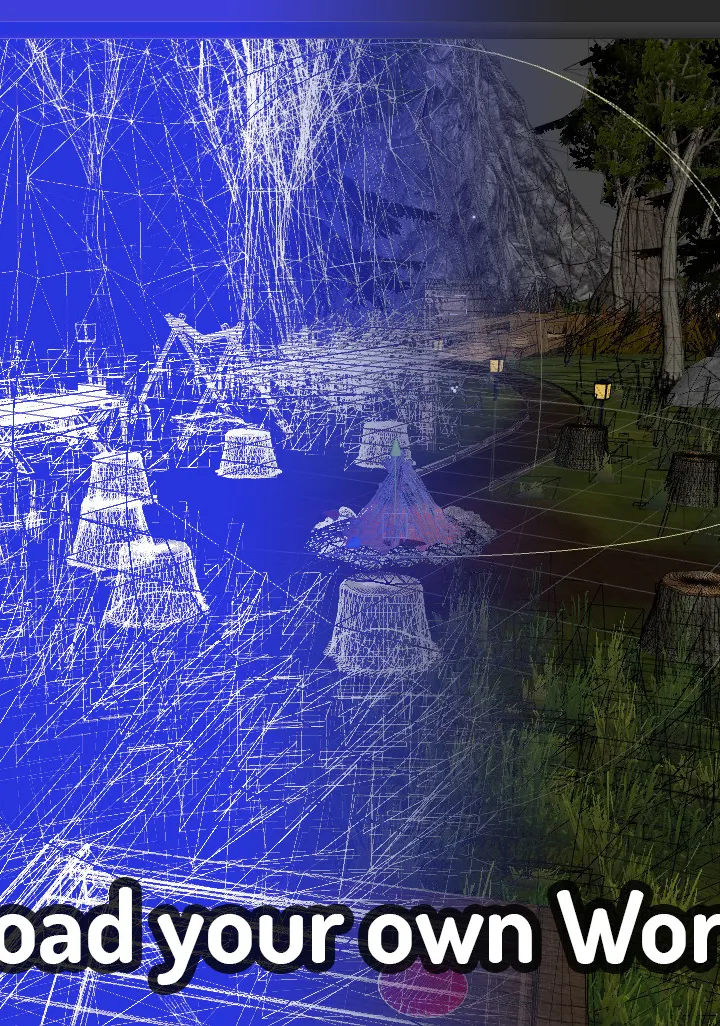
Master VRChat's avatar creation pipeline and user-generated world building. Learn how to modify avatar properties and customize your presence within virtual so.
VRChat offers an unparalleled level of personal expression through its robust crafting and customization systems. While not a traditional RPG crafting system with resource gathering and item creation, VRChat's "crafting" revolves around avatar and world creation, and "customization" is about making these elements uniquely yours. This guide will walk you through the essential steps to personalize your VRChat experience.
Avatar Customization: Your Digital Identity
Your avatar is your primary representation in VRChat. Customizing it allows you to express your personality, mood, or even roleplay a specific character. There are several avenues for avatar customization:
1. Finding and Equipping Avatars
- Public Avatars: Many worlds feature "Avatar Pedestals" or "Avatar Worlds" where you can instantly switch to pre-made avatars. Look for worlds like "Avatar Search" or "The Great Pug" (often has a few public avatars near the entrance). Simply step onto the pedestal or interact with the avatar display to equip it.
- Avatar Hubs: Dedicated worlds like "VRChat Avatar Hub" or "VRChat Avatars" contain vast collections of user-created avatars, often categorized by style, , or functionality. These are excellent starting points for finding something that resonates with you.
- Friend's Avatars: If a friend has an avatar you like and has enabled sharing, you can often "clone" their avatar by interacting with them directly (usually by holding down the 'E' key on PC or using the quick menu in VR).
2. Advanced Avatar Customization (Unity Integration)
For truly unique avatars, you'll need to delve into Unity, the game engine VRChat is built upon. This is where the "crafting" aspect truly shines, allowing you to import, modify, and upload your own 3D models.
- Download Unity Hub and Unity Editor: VRChat typically requires a specific version of Unity. Check the official VRChat documentation or community boards (like the PC boards on ) for the recommended version.
- Install VRChat SDK: This is a crucial package that integrates VRChat's functionalities into Unity. You can download it from the official VRChat website.
- Acquire a 3D Model:
- Free Models: Websites like Sketchfab, DeviantArt, or even some VRChat communities offer free avatar bases.
- Paid Models: Platforms like Booth.pm or Gumroad have a wide selection of high-quality, often customizable, avatar models.
- Create Your Own: For the truly ambitious, 3D modeling software like Blender or ZBrush can be used to create an avatar from scratch.
- Import into Unity: Drag and drop your 3D model (usually a .FBX file) into your Unity project's Assets folder.
- Configure for VRChat:
- Set up Animator: Ensure your avatar has a proper rig and an Animator Controller for expressions and gestures.
- Add VRChat Components: Use the VRChat SDK to add components like "VRC_Avatar Descriptor" to define eye positions, view points, and various avatar features.
- Materials and Textures: Adjust the materials and apply textures to give your avatar its desired appearance.
- PhysBones: Add PhysBones components for realistic hair, clothing, or accessory physics.
- Upload to VRChat: Once configured, use the VRChat SDK panel within Unity to upload your avatar. Ensure you meet the trust rank requirements to upload content.
World Customization: Shaping Your Environment
Beyond avatars, VRChat allows you to craft and customize entire worlds, offering a canvas for your creativity.
1. Creating a Basic World (Unity Integration)
Similar to avatars, world creation requires Unity and the VRChat SDK.
- Set up Unity Project: Start a new Unity project and import the VRChat SDK, specifically the "VRChat World SDK."
- Design Your Environment:
- Terrain Tools: Use Unity's built-in terrain tools to sculpt landscapes, add trees, and paint textures.
- Import Assets: Bring in 3D models from asset stores (Unity Asset Store, Sketchfab) or create your own. This could include furniture, buildings, props, or interactive elements.
- Lighting: Experiment with Unity's lighting system to set the mood and atmosphere of your world.
- Add VRChat Components:
- VRC_Scene Descriptor: This component is essential for defining spawn points, world boundaries, and other VRChat-specific settings.
- Portals: Add "VRC_Portal" prefabs to link your world to other VRChat instances.
- Interactables: Implement interactive elements using Udon (VRChat's visual scripting language) or pre-made VRChat prefabs for things like buttons, doors, or minigames.
- Upload Your World: Use the VRChat SDK panel to upload your world. You can choose to make it public, private, or invite-only.
2. Advanced World Features (Udon Scripting)
For truly dynamic and interactive worlds, Udon scripting is your next step. Udon allows you to create complex logic without writing traditional code.
- Udon Graph: VRChat's visual scripting interface allows you to connect nodes to create behaviors. This can range from simple door opening mechanisms to intricate minigames or custom UI elements.
- UdonSharp: For those familiar with C# programming, UdonSharp allows you to write Udon scripts directly in C#, offering more power and flexibility.
- Community Resources: The VRChat community is a treasure trove of Udon tutorials, prefabs, and examples. Explore the official VRChat Discord, community forums, and YouTube for guidance.
Personal Space Customization: Your Home Away From Home
Every VRChat user has a "Home World" – a personal space you can customize and invite friends to.
- Default Home World: VRChat provides a basic home world. You can change its appearance by interacting with panels or objects within it, often allowing you to swap themes or furniture.
- Custom Home Worlds: You can set any world you've uploaded or favorited as your home world. This is done through the VRChat menu (usually under "Worlds" -> "My Worlds" or "Favorites").
- Decorating Your Home World: Many home worlds come with interactive elements that allow you to place objects, change wall colors, or even display personal photos. Experiment with the world's specific features.
By leveraging these crafting and customization options, you can transform your VRChat experience from a passive observer to an active creator, shaping your digital identity and the environments you inhabit.
100% Human-Written. AI Fact-Checked. Community Verified. Learn how AntMag verifies content