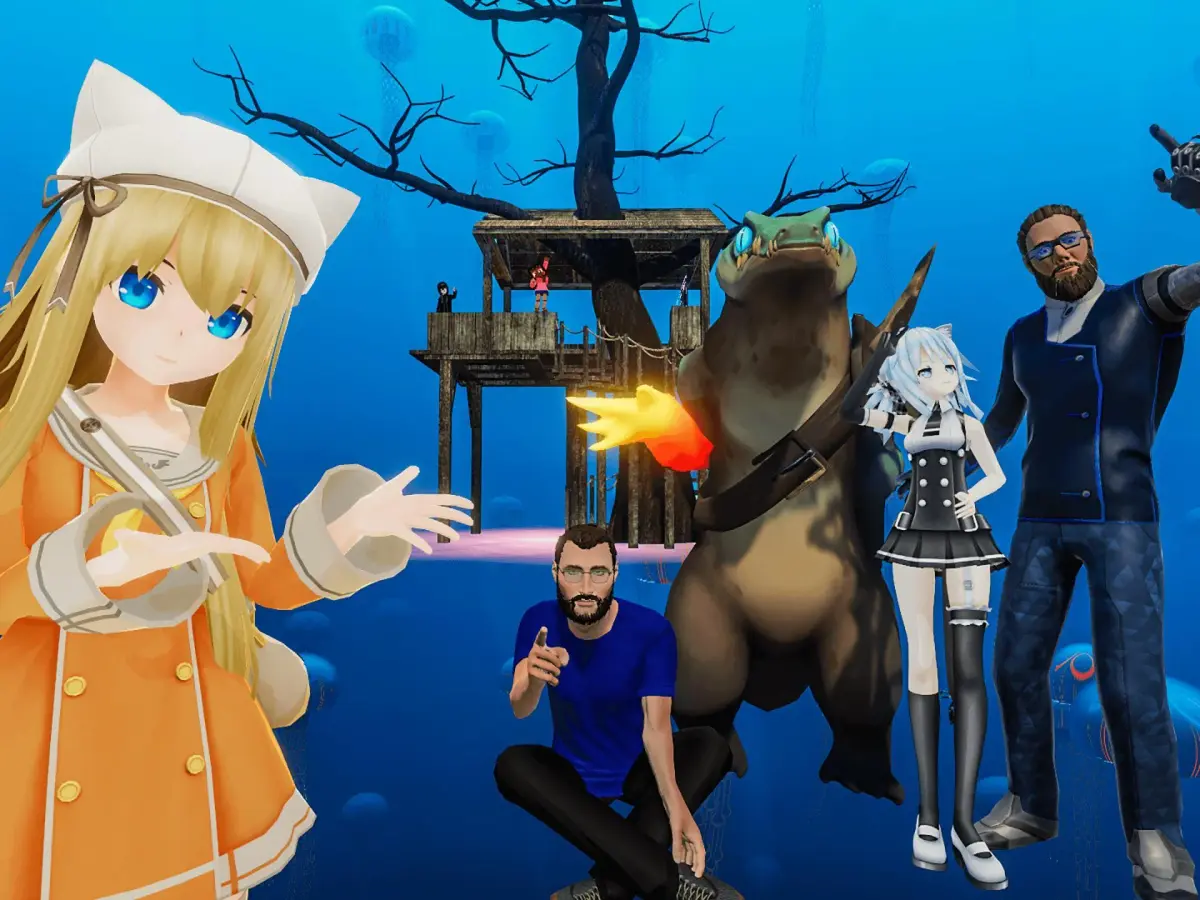
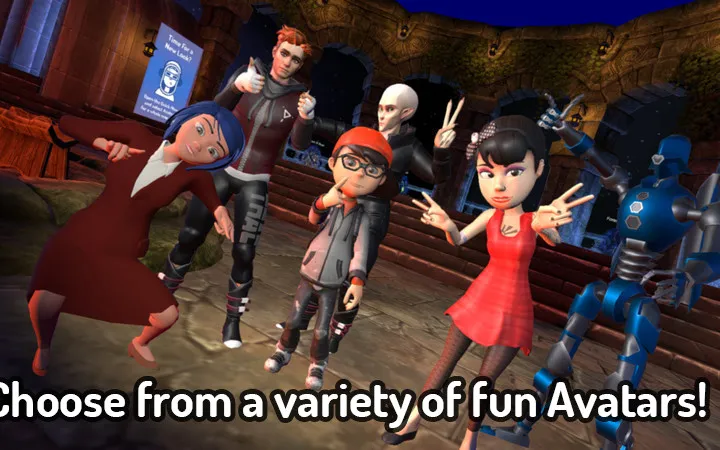
Create your unique VRChat avatar from scratch using Unity. This guide walks you through the initial steps of avatar creation using the Unity engine.
Creating your own avatar in VRChat offers unparalleled personalization, allowing you to embody virtually anything you can imagine. The primary tool for this is Unity, a powerful game development engine that VRChat leverages for its content creation. To begin, you'll need to download and install a compatible version of Unity, specifically the one recommended by the VRChat documentation, as different versions can lead to compatibility issues.
Once Unity is set up, you'll need the VRChat SDK (Software Development Kit). This is a crucial package that integrates VRChat-specific functionalities into Unity, enabling you to upload your creations. You can typically find the SDK through the VRChat website or their official Discord server. After importing the SDK into your Unity project, you'll gain access to tools for avatar building and uploading.
The core of avatar creation involves importing a 3D model, often created in software like Blender or Maya. This model needs to be properly rigged with a skeleton (armature) that allows it to animate. The rigging process is critical for how your avatar will move and interact within VRChat. You'll then need to set up materials and textures to give your avatar its visual appearance. Pay close attention to texture resolution and file formats to ensure good visual quality without sacrificing performance.
Key considerations during this stage include:
- Model Complexity: Keep counts reasonable, especially if you aim for Quest compatibility. High poly counts can lead to performance issues for other users.
- Rigging Quality: Ensure the avatar's bones are correctly placed and weighted to avoid unnatural deformations during animation.
- Material Setup: Use VRChat's recommended shaders and material settings for optimal visual fidelity and performance.
- Animator Controller: This component dictates how your avatar's animations are triggered and managed.
After assembling and configuring your avatar in Unity, you'll use the VRChat SDK's upload tools to send it to VRChat. This process involves a final check for compliance with VRChat's content guidelines and performance standards. Successfully uploaded avatars become available in your personal avatar list within VRChat, ready to be used in any world.
100% Human-Written. AI Fact-Checked. Community Verified. Learn how AntMag verifies content