Learn how to set up your first world and embark your expedition in Dwarf Fortress. This guide covers world generation, location selection, and initial dwarf and inventory setup.
This guide will help you set up your initial game in Dwarf Fortress. You will learn how to generate a new world, select an embark location, and organize your starting expedition.
Walkthrough
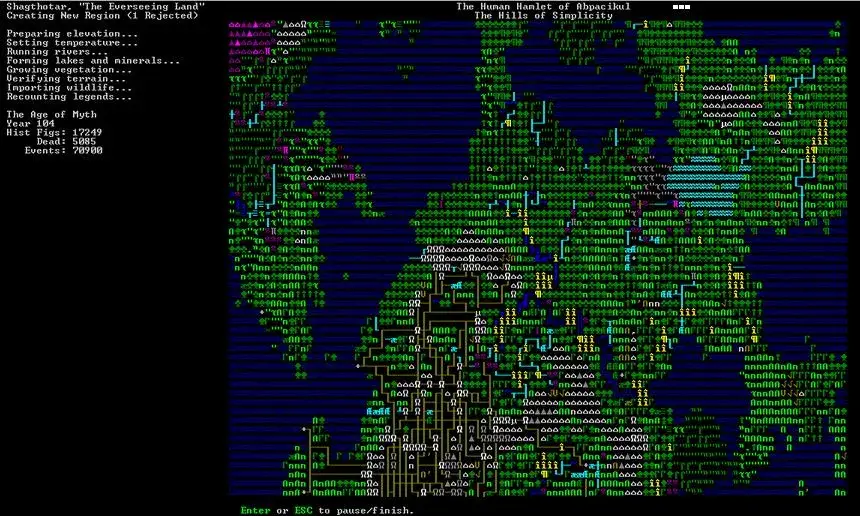
- 1From the start menu, select "Create New World". Press [Enter] to begin automatic world generation. You can optionally press [p] to export an ASCII map of the world before continuing.
- 2After world generation, press [Enter] to continue. You can then select "Start Playing" and "Legends" to view a detailed ASCII map by pressing [d]. This map can be graphical if you have the space.
- 3Select "Dwarf Fortress" to begin the game. You will then choose an embark location. Use the arrow keys to move and [Tab] to cycle through information screens. Aim for a location with water, trees, and a temperate climate. The size of the selection box can be adjusted using the keys displayed on screen. Press [e] to embark.
- 4You can choose a default expedition or organize your own. Press [Space] to organize. Use [Tab] to switch between dwarf and inventory screens.
- 5In the dwarf screen, use up/down keys to cycle through dwarfs and left/right keys to cycle through job categories. You have 200 points to spend on skills and inventory. Consider roles like miner, mason, carpenter, woodcutter, hunter, fisherman, grower, cook, brewer, and herbalist.
- 6In the inventory screen, you can add items by pressing [n]. It's recommended to bring at least two axes and consider bringing dogs and cats. Ensure your ranger has a suitable weapon. Press [e] to embark when ready.
- 7After the introductory screen, press [Space] to pause the game. Use arrow keys to pan the view and [F1] to center on your dwarfs. Use [Shift+<] to move up a z-level and [Shift+>] to move down. Small dots indicate a lower level, and arrows on borders show walkable slopes.
- 8Press [k] to "look around" and activate an 'X' cursor. Move the cursor to see information about objects and creatures in the right panel. Press [Space] to exit any screen.
- 9Press [v] to "view units" and activate a cursor that shows information about the nearest living units.
- 10Dwarfs are autonomous. You set jobs, and they complete them based on priority and skills. Ensure they have food, drink, and places to sleep.
- 11Press [j] to access the "job" screen, which shows what dwarfs are doing and lists queued jobs. Use arrow keys to navigate and [c] to zoom to a dwarf.
Tips
- Choose a temperate climate to make the first winter more manageable.
- A location with a stream source provides water, trees for wood, and a mountain face for digging (though digging down is now easier).
- Bringing dogs can help defend against early threats, and cats can help keep dwarfs happy.
- Ensure your starting dwarfs have a balanced set of skills to cover essential tasks like mining, carpentry, and food production.
- Experiment with z-level movement ([Shift+<] and [Shift+>]) to understand how the game visualizes different heights.
- Use the [k] command frequently to identify objects and creatures in your environment.
- Remember that [Space] is used for pausing and exiting most menus.
100% Human-Written. AI Fact-Checked. Community Verified. Learn how AntMag verifies content