
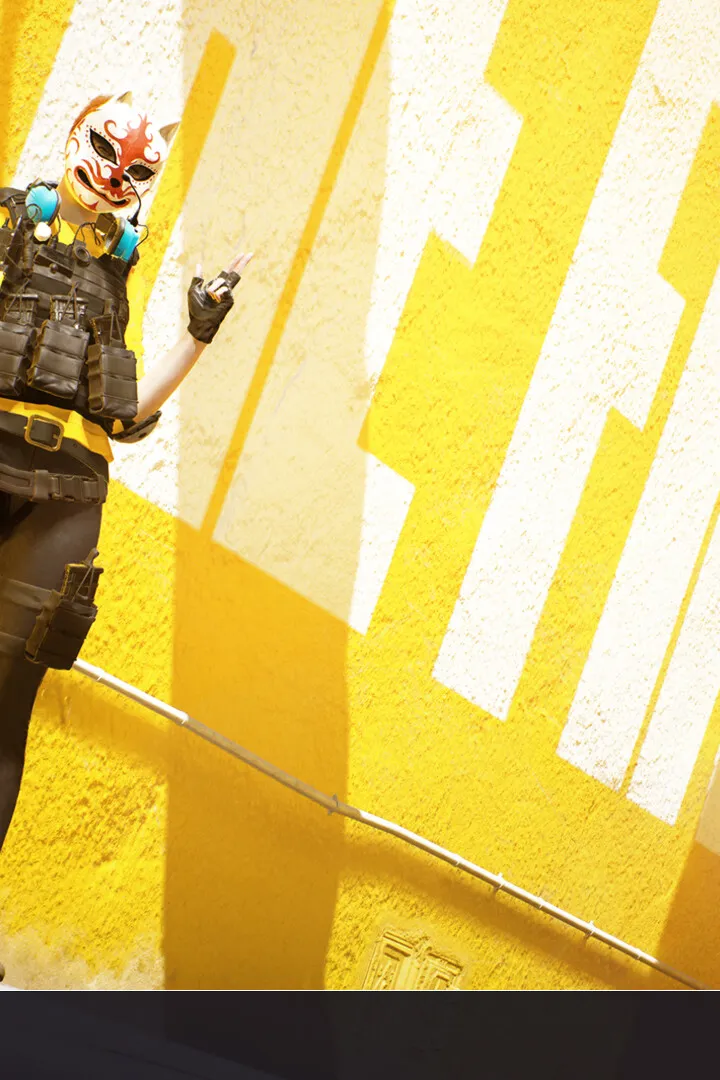
Get THE FINALS up and running in no time! This guide walks you through the essential installation and setup steps so you can jump into the action.
Alright, let's get you set up to dive into the chaos of THE FINALS! It's pretty straightforward, but we'll cover the basics to make sure you're ready to drop into your first match without a hitch.
First things first, you'll need to have the game installed on your platform. Whether you're on PC via Steam, or on PlayStation, make sure the download is complete. Once it's installed, you're pretty much good to go!
When you launch the game for the first time, you'll likely go through a quick tutorial or an initial setup sequence. This usually involves:
- Account Login/Creation: You'll probably need to link or create an account for the game. This is standard for most online multiplayer games and helps keep your progress tied to you.
- Graphics and Audio Settings: Take a moment to adjust these to your liking. You want to make sure the game runs smoothly on your system and that the audio cues are clear – they're super important in THE FINALS!
- Controller/Keybind Setup: If you're using a controller, make sure it's recognized. You can usually customize your keybinds here too, which is a great idea to set up early so you're not fumbling later.
Once you've cleared that initial setup, you'll usually land in a main menu. From here, you'll be able to:
- Select Game Mode: Choose between quick matches, ranked play, or whatever other modes are available.
- Customize Your Loadout: This is where you'll pick your character's appearance, weapons, and gadgets. Get familiar with these options early on!
- Find Friends: THE FINALS is best with a squad, so make sure to invite your buddies.
That's the gist of it! The game does a good job of guiding you through the initial steps, so just follow the on-screen prompts. The real setup happens when you start customizing your loadouts and getting a feel for the controls. Good luck out there, and have fun!
100% Human-Written. AI Fact-Checked. Community Verified. Learn how AntMag verifies content