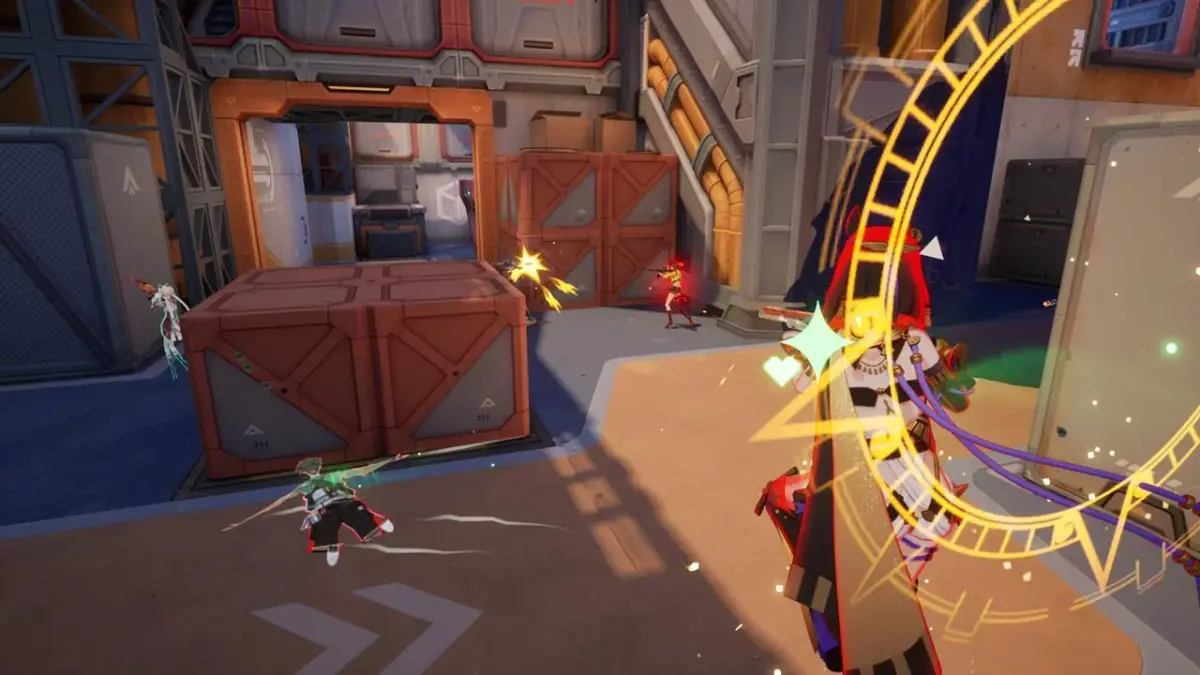
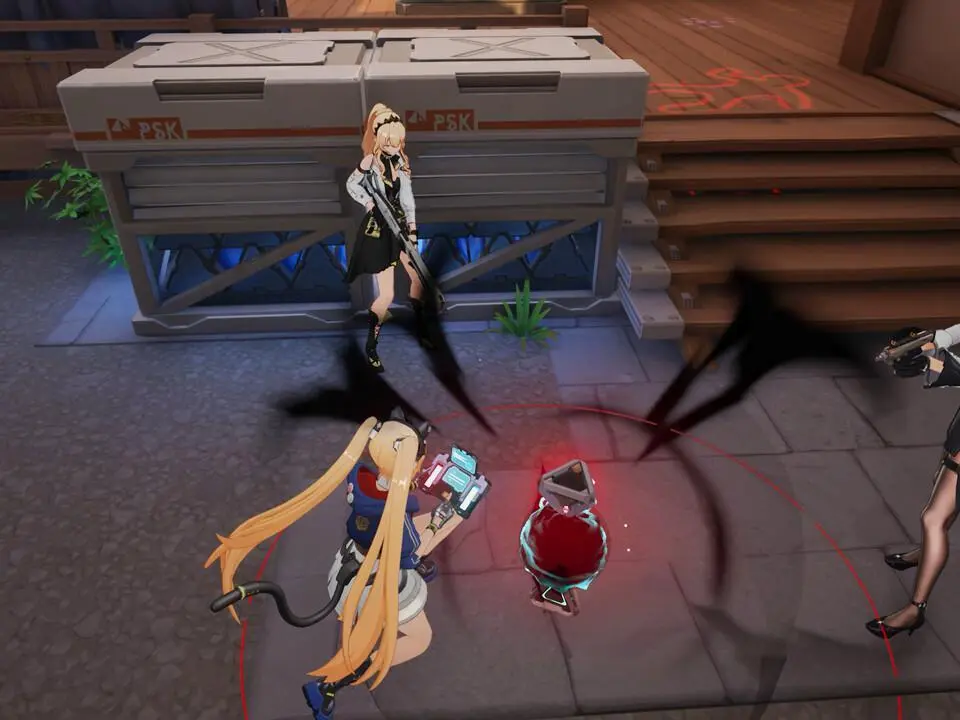
Hey there, Strinova player! Want to boost your frame rates and smooth out gameplay? This guide will walk you through optimizing your game settings for peak performance, ensuring you get the best experience possible without sacrificing visual quality.
Alright, let's get your Strinova experience running as smoothly as possible. We're going to tweak some settings to get you the best performance without making the game look like a potato. Think of it like tuning up your favorite ride – a few adjustments can make a world of difference!
Understanding the Basics
Before we dive in, it's good to know what we're aiming for. Higher frame rates (FPS) mean smoother gameplay, especially during intense moments like combat in the Neon District or navigating the crowded markets of Port Azure. Lowering certain graphical settings can significantly boost your FPS, but we want to find that sweet spot where it still looks good.
Display Settings
These are usually the first place to look for performance gains.
- Resolution: Ideally, you want to play at your monitor's native resolution (e.g., 1920x1080). Lowering this can give a big FPS boost, but the game will look blurrier. Try it if you're really struggling, but aim to keep it native if possible.
- Fullscreen vs. Windowed: Always play in Fullscreen mode. This gives the game exclusive control over your display, which is generally better for performance than Windowed or Borderless Windowed modes.
- Vertical Sync (V-Sync): This prevents screen tearing but can introduce input lag and cap your FPS. If you're experiencing tearing, try turning it ON. If your FPS is low or you feel input lag, try turning it OFF. Some newer monitors have Adaptive-Sync (G-Sync/FreeSync), which is a better alternative if your hardware supports it.
Graphics Settings
This is where the real magic happens. We'll go through the common settings and what they impact.
- Texture Quality: This affects how detailed surfaces look. Lowering this from 'Ultra' to 'High' or 'Medium' can save VRAM and boost performance, especially on cards with less memory. The visual difference might not be huge unless you're really looking closely.
- Shadow Quality: Shadows are performance-heavy. Dropping this from 'Ultra' to 'High' or 'Medium' can give a noticeable FPS boost. 'Low' might make shadows look too blocky, so 'Medium' is often a good compromise.
- Anti-Aliasing (AA): This smooths out jagged edges. Settings like MSAA can be very demanding. Try FXAA if you need AA but want better performance, or consider turning it off completely if you're desperate for frames.
- Ambient Occlusion: Adds depth by simulating how light is blocked in crevices. It looks great but costs performance. Try turning it off or setting it to a lower quality if you need more FPS.
- Effects Quality: Controls the detail of particle effects like explosions and magic. Lowering this can help during chaotic fights.
- View Distance: How far into the distance you can see details. Lowering this can improve performance, especially in large open areas like the Crimson Wastes.
Advanced Tweaks (Use with Caution!)
These might require editing game files or delving deeper into your graphics card settings. Only do this if you're comfortable!
- Config File Edits: Sometimes, you can find hidden settings in Strinova's configuration files (often found in your Documents or AppData folders) that aren't available in the in-game menu. Look for guides specific to Strinova for these. Be sure to back up any files before editing!
- NVIDIA Control Panel / AMD Radeon Software: You can often force certain settings or optimize them globally or per-application. For example, setting 'Power Management Mode' to 'Prefer maximum performance' in NVIDIA's control panel can sometimes help.
Testing and Iteration
The key is to experiment! Change one setting at a time and then test your performance. Use the in-game benchmark tool if Strinova has one, or just play a familiar section of the game (like a mission near the Starfall City hub) and observe your FPS. Aim for a stable framerate that feels good to you. Don't be afraid to turn things down – a smooth 60 FPS experience is often better than a choppy 30 FPS one, even if the latter looks slightly prettier.
Good luck out there, and may your frames be high!
100% Human-Written. AI Fact-Checked. Community Verified. Learn how AntMag verifies content