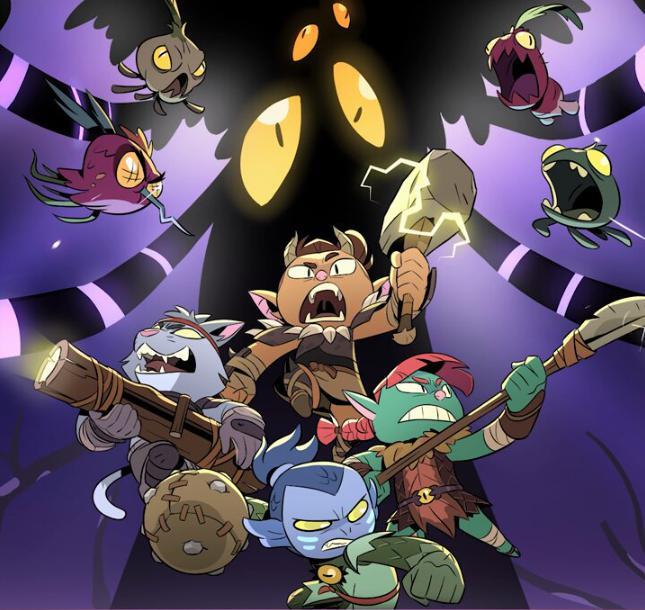
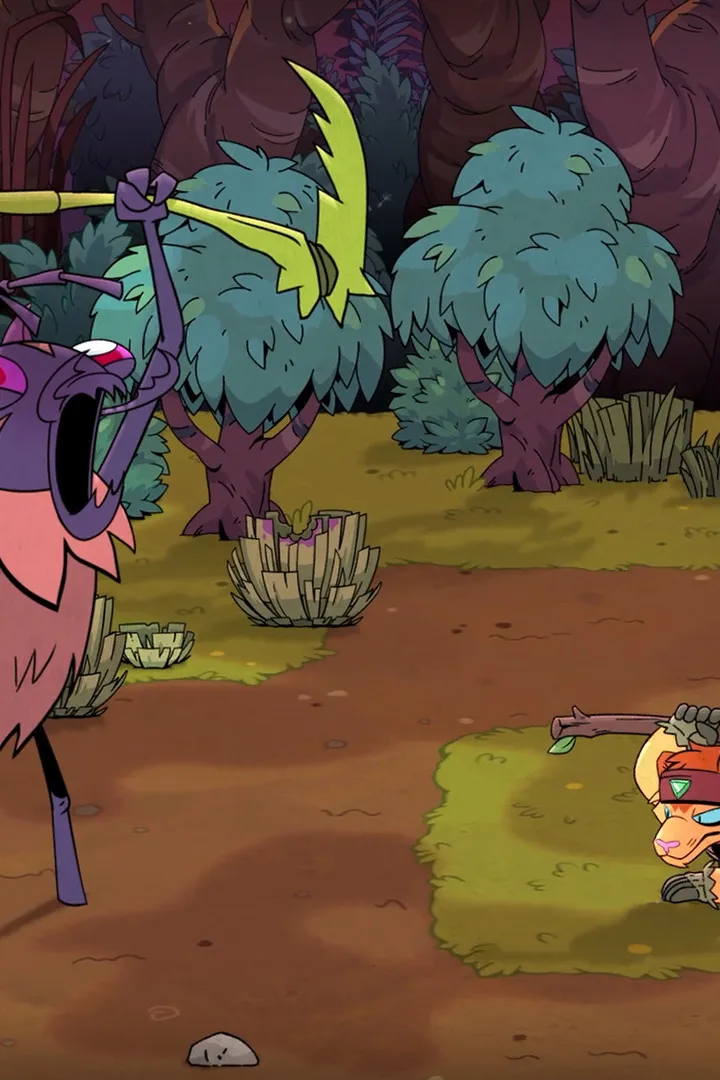
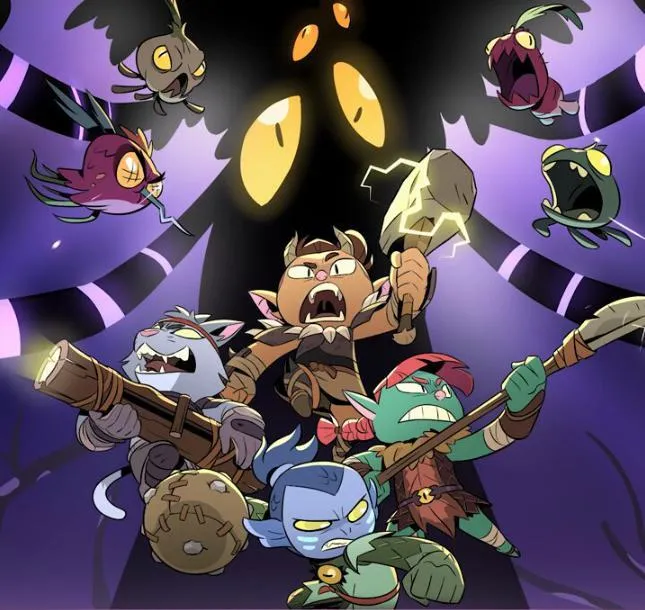
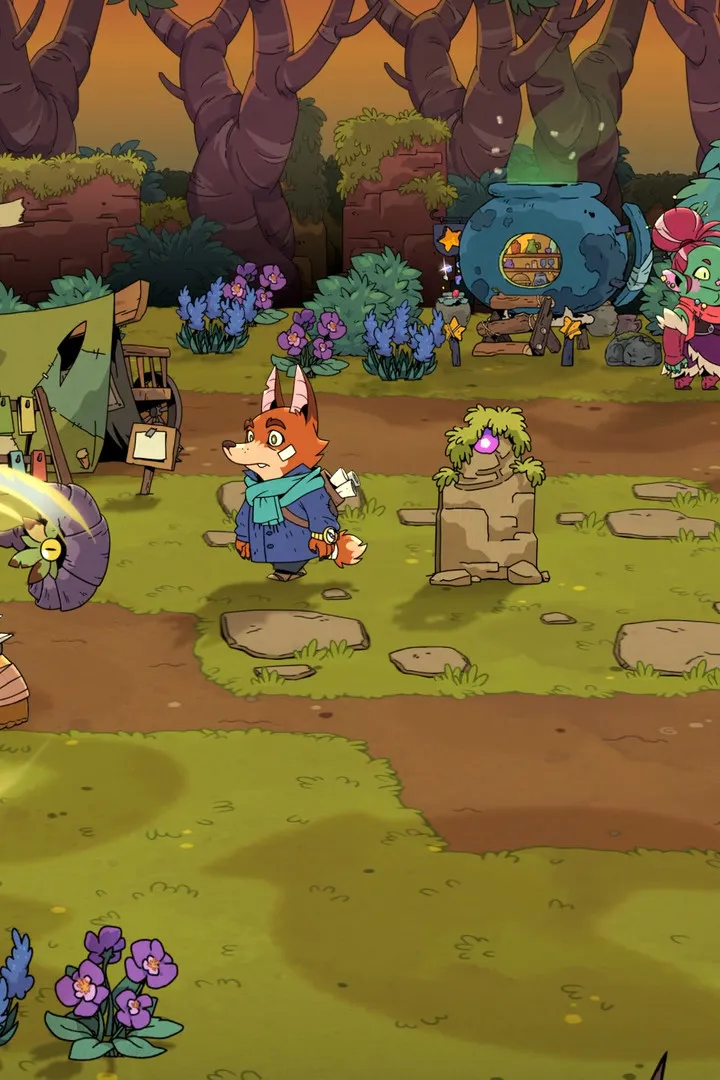
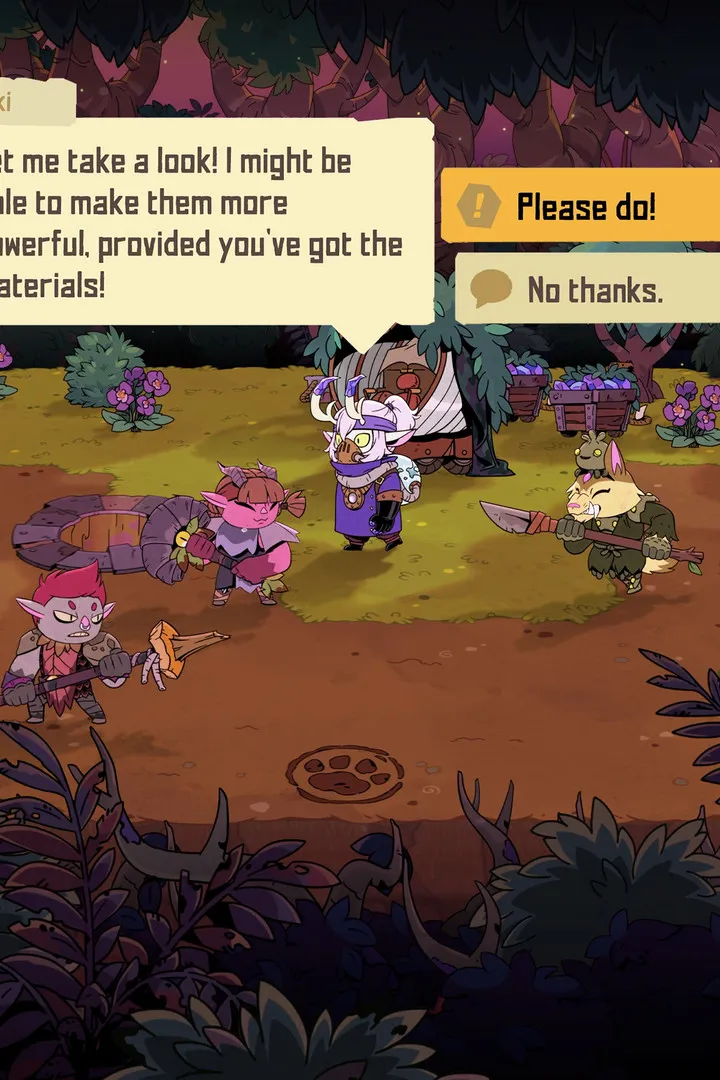
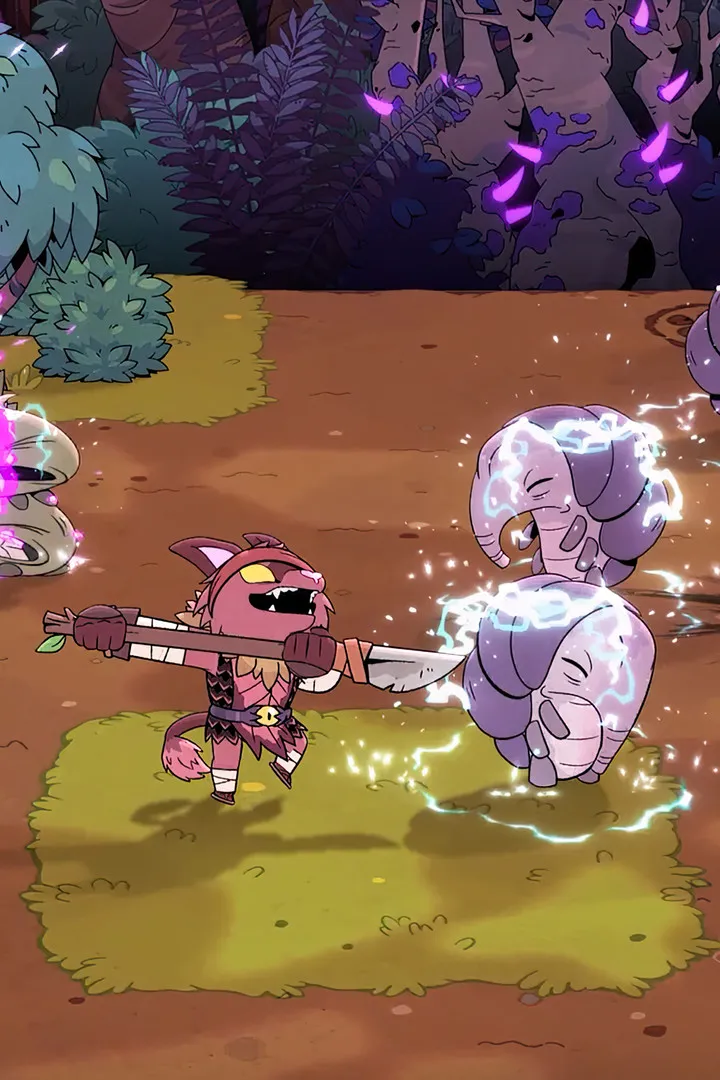
Welcome to Rotwood, Klei Entertainment's action roguelike dungeon crawler! Grab up to three friends and hack and slash your way through a dense, labyrinthian forest teeming with vicious vegetation. Moment-to-moment gameplay involves exploring ever-challenging mazes, battling dangerous foes, and returning with spoils to craft new weapons and armor, or to fortify your camp.
This guide will help you navigate the trickiest areas, from the sewers leading to Rotwood Downtown, through specific locations like Barlow's Meat Shop and Gunderson's General Store. We'll cover essential information on weapons, armor, food, gems, and the various powers you can acquire to enhance your hunter, ensuring you can face the challenges ahead and make the most of your runs.
Getting Started & Core Mechanics
Learn the essential mechanics and get started in Rotwood with our comprehensive guide. Master controls, combat, and survival to navigate the dangers ahead.
Getting Started & Core Mechanics
Learn the essential mechanics and get started in Rotwood with our comprehensive guide. Master controls, combat, and survival to navigate the dangers ahead.
Installation & Setup
New to Rotwood? This guide walks you through the initial installation and setup process so you can jump right into the action. Get ready to explore!
Installation & Setup
New to Rotwood? This guide walks you through the initial installation and setup process so you can jump right into the action. Get ready to explore!
PC System Requirements
Check Rotwood PC system requirements. Learn the CPU, GPU, and RAM needed for smooth performance in this 4-player action roguelike.
To ensure a smooth and enjoyable experience with Rotwood, it's crucial to confirm your PC meets the game's hardware demands. While official specifications are still being finalized, we can provide expected requirements based on similar titles in the Action Roguelike genre. These are typically divided into minimum and recommended tiers, covering your operating system, processor (CPU), memory (RAM), graphics card (GPU), and storage space.
Minimum System Requirements (Expected)
These specifications will allow you to run Rotwood at lower graphical settings and resolutions, providing a playable experience.
- Operating System: Windows 10 (64-bit)
- Processor (CPU): Intel Core i5-4460 or AMD FX-8320
- Memory (RAM): 8 GB
- Graphics Card (GPU): NVIDIA GeForce GTX 960 (4GB) or AMD Radeon R9 280 (3GB)
- DirectX: Version 11
- Storage: Approximately 20 GB available space (SSD recommended)
- Network: Broadband Internet connection for multiplayer
Recommended System Requirements (Expected)
Meeting these requirements will enable you to enjoy Rotwood with higher graphical settings, smoother frame rates, and a more immersive visual experience, especially during intense multiplayer sessions.
- Operating System: Windows 10 (64-bit) or Windows 11
- Processor (CPU): Intel Core i5-10400 or AMD Ryzen 5 3600
- Memory (RAM): 16 GB
- Graphics Card (GPU): NVIDIA GeForce GTX 1660 Super (6GB) or AMD Radeon RX 5600 XT (6GB)
- DirectX: Version 12
- Storage: Approximately 20 GB available space (SSD highly recommended)
- Network: Broadband Internet connection for multiplayer
Understanding the Components
The performance of Rotwood is directly tied to your PC's hardware. Here's a breakdown of what each component contributes:
- CPU (Processor): This is the brain of your computer. For Rotwood, a strong CPU is vital for handling game logic, enemy AI, physics calculations, and especially for managing the actions of up to four players simultaneously in co-op. A more powerful CPU will result in less stuttering and smoother gameplay, particularly during chaotic combat encounters.
- GPU (Graphics Card): The GPU is responsible for rendering all the visuals you see on screen – character models, environments, particle effects, and animations. A capable GPU is essential for achieving higher resolutions, detailed textures, and stable frame rates. For Rotwood's vibrant art style and dynamic combat, a dedicated graphics card with sufficient VRAM (Video RAM) is a must.
- RAM (Memory): RAM acts as the game's short-term memory, holding data that the game actively uses. Insufficient RAM can lead to longer loading times, stuttering, and even crashes. 8GB is generally the baseline for modern gaming, but 16GB is highly recommended for a fluid experience, especially if you run other applications in the background.
- Storage (HDD/SSD): This is where the game files are stored. While a traditional Hard Disk Drive (HDD) can work, a Solid State Drive (SSD) offers significantly faster loading times for game assets, reducing the time spent on loading screens between areas or after death.
- Operating System: Most modern games are optimized for 64-bit versions of Windows 10 and later. Ensure your OS is up-to-date for the best compatibility.
- Network: As Rotwood features co-op multiplayer, a stable and reasonably fast broadband internet connection is essential for a lag-free online experience.
Note: These are anticipated requirements. Always refer to the official Rotwood store page (e.g., Steam) for the most accurate and up-to-date system specifications once they are officially released.
Game Installation Guide
Learn how to install Rotwood on your PC with our comprehensive guide. Follow these simple steps to get the game up and running and start your adventure in the zombie-infested world.
This guide will walk you through the process of installing Rotwood. Follow these steps to ensure a smooth setup and begin your gameplay experience.
Installation Steps:
- Download the Game: Obtain the Rotwood game files from the official source or your chosen digital storefront.
- Run the Installer: Locate the downloaded installer file (usually an .exe or .msi file) and double-click it to start the installation process.
- Follow On-Screen Prompts: The installer will guide you through the setup. You may need to accept the license agreement, choose an installation directory, and select components to install.
- Choose Installation Location: Select the drive and folder where you want to install Rotwood. Ensure you have enough free space.
- Complete Installation: Wait for the installation to finish. This may take some time depending on your system's speed and the game's size.
- Launch the Game: Once installed, you can launch Rotwood from your desktop shortcut or the Start menu.
Important Notes:
- Ensure your system meets the minimum requirements for Rotwood before installation.
- It is recommended to close other applications during installation to avoid conflicts.
- If you encounter any issues, refer to the game's official support or community forums.
Similar guides you might like






100% Human-Written. AI Fact-Checked. Community Verified. Learn how AntMag verifies content