
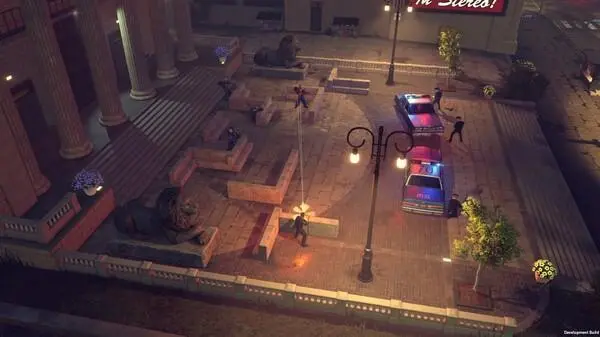
Get started with The Precinct! This guide covers essential initial setup, controls, and early gameplay tips to help you navigate the game like a pro.
Alright, let's get you set up and comfortable with the basics of The Precinct. Think of this as your quick-start guide, designed to get you moving and interacting with the world without any fuss. We'll cover how to get your game running and the fundamental controls you'll be using constantly.
First things first:
- Game Setup: When you first boot up The Precinct, you'll likely be prompted to configure some initial settings. This usually includes things like adjusting your display resolution, audio levels, and maybe even keybindings if you're playing on PC. Take a moment to dial these in to your preference. A comfortable setup makes a world of difference during those intense moments.
- Controls Overview: Understanding your controls is key. While specific button layouts can vary slightly depending on whether you're using a controller or keyboard and mouse, the core actions remain consistent. You'll typically use the left analog stick or WASD keys for movement, the right stick or mouse for camera control, and various buttons for actions like shooting, interacting, reloading, and using special abilities.
Key Controls to Master:
| Movement | Left Analog Stick / WASD | Navigate your character through the environment. |
| Camera / Aiming | Right Analog Stick / Mouse | Control the camera perspective and aim your weapons. |
| Interact / Action | [X/A] Button / [E] Key | Used for opening doors, picking up items, talking to NPCs, and performing context-sensitive actions. |
| Primary Fire | [R2/RT] Button / Left Mouse Button | Your main attack button. Use it to shoot your equipped weapon. |
| Secondary Fire / Aim Down Sights | [L2/LT] Button / Right Mouse Button | Often used to aim down sights for more precision or to activate a weapon's alternate fire mode. |
| Reload | [Square/X] Button / [R] Key | Essential for keeping your weapon loaded and ready. Don't get caught with an empty clip! |
| Ability 1 | [L1/LB] Button / [Q] Key | Access your first special ability. These are crucial for combat and utility. |
| Ability 2 | [R1/RB] Button / [F] Key | Your second special ability. Mix and match these with Ability 1 for effective strategies. |
| Inventory / Menu | [Triangle/Y] Button / [Tab] Key | Opens your inventory, allowing you to manage items, weapons, and check your status. |
| Map / Objective Marker | [Touchpad/Select] Button / [M] Key | Brings up your in-game map and objective markers, helping you navigate the city. |
Pro-Tips for Getting Started:
- Don't rush through the initial setup. Take a minute to ensure your controls feel natural. You can always tweak them later in the options menu.
- Experiment with your basic controls in a safe area. Get a feel for movement speed, aiming sensitivity, and the timing of your actions.
- Pay attention to on-screen prompts! The game will often guide you with visual cues for interactions and combat.
- Keep an eye on your ammo count and reload whenever you have a safe moment. Running out of bullets at the wrong time is a quick way to find yourself in trouble.
- Familiarize yourself with your abilities early on. Knowing when and how to use them effectively can turn the tide of any encounter.
With these basics covered, you're well on your way to making your mark in The Precinct. Now, let's move on to the next steps!
100% Human-Written. AI Fact-Checked. Community Verified. Learn how AntMag verifies content