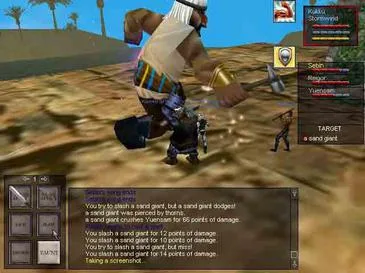

Master EverQuest's emotes and social commands to enhance role-playing and communicate with other adventurers in Norrath. Express yourself beyond chat.
Beyond simple chat, EverQuest offers a rich tapestry of emotes and social commands to enhance your role-playing experience and communicate non-verbally with other adventurers. Mastering these commands can add depth to your interactions and make your time in Norrath even more immersive.
Basic Emotes: Express Yourself
Emotes are pre-defined actions your character can perform, often accompanied by a descriptive message in the chat window. To use an emote, simply type a forward slash (/) followed by the emote's name in your chat window and press Enter. Many emotes can also target another player or NPC by including their name after the emote command.
/wave: Your character waves. Useful for greeting or saying goodbye./bow: Your character bows respectfully. A common gesture of deference or greeting./cheer: Your character cheers enthusiastically. Great for celebrating victories or encouraging allies./laugh: Your character laughs. Can be used to express amusement or lightheartedness./point [target]: Your character points. If a target is specified (e.g.,/point a goblin), the message will indicate who you are pointing at./shrug: Your character shrugs, indicating uncertainty or indifference./dance: Your character performs a short dance animation. Perfect for celebrations in cities like Freeport or Qeynos./sit: Your character sits down. Useful for resting, regenerating health/mana, or simply observing. Type/standto get back up.
Targeting Emotes
Many emotes can be directed at a specific player or NPC. To do this, ensure your target is selected (by clicking on them) or by typing their name after the emote command. For example:
/bow Bob: Your character bows to Bob./cheer a gnoll pup: Your character cheers at a gnoll pup (perhaps ironically).
Advanced Emotes and Customization
EverQuest also allows for more personalized expressions through custom emotes and the /em command.
The /em (or /me) Command
This powerful command allows you to create your own custom emote messages. Whatever you type after /em will be displayed in the third person, as if your character is performing that action.
- Usage: Type
/emfollowed by your desired action.- Example:
/em scratches his head in confusion. - Output: "Your Name scratches his head in confusion."
- Example:
- Strategic Use: This is invaluable for role-playing, allowing you to describe nuanced actions or reactions not covered by standard emotes. It's also excellent for adding flavor to your character's personality.
Creating Social Macros for Emotes
For frequently used emotes or sequences of actions, creating social macros is highly recommended. This saves time and ensures consistent communication.
- Open the Socials Window: Press
Alt+Oor navigate through the EQ button -> Socials. - Select a Social Page: Choose an empty tab (e.g., Socials 1, Socials 2).
- Create a New Button: Click on an empty button slot.
- Configure the Button:
- Name: Give it a descriptive name (e.g., "Greeting," "Taunt").
- Icon: Choose an appropriate icon.
- Commands: In the command lines, enter your emote commands. You can include multiple lines.
- Example for a "Greeting" macro:
/wave /say Greetings, traveler! - Example for a "Thank You" macro:
/bow
/say My sincerest thanks for your assistance.
- Example for a "Greeting" macro:
- Drag to Hotbar: Once configured, drag the social button from the Socials window to your main hotbar for easy access.
Communication Commands: Beyond Emotes
While emotes convey actions, other social commands are crucial for direct communication with other players.
/say [message]: Speaks to players in your immediate vicinity. This is the default chat channel./shout [message]: Broadcasts a message to all players within the current zone. Use sparingly for important announcements or seeking groups./ooc [message]: "Out of Character" chat. Used for discussing game mechanics, real-world topics, or anything not pertaining to in-game role-play. This channel is visible to all players in the zone./anon: Toggles your anonymous status. When active, other players using/whowill see you listed as "Anonymous" instead of your character name. This can be useful for avoiding unwanted attention, though some consider it impolite in certain situations. Type/roleplayto revert to normal visibility./tell [player name] [message]: Sends a private message to a specific player, regardless of their location in Norrath. Essential for coordinating with friends or guildmates./reply [message]: Sends a private message back to the last person who sent you a/tell. A convenient shortcut./who: Displays a list of players currently in your zone. You can add parameters like/who all(lists all players online),/who [class](e.g.,/who warrior), or/who [level range](e.g.,/who 10 20)./guildsay [message](or/g [message]): Sends a message to all members of your current guild, regardless of their zone./groupsay [message](or/p [message]): Sends a message to all members of your current group./assist [target]: Automatically targets the same enemy as your selected target. Crucial for efficient combat in groups./invite [player name]: Sends a group invitation to the specified player./disband: Disbands your current group (if you are the group leader)./leave: Leaves your current group.
By effectively utilizing these emotes and social commands, you'll not only enhance your personal EverQuest experience but also contribute to a more vibrant and interactive community within Norrath.
100% Human-Written. AI Fact-Checked. Community Verified. Learn how AntMag verifies content