
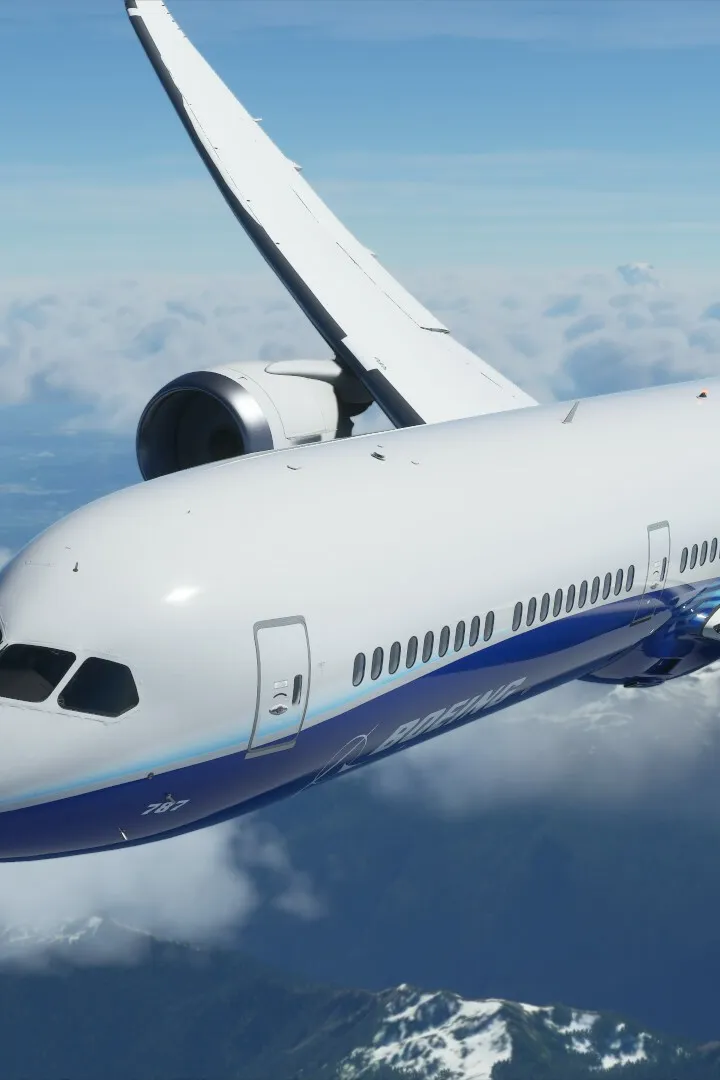
Command the Autopilot and Flight Management System (FMS) in Microsoft Flight Simulator. Automate flights and manage complex approaches for efficient flying.
Mastering the Autopilot and Flight Management System (FMS) is crucial for efficient and realistic long-haul flights and complex instrument approaches in Microsoft Flight Simulator. These systems automate many aspects of flight, allowing you to focus on monitoring, communication, and decision-making. This guide will walk you through the essential functions and strategies for effective use.
Understanding the Autopilot Panel
The Autopilot (AP) panel is typically located on the glareshield or center console of your aircraft's cockpit. While its exact layout varies between aircraft types (e.g., Airbus A320neo vs. Boeing 747-8 Intercontinental), core functionalities remain consistent.
- AP Master Switch: This is your primary control to engage or disengage the autopilot. Always ensure your aircraft is stable and trimmed before engaging.
- Flight Director (FD): Often a separate button, the Flight Director provides visual cues on your Primary Flight Display (PFD) indicating the desired pitch and roll for your selected flight path. It's highly recommended to activate the FD even when flying manually, as it serves as a valuable guide.
- Heading Select (HDG SEL) / Heading Hold (HDG HOLD): Use the HDG SEL knob to dial in a desired magnetic heading. Pressing the associated button will engage the autopilot to follow this heading.
- Altitude Select (ALT SEL) / Altitude Hold (ALT HOLD): Similar to heading, use the ALT SEL knob to set your target altitude. Engaging ALT HOLD will command the autopilot to maintain the current or selected altitude.
- Vertical Speed (VS): This mode allows you to command a specific climb or descent rate in feet per minute. Use the VS knob to set the desired rate (e.g., +1800 ft/min for climb, -1000 ft/min for descent).
- Flight Level Change (FLC): A more advanced vertical mode, FLC maintains a constant airspeed during climbs or descents by adjusting pitch. This is particularly useful for fuel-efficient climbs to cruise altitude.
- Navigational Modes (NAV / LNAV):
- NAV: Engages the autopilot to follow a tuned VOR or Localizer (LOC) course. Ensure your NAV radio is tuned to the correct frequency and the course is set.
- LNAV (Lateral Navigation): This is the primary mode for following your programmed flight plan in the FMS. It uses GPS and other navigation data to guide the aircraft along the route.
- Approach Mode (APPR): Engages the autopilot for instrument approaches, typically capturing both the localizer (lateral guidance) and glideslope (vertical guidance) for an ILS approach.
- Autothrottle (A/T): While not strictly part of the autopilot, the autothrottle works in conjunction with it to manage engine thrust and maintain selected airspeeds. Look for the A/T Master switch and speed selection modes (e.g., SPD, MACH).
Introduction to the Flight Management System (FMS) / Multi-Function Control Display Unit (MCDU)
The FMS, often accessed via the Multi-Function Control Display Unit (MCDU) in Airbus aircraft or the Control Display Unit (CDU) in Boeing, is the brain of your aircraft's navigation and performance systems. It's where you input your flight plan, performance data, and manage various aspects of your flight.
Key FMS Pages and Their Functions:
- INIT/REF (Initialization/Reference):
- Location: Usually the first page you encounter after powering up the FMS.
- Strategy: This is where you input crucial flight data:
- Aircraft Type: Confirms the aircraft model.
- Origin/Destination Airports: Enter the ICAO codes (e.g.,
KLAXfor Los Angeles International). - Cost Index: A value (typically 0-999) that balances fuel efficiency against flight time. Higher values prioritize speed.
- Cruise Altitude: Your planned cruising flight level (e.g.,
FL350for 35,000 feet). - Fuel On Board (FOB): Input your current fuel load.
- FLT PLAN (Flight Plan):
- Location: Accessible from the main menu or a dedicated button.
- Strategy: This is where you build and review your route.
- Adding Waypoints: Enter waypoints (VORS, intersections, NDBs) sequentially.
- Selecting SIDs/STARs: Choose your Standard Instrument Departure (SID) from the origin and Standard Terminal Arrival Route (STAR) for the destination. These procedures are crucial for navigating busy airspace.
- Inserting Airways: For longer segments, you can often insert an entire airway between two waypoints.
- Discontinuities: The FMS may show "DISCONTINUITY" when there's a gap in the flight plan. You'll need to manually connect these by selecting the next waypoint and inserting it.
- PERF (Performance):
- Location: Dedicated button or menu option.
- Strategy: Input and monitor performance data.
- Takeoff Speeds (V1, VR, V2): Crucial for safe takeoff. The FMS often calculates these based on aircraft weight and flap settings.
- Cruise Performance: Displays optimal cruise speeds and fuel burn.
- Approach Speeds (Vref): Essential for a stable and safe landing.
- PROG (Progress):
- Location: Dedicated button or menu option.
- Strategy: Monitor your flight's progress.
- Distance to Waypoint: Shows remaining distance to the next point in your flight plan.
- Estimated Time of Arrival (ETA): Provides an estimated arrival time at your destination.
- Fuel Remaining: Displays current fuel levels.
Autopilot & FMS Workflow: A Step-by-Step Guide
This workflow assumes you have already planned your flight in the world map and are in the cockpit.
- Aircraft Power-Up & Initial Checks:
- Ensure aircraft systems are powered (APU, external power, or engines running).
- Perform basic cockpit checks.
- FMS Initialization (INIT/REF Page):
- Access the FMS/MCDU.
- Go to the INIT/REF page.
- Input Origin and Destination ICAO codes.
- Enter your Cost Index, Cruise Altitude, and Fuel On Board.
- Confirm aircraft weight and balance if applicable.
- Flight Plan Entry (FLT PLAN Page):
- Navigate to the FLT PLAN page.
- Verify the loaded flight plan from the world map.
- Crucially, select your SID (Standard Instrument Departure) for the departure airport. This is often found under a "DEPARTURE" or "SID" option. Choose the appropriate runway and transition.
- Review the waypoints. If there are any "DISCONTINUITY" messages, resolve them by inserting the next waypoint.
- For arrival, select your STAR (Standard Terminal Arrival Route) for the destination airport. This is usually under an "ARRIVAL" or "STAR" option. Choose the correct runway and transition.
- Ensure the flight plan is contiguous and makes sense.
- Performance Data (PERF Page):
- Go to the PERF page.
- Verify or input your takeoff speeds (V1, VR, V2). The FMS will often calculate these automatically based on your weight and flap settings.
- Confirm your climb, cruise, and descent performance settings.
- Autopilot Pre-Flight Setup:
- On the Autopilot panel, set your initial Heading (often runway heading or first SID heading).
- Set your initial Altitude (usually the first altitude restriction of your SID or ATC clearance).
- Ensure the Flight Director (FD) is ON.
- Arm the Autothrottle (A/T) if available and desired.
- Takeoff & Climb:
- Perform your takeoff manually.
- Once airborne and stable (e.g., above 400 feet AGL), engage the Autopilot Master Switch.
- Engage LNAV to follow your flight plan laterally.
- Engage a vertical mode:
- FLC (Flight Level Change): Recommended for climb, set your target speed.
- VS (Vertical Speed): Set a positive climb rate (e.g., +1800 fpm).
- As you receive altitude clearances from ATC, update your target altitude on the Autopilot panel.
- Cruise:
- Once at cruise altitude, the autopilot should automatically switch to ALT HOLD.
- Monitor your progress on the PROG page of the FMS.
- Adjust speed as needed using the Autothrottle's speed modes.
- Descent & Approach:
- As you approach your destination, ATC will issue descent clearances. Update your target altitude on the Autopilot panel.
- Engage a descent mode:
- FLC: Recommended for descent, set your target speed.
- VS: Set a negative descent rate (e.g., -1500 fpm).
- Monitor the FMS for altitude restrictions on your STAR. The FMS often provides vertical guidance (VNAV) that the autopilot can follow if engaged.
- For an ILS approach:
- Tune your NAV radio to the ILS frequency for the landing runway.
- Set the course on your NAV radio or FMS.
- Once within range and aligned, engage the APPR (Approach) mode on the Autopilot. The autopilot will capture the localizer (lateral) and then the glideslope (vertical).
- Monitor airspeed and deploy flaps/landing gear as per your aircraft's checklist.
- At a safe altitude (e.g., 200 feet AGL for ILS), disengage the autopilot and land manually, or perform an autoland if the aircraft is equipped and conditions allow.
Pro-Tip: Always be prepared to disengage the autopilot and fly manually if the aircraft behaves unexpectedly or if ATC issues a sudden change in instructions. Practice makes perfect!
100% Human-Written. AI Fact-Checked. Community Verified. Learn how AntMag verifies content