New to Tales of Xillia? This guide breaks down the game's UI, from battle screens to menus, helping you navigate the world of Xillia like a pro. Get started!
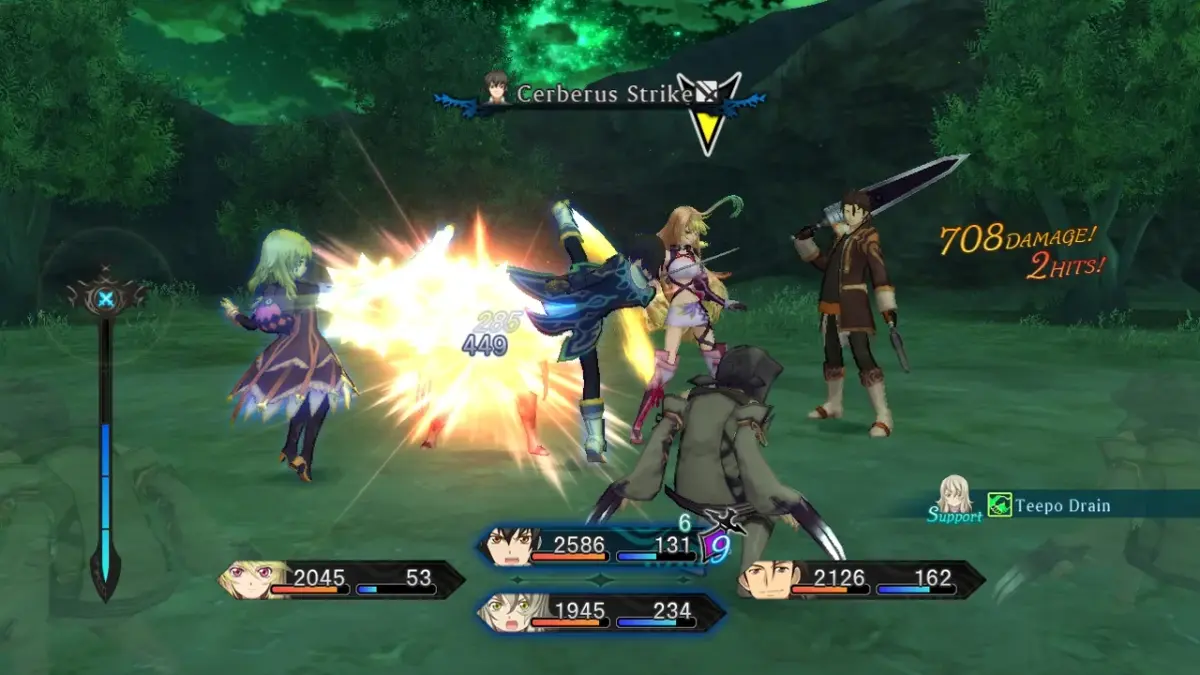
Alright, let's dive into the nitty-gritty of how everything looks on your screen in Tales of Xillia. Think of this as your friendly tour guide to the game's interface – nothing too scary, just the essentials so you can focus on the adventure with Milla and Jude! The Basics: What You'll See When you're just exploring the world or chatting with folks, the UI is pretty straightforward. You'll see your character, the environment, and maybe some prompts for interacting with things or people. Keep an eye out for: * Minimap: Usually in a corner, this shows you where you are and where you're going. Super handy! * Quest/Objective Markers: Little icons or text telling you where to head next. * Interaction Prompts: When you can talk to someone or examine an object, a button prompt will pop up. Just press the indicated button (like the 'A' button on Xbox or 'X' on PlayStation) and you're good to go. Battle Screen Breakdown This is where things get a bit more lively! The battle screen has a lot of info, but once you get used to it, it's super intuitive. * Character Portraits & HP/TP Bars: You'll see your active party members here, usually at the bottom or side. The green bar is your Health Points (HP), and the blue bar is your Technical Points (TP). Keep an eye on these! * Enemy Info: You'll see the enemies you're facing, often with their own HP bars. Sometimes, you'll see their names and levels too. * Skill/Artes List: This is your go-to for attacking! You'll have a set of artes (your special moves) mapped to different button combinations. Experiment to see what works best for you. * Command Menu: This is where you can choose to attack, use items, defend, or use special skills. You'll access your artes from here too. * Over Limit (OL) Gauge: This fills up as you fight. When it's full, you can unleash powerful Mystic Artes! It's a game-changer, so learn when to use it. * Party Order: You can see who's up next in your party. Menus and Management When you're not in a fight, you'll be spending time in the menus. Accessing these is usually done by pressing the Start or Menu button. * Party Status: Check your characters' HP, TP, and any status effects. * Items: Manage your inventory. You'll find healing items, battle items, and more here. * Equipment: This is where you'll equip new weapons and armor. Don't forget to check this after battles or when you buy new gear! * Skills/Artes: Here you can see all the artes you've learned and sometimes assign them to shortcuts. * Quests: Keep track of your current missions and objectives. * System: Save your game, adjust settings (like difficulty or camera controls), and check out the glossary. A Word of Caution: Don't feel overwhelmed by all the information at first! The game does a good job of introducing elements gradually. Pay attention during the early tutorials, and don't be afraid to experiment in battles. You can always pause and check your menus if you're unsure about something. The key is to get comfortable with the flow of combat and how to manage your resources. You've got this!100% Human-Written. AI Fact-Checked. Community Verified. Learn how AntMag verifies content