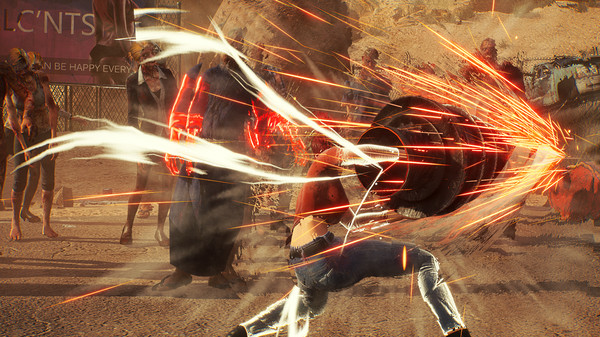
Master the graphics settings in Showa American Story! Optimize performance and visuals with our friendly guide, covering everything from presets to advanced options for the best gameplay experience.
Alright, let's dive into tweaking the graphics settings in Showa American Story. Think of this like fine-tuning your ride – you want it to look good, but also run smoothly, right? We'll go through it together, step-by-step, so you can get the best performance without sacrificing too much of that awesome visual style. ### Graphics Presets First off, the game gives you some handy presets. These are like starting points: * Potato: This is the lowest setting. It'll turn off most fancy effects like shadows, atmosphere, and complex lighting. If you're struggling to get a smooth frame rate, this is your go-to. You might lose some visual flair, but you'll gain a lot of performance. * Medium: This is a good middle ground. It'll turn on shadows, atmosphere, and some lighting effects. If your system can handle it, this is where you'll start seeing a bit more of the game's visual polish. * High: This is the max setting. Everything is on – shadows, atmosphere, transparencies, materials, and all the lighting effects. This will look the best, but it also demands the most from your PC. Only use this if you're confident your rig can handle it without stuttering. ### Individual Graphics Options Beyond the presets, you can tweak individual settings to really dial things in. Here's what each one does: * Shadows: This just turns global shadows on or off. Turning them off can give you a nice performance boost. * Atmosphere: This controls the Atmosphere effect. It adds to the environmental feel but can impact performance. * Color Correction: This adds or removes a slight tint to the screen. It's mostly an aesthetic choice and usually has a minimal performance impact. * Materials: This toggles the detailed materials and textures on buildings and kaiju. Turning this off can help if you're seeing performance drops in busy areas. * Transparencies: This affects how see-through objects are displayed. If you notice lag when there are lots of transparent effects, try adjusting this. * Gray Mode: This is a pretty distinct visual filter that turns most things gray, except for terrain and effects. It's an aesthetic choice and usually doesn't affect performance much. * Field of View (FOV): This adjusts how much you can see on screen. A wider FOV (higher number, up to 120) lets you see more, which can be great for situational awareness, but it can also decrease performance. The default is 50, which is pretty narrow. * Dynamic FOV Intensity: This controls how much your FOV changes dynamically, like when you sprint or use certain abilities. You can set this from 0 to 100. * Camera Shake: This turns on or off the effect where your camera shakes when you use abilities. Some people like the immersion, others find it distracting. * Camera Shake Intensity: If you keep camera shake on, you can adjust how intense it is, from 0 to 100. * Depth of Field: This effect blurs things in the distance, making closer objects sharper. It can add a cinematic feel but might impact performance. Turning it off can help boost your frame rate. * High Definition Water: When this is on, the oceans get a cool wave effect. Turn it off, and they become a simpler, flat texture. This can be a small performance saver if you don't care about fancy water. * Rain: This simply toggles whether rain can occur in the game. It doesn't directly affect performance unless it's actively raining and other settings are maxed out. * Day / Night Cycle: This turns the game's day and night cycle on or off. It's mainly an aesthetic feature. * Current Filter: This lets you choose different visual filters, like '1954', 'Showa', 'Heisei', etc. It's purely for aesthetics and won't impact performance. * Render Distance: This is a big one for performance! It controls how far into the distance the game will draw objects. You can set this anywhere from 300 to 1500 studs. Lowering this significantly reduces the load on your system, especially in large open areas. Be careful not to set it too low, or you might not see enemies or important details until they're right on top of you! * Bloom: This makes bright colors, especially neon ones, glow more vibrantly. It's a nice visual effect but can cost some performance. Turning it off can help in graphically intensive scenes. * Bloom Intensity: If you keep Bloom on, you can adjust how strong the glow effect is, from 10 to 64. * Motion Blur: This adds a slight blur when you're moving quickly. Some like the effect for immersion, but it can sometimes make the game feel less sharp and might impact performance slightly. Turning it off can make the game look clearer. * Particle Intensity: This controls the quality and number of particles rendered, like explosions or smoke. Lowering this from 1 to 20 can help a lot if you're experiencing frame drops during intense combat. Remember, the goal is to find a balance that works for your specific setup. Don't be afraid to experiment with these settings! You can always reset them to default if you mess something up. Happy gaming!100% Human-Written. AI Fact-Checked. Community Verified. Learn how AntMag verifies content