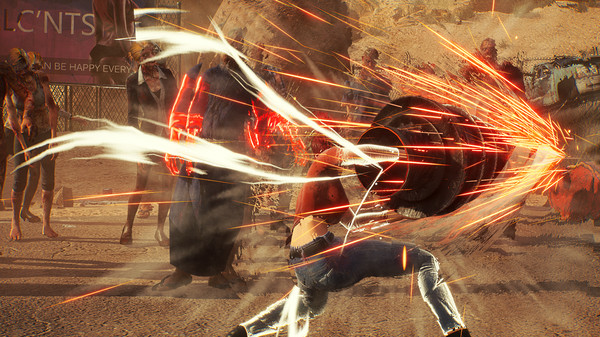
Step into the neon-drenched, alternate-history world of Showa American Story, a gritty ARPG where 1980s Japanese and American pop culture collide. You play as Choko, a teenage girl revived in a post-apocalyptic America where Japanese culture has taken over the continent. Your moment-to-moment gameplay involves fast-paced, brutal combat against hordes of zombies and monsters, utilizing a variety of melee, ranged, and strange weapons to survive.
This guide is your essential companion for navigating Choko's wild journey. We'll provide targeted walkthroughs, spoiler-free tips, and strategies to help you conquer the game's challenges. Whether you're aiming for specific achievements, trying to understand the branching paths and multiple endings, or just need help with tough boss fights, this guide covers it all.
Getting Started & Core Mechanics
Learn the core mechanics of Showa American Story, focusing on mastering its fluid combat system and utilizing your protagonist's unique powers for survival.
Getting Started & Core Mechanics
Learn the core mechanics of Showa American Story, focusing on mastering its fluid combat system and utilizing your protagonist's unique powers for survival.
Installation & Setup
Get your Showa American Story game ready! This guide offers spoiler-free tips, story analysis, and gameplay strategies for the high-octane action, blending 1980s Japanese and American pop culture.
Installation & Setup
Get your Showa American Story game ready! This guide offers spoiler-free tips, story analysis, and gameplay strategies for the high-octane action, blending 1980s Japanese and American pop culture.

PC System Requirements
Check if your PC can run Showa American Story. We detail the minimum and recommended system requirements for optimal performance.
To ensure a smooth and enjoyable experience with Showa American Story on PC, understanding the system requirements is paramount. These specifications outline the minimum and recommended hardware configurations your computer needs to meet for the game to run effectively. Meeting the minimum requirements will allow the game to launch and function, albeit potentially with lower graphical settings and frame rates. For the best possible performance, including higher visual fidelity and consistent frame rates, it is strongly recommended to aim for hardware that meets or exceeds the recommended specifications. This will allow you to fully appreciate the game's detailed environments and dynamic action sequences without significant technical hindrances. It's also important to consider that system requirements can sometimes be subject to change as developers release patches and optimizations, so it's always a good idea to check for the latest information closer to the game's release or upon its launch.
When evaluating your PC's hardware against the game's requirements, pay close attention to the CPU, GPU (graphics card), RAM (memory), and storage space. The CPU is the brain of your computer, handling game logic and processing. A more powerful CPU will lead to smoother gameplay, especially in complex scenes with many characters or effects. The GPU is responsible for rendering all the visuals; a capable graphics card is crucial for achieving higher resolutions and graphical detail. RAM acts as short-term memory for your system, and having sufficient RAM prevents stuttering and improves overall responsiveness. Finally, the storage requirement indicates how much space the game will occupy on your hard drive or SSD. Installing on an SSD is generally recommended for faster loading times, which can significantly reduce waiting periods between gameplay segments. Always ensure your operating system is also up-to-date to avoid compatibility issues.
Minimum System Requirements
These are the baseline specifications needed to get Showa American Story running. While the game will launch and be playable, you may need to operate on lower graphical settings, such as reduced resolution, texture quality, and effects, to maintain a playable frame rate. Expect frame rates that might hover around 30 FPS in less demanding areas. The minimum CPU requirement is likely to be a mid-range processor from the last 5-7 years, such as an Intel Core i5-4690 or an AMD FX-8350. For graphics, a card like the NVIDIA GeForce GTX 960 or AMD Radeon R9 380, with at least 4GB of VRAM, should be sufficient. You'll likely need a minimum of 8GB of RAM to handle the game's assets and processes. Storage-wise, anticipate needing around 50-70GB of free space, and an SSD is highly recommended even for minimum specs to improve loading times.
Recommended System Requirements
To experience Showa American Story at its best, with higher graphical fidelity and smoother performance (aiming for 60 FPS or more), you'll want to meet the recommended specifications. This typically involves a more powerful CPU, such as an Intel Core i7-7700K or an AMD Ryzen 5 2600. The graphics card requirement will likely be higher, perhaps an NVIDIA GeForce RTX 2060 or an AMD Radeon RX 5700 XT, ideally with 6GB or more of VRAM, to handle higher resolutions and more demanding visual effects. A minimum of 16GB of RAM is generally recommended for modern AAA titles to ensure seamless multitasking and optimal in-game performance. For storage, while an SSD is still strongly advised, the required space might increase slightly to accommodate higher-resolution textures and assets, potentially around 70-100GB. Meeting these recommended specs will unlock the game's full visual potential and provide a more immersive gameplay experience.
Graphics Settings Optimization
Master the graphics settings in Showa American Story! Optimize performance and visuals with our friendly guide, covering everything from presets to advanced options for the best gameplay experience.
100% Human-Written. AI Fact-Checked. Community Verified. Learn how AntMag verifies content