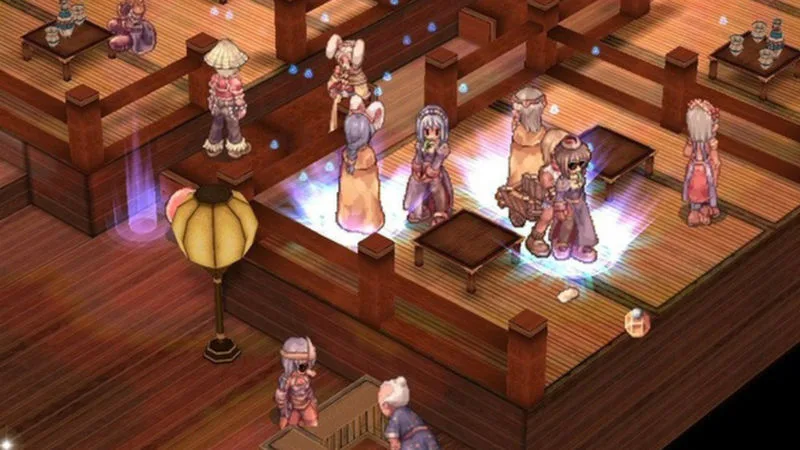
Improve Ragnarok Online performance by optimizing Windows, adjusting in-game settings, and managing background processes. Learn how to speed up your PC for RO.
Walkthrough
- 1Hardware Upgrade: The easiest way to get better performance is to upgrade your hardware. Websites like www.pricewatch.com offer affordable computer parts.
- 2Run Scandisk: Use the Scandisk program in Windows to check your disk for errors and improve stability. Access it via Start, Programs, Accessories, System Tools, Scandisk.
- 3Use Disk Defragmenter: Defragmenting your hard drive reorganizes files, making them easier and faster for your computer to find. Access it via Start, Programs, Accessories, System Tools. This is a highly effective optimization step.
- 4Close Background Programs: Prevent unnecessary programs from running in the background while Ragnarok Online is active. Check the icons next to your clock and close any non-essential applications. For Windows 9x (95, 98, ME), press CTRL+ALT+DEL and click "End Task" on unneeded processes. For Windows 2000/XP, use the Task Manager (CTRL+ALT+DEL) and end unnecessary processes from the "Processes" tab. Research any unknown processes before ending them.
- 5Reinstall Windows (Advanced): For optimal speed and reliability, reinstalling Windows can resolve issues caused by corrupted system files or improper shutdowns. Warning: Back up all irreplaceable data before proceeding. For Windows 9x (95, 98, ME), format your C: drive by typing "format c:" in MS-DOS mode (accessed by restarting in MS-DOS mode), confirming with "Y", and then rebooting with your Windows CD or a boot disk to run setup.exe. If you have a system restore disk from manufacturers like Dell or Gateway, follow its instructions, though these may install unwanted bloatware. For Windows 2000/XP, boot from the Windows 2k/XP CD and format during the setup utility by installing over the current version. You may need to adjust your system's setup (BIOS) to boot from the CD-ROM.
- 6Ragnarok Online Setup Utility: Adjust the following in-game settings for better performance:
- Direct 3D or Direct 3D T&L: Use T&L if your video card supports it to offload work from your processor; otherwise, use standard Direct 3D.
- 7Full Screen: Select Full Screen mode to dedicate more resources to Ragnarok Online.
- 8Resolution: Lower the resolution if you have less than 32 MB of Video RAM to improve performance.
- 9Sound: Set sound to 2D unless you have a high-quality sound card.
- 10Speaker Setup: Configure according to your audio setup.
- 11Sound Frequency, Sound Bits, Sound Channel: Set these to maximum unless experiencing problems, as lower settings can degrade sound quality.
- 12Voodoo3 Checkbox: Enable if you are using a Voodoo3 Card.
- 13Lightmap: Turn off to free up resources; it adds shading effects but is not essential.
- 14Fog: Turn off to conserve resources, as it adds a visual tint and consumes significant processing power.
- 15Texture and Sprite Quality: Adjust these settings as needed.
- 16Advanced Tweaks: For more in-depth system modifications, explore registry tweaks at websites like www.tweak3d.net.
Tips
- Consider hardware upgrades as the most direct method for performance improvement.
- Regularly running Scandisk and Disk Defragmenter can maintain system stability and speed.
- Be cautious when ending processes via CTRL+ALT+DEL or Task Manager; ensure you understand what each process does before terminating it.
- Reinstalling Windows is a drastic but effective measure for severe performance issues.
- Experiment with Ragnarok Online's in-game settings, particularly resolution and graphical effects like fog and lightmaps, to find a balance between visual quality and performance.
100% Human-Written. AI Fact-Checked. Community Verified. Learn how AntMag verifies content