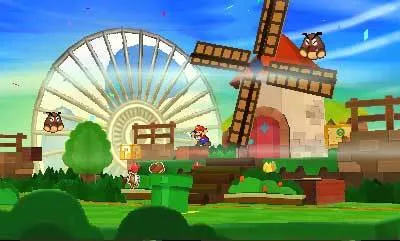
Master Paper Mario: Sticker Star! This guide details all controls for overworld, Sticker Album, and battle, ensuring you know every button's function.
Hey there! So, you've made it to Part 4. This section is all about getting a handle on the game's controls, which is super important for smooth sailing. Think of this as your quick-reference cheat sheet so you don't have to guess what each button does. We'll break it down by what you're doing in the game: moving around the overworld, managing your Sticker Album, and what to do when you get into a scrap!
Overworld Controls
When you're just exploring, the controls are pretty straightforward:
- Circle Pad: This is how you move Mario around. Just push it in the direction you want to go.
- A Button: Tap this to make Mario jump. Useful for small gaps or just for fun!
- B Button: This is your trusty Hammer. Swing it at enemies or objects in the environment.
- X Button: Press this to open up your main menu, where you can check your inventory, status, and more.
- L Button: Handy for talking to Kersti, your little guide. You'll be doing this a lot!
- Start Button: Use this to leave a course once you've cleared it. No backtracking needed!
- Touch Screen: You can also use the touch screen to navigate menus and interact with the world.
Sticker Album Controls
Your Sticker Album is where all the magic happens. Here's how to get around in it:
- Circle Pad: Use this to scroll through your stickers or navigate menus within the album.
- Y Button: Press this to view the details of a selected sticker. Essential for knowing what each one does!
- X/B Buttons: These will close the current menu or album screen.
- L/R Buttons: These are your page-turners! Use them to flip between different pages of your Sticker Album.
- Touch Screen: Just like in the overworld, you can tap and swipe on the touch screen to navigate your album.
Battle Controls
When a battle kicks off, things get a little more intense. Here's what you need to know:
- Circle Pad: Use this to navigate through your Sticker Album when selecting a sticker to use in battle.
- A Button (First Press): This selects the sticker you've highlighted in your album.
- A Button (Second Press): After selecting a sticker, you'll often have a chance to perform an 'Action Command'. Timing your A button press here can boost your attack or defense!
- X Button: This starts the Battle Spinner. You can land on different segments to get bonuses like extra damage or special effects.
- L/R Buttons: Similar to the Sticker Album, these let you quickly switch between pages of your album during battle.
- Touch Screen: You can also use the touch screen to select stickers and navigate your album during combat.
Knowing these controls will make your adventure through the Mushroom Kingdom so much smoother. Don't be afraid to experiment a little, especially with the Action Commands in battle – they can make a huge difference!
100% Human-Written. AI Fact-Checked. Community Verified. Learn how AntMag verifies content