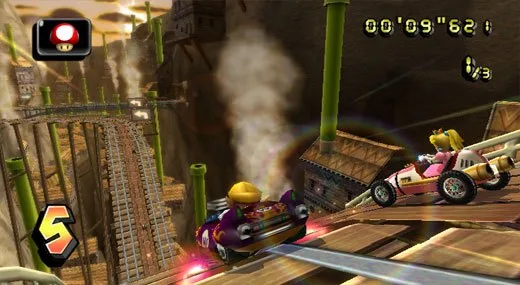
Hit the gas and drift your way to victory with Mario Kart Wii, the thrilling racing experience for your Wii! This extensive guide features 67 sections, covering everything from getting started and the main walkthrough to detailed tips, character builds, and item strategies. Whether you're seeking advice on challenging boss races or optimizing your kart setup, you'll find the answers here to dominate the track.
Wii Wheel
Learn how to use the Wii Wheel in Mario Kart Wii! This guide breaks down steering, item controls, and the pros and cons for casual and manual play.
Alright, so you're diving into Mario Kart Wii and want to know about the Wii Wheel? It's a pretty neat little accessory, and honestly, it works surprisingly well for a lot of players, especially if you're just looking to cruise and have some fun.
Think of it as your steering wheel for the game. You'll hold it horizontally, and tilting it left or right is how you steer your kart or bike. It feels pretty natural, almost like you're actually driving!
Here's the rundown on how to use it:
- Turn (Tilt Left/Right): This is your main steering. Just tilt the Wii Wheel in the direction you want to go. Easy peasy.
- Flick Up: This is for pulling off tricks or wheelies if you're on a bike. It's a fun little move that can give you a speed boost.
- 2 Button: This is your gas pedal! Hold it down to accelerate.
- 1 Button: Use this to brake or, if you're holding it down, to reverse.
- B Button: This one's a bit different depending on your settings. If you're in Automatic Drift mode, it's used for items. If you're in Manual Drift, this is your drift button.
- A Button: This lets you look behind you. Handy for keeping an eye on opponents!
- D-Pad Up: Want to throw that item you've been holding onto? This is how you do it.
- D-Pad Left / Right: Use these to hold onto an item you've picked up.
- D-Pad Down: If you want to drop an item behind you (maybe to mess with someone following close), use this.
- + Button: Standard pause button. Take a breather!
So, is the Wii Wheel any good?
For casual play, it's a blast. The steering is responsive and feels right, especially with Automatic Drift. The buttons are laid out pretty logically, making it easy to get a handle on things. Honestly, I recommend trying it out for the first few cups – you might be surprised how much you like it!
The D-Pad controls for items are also a big plus. You know exactly what you're doing with your items, whether it's throwing them, holding them, or dropping them, which is way better than accidentally tossing your best shell when you meant to hold onto it.
Now, a couple of things to keep in mind:
- The B button can feel a little mushy, and the 2 button (accelerate) might feel a bit low for some folks, especially if you have larger hands.
- Playing with the wheel can get tiring after a while if you're not holding it in a comfortable position. Your arms might ache after a long session.
- If you're playing on Automatic Drift, you won't be able to do drift boosts or jump. This can put you at a slight disadvantage against players who can.
- On Manual Drift, the steering can feel a bit restricted because you can't just turn and drift at the same time. Trying to do advanced techniques like 'snaking' is also pretty tough with the wheel.
Overall, the Wii Wheel is a fun, accessible way to play Mario Kart Wii, especially for beginners or those who prefer a more casual experience. Just be aware of its limitations if you're aiming for those super-competitive times!
Wiimote and Nunchuk
Master Mario Kart Wii controls with Wiimote and Nunchuk: learn steering, acceleration, item usage, and drifting.
Controls:
- Analog Stick: Steer your kart or throw items backward or forward.
- A Button: Accelerate your kart.
- B Button: Use items automatically or perform a manual drift.
- Z Button: Use an item.
- C Button: Reverse your camera view.
- Flick Wiimote Up: Perform a trick or wheelie (only on bikes).
- + Button: Pause the game.
Verdict:
- While not as optimal as dedicated controllers, the Wiimote and Nunchuk combination is considered better than the Wii Wheel. This is largely subjective and depends on personal preference.
- All essential actions, including drifting and snaking, are fully accessible with this control scheme.
- Many players appreciate the freedom of having their hands separated and positioned independently, unlike being restricted to holding a single plastic mold.
Classic Controller
Mario Kart Wii Classic Controller layout: Learn what each button does, from Accelerate (A) to Drift (R).
The Classic Controller in Mario Kart Wii provides a comprehensive set of controls for racing and item management.
Controls:
- Analog Stick: Steer your kart or throw items backward or forward.
- A Button: Accelerate your kart.
- B Button: Brake or reverse your kart.
- X / ZR Button: Reverse your camera view.
- L Button: Use an item.
- R Button: Drift (manual control) or use an item (automatic control).
- D-Pad Up: Perform a trick or a wheelie (only on bikes).
- START/PAUSE Button: Pause the game.
- Experiment with the Analog Stick to get precise control over your steering and item throws.
- Mastering the R Button for manual drift can give you a significant advantage on corners.
- Using the L Button to deploy items strategically is key to winning races.
Verdict: The effectiveness of the Classic Controller is down to personal preference, but it offers all the necessary functions for playing Mario Kart Wii.
GameCube Controller
Learn how to use the GameCube controller in Mario Kart Wii, including button functions like Accelerate (A) and Drift (R).
The GameCube controller offers a familiar and responsive way to play Mario Kart Wii. Its analog stick provides more precise steering and item throwing control compared to the Wii Wheel or Nunchuk. The button layout is as follows:
- Analog Stick: Steer / Throw Items Backward or Forward
- A Button: Accelerate
- B Button: Brake / Reverse
- X / Z Button: Reverse Look
- L Button: Use Item
- R Button: Drift (Manual), Item (Auto)
- D-Pad Up: Trick / Wheelie (Bike Only)
- START/PAUSE Button: Pause
- If you have a GameCube controller, it is recommended to use it for the most responsive experience.
- The analog control and steering feel more precise than other options.
- While it feels like a proper controller because it is, the Z Button's functionality for reversing look is noted as somewhat lacking.
Note on Drifting and Snaking: Changes have been made to how drifting and snaking are executed in Mario Kart Wii, making it worth understanding these updated mechanics.
Similar guides you might like

100% Human-Written. AI Fact-Checked. Community Verified. Learn how AntMag verifies content