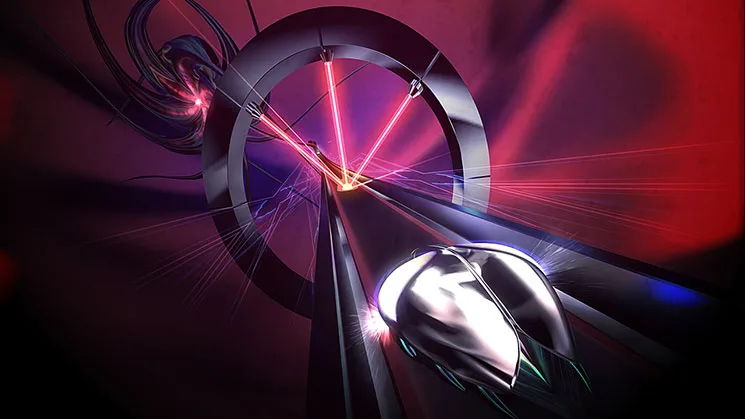
Master Thumper's rhythm-action by customizing your controller layouts. Fine-tune button mapping for optimal input and S-rank performance.
Mastering Thumper's rhythm-action requires precise input, and understanding your controller layout is paramount. While the game's core mechanics are simple, optimal button mapping can significantly impact your performance, especially in later levels and when aiming for S-ranks.
Default Controller Layouts (Console Specific)
Thumper offers intuitive default layouts across various platforms. Below are the standard configurations you'll encounter:
- PlayStation (PS4, PS5):
- X (Cross) / A (Xbox): THUMP (Primary action, used for hitting notes, turning, and boosting).
- Left Analog Stick / D-Pad: STEER (Controls the beetle's movement along the track).
- Any other face button (Square, Circle, Triangle / X, Y, B on Xbox): Not typically used for core gameplay actions, but can sometimes be mapped for specific menu navigation.
- Nintendo Switch:
- A Button: THUMP.
- Left Analog Stick / D-Pad: STEER.
- Xbox (Xbox One, Xbox Series):
- A Button: THUMP.
- Left Analog Stick / D-Pad: STEER.
- PC (Keyboard & Mouse / Gamepad):
- Keyboard: Default keys are often 'Spacebar' for THUMP and 'Arrow Keys' or 'WASD' for STEER.
- Gamepad: Typically mirrors the PlayStation/Xbox layouts, with the primary face button for THUMP and the left analog stick for STEER.
Accessing Customization Options
While Thumper is designed with a minimalist control scheme, you do have options to tailor it to your preference. To access these settings:
- From the game's main menu, navigate to the "Options" section.
- Within the "Options" menu, look for a sub-menu titled "Controls" or "Key Bindings".
- Select this option to view and modify your current controller setup.
Customizing Your Layout (PC Specific)
On PC, you'll find the most robust customization options. Console versions typically offer limited remapping, often only allowing for inversion of the steering axis.
PC Key Binding Steps:
- Identify the Action: In the "Controls" menu, you'll see actions listed, primarily "THUMP" and "STEER (Left/Right)".
- Select to Remap: Click on the action you wish to change. The game will then prompt you to press the desired key or button.
- Assign New Input: Press the key or button on your keyboard or gamepad that you want to assign to that action.
- Confirm Changes: Ensure you save your changes before exiting the menu. There's usually a "Apply" or "Save" button at the bottom of the screen.
Recommended Customization Strategies:
- THUMP Button Placement: For gamepad users, consider remapping THUMP to a trigger button (L2/R2 on PlayStation, LT/RT on Xbox) if you find the face button uncomfortable for sustained pressing. This can sometimes reduce finger fatigue during long play sessions.
- Keyboard Comfort: PC experiment with different key combinations. Some prefer 'Shift' or 'Ctrl' for THUMP, allowing their thumb to remain on the spacebar for other actions if they were playing a different game, or simply for a more ergonomic feel.
- Analog vs. D-Pad for STEER: While the analog stick offers more nuanced control, some players find the D-Pad more precise for the binary left/right steering inputs in Thumper. Experiment to see which feels more natural for you.
- Inverting Steering (Console & PC): If you're accustomed to inverted controls in other games, check the "Controls" menu for an "Invert Steering" option. This will reverse the left/right input for the STEER action.
Ultimately, the best controller layout is the one that feels most natural and responsive to you. Don't be afraid to experiment with different configurations, especially if you're struggling with specific sections or aiming for higher scores. A comfortable setup can make all the difference in conquering Thumper's relentless rhythm.
100% Human-Written. AI Fact-Checked. Community Verified. Learn how AntMag verifies content