
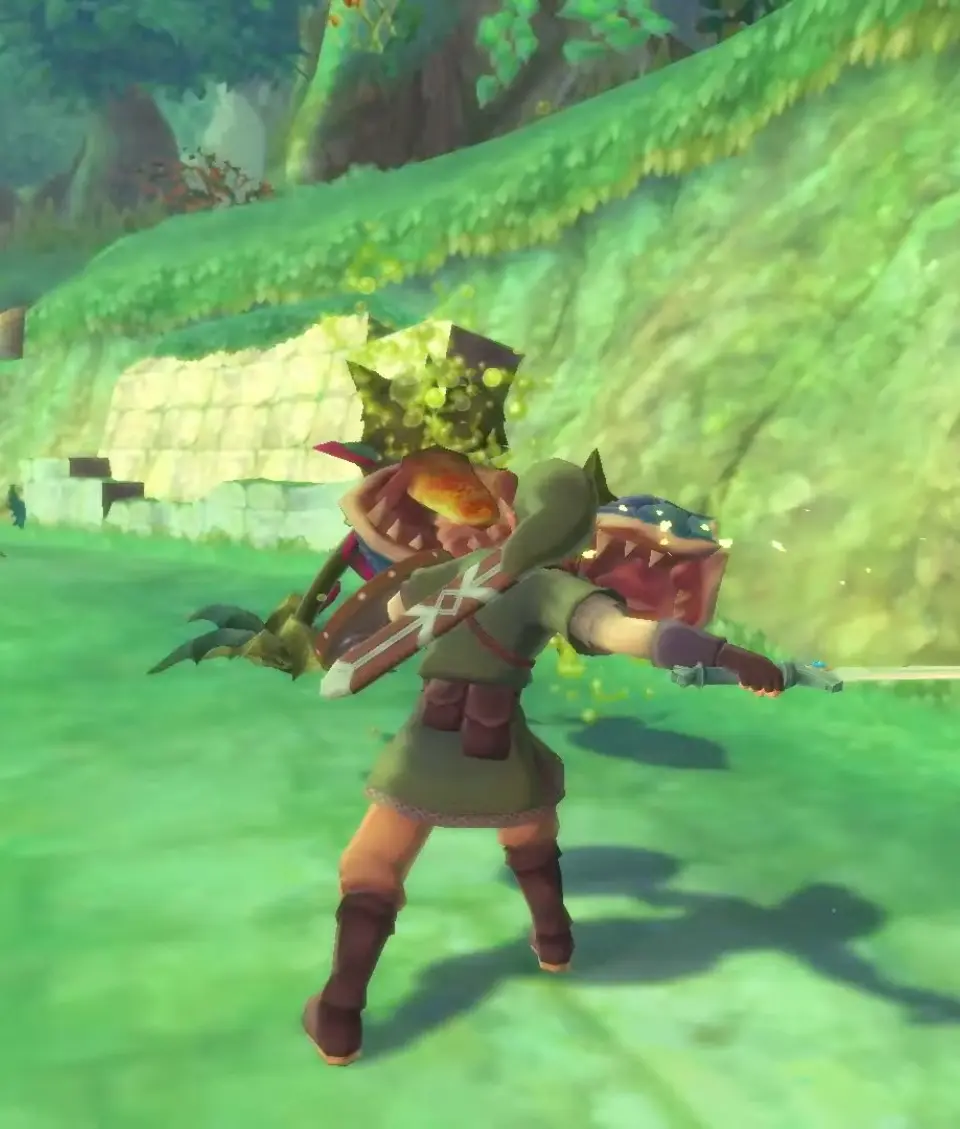
Preserve your progress in The Legend of Zelda: Skyward Sword HD. Learn how to utilize manual saves effectively to avoid losing valuable gameplay time.
In The Legend of Zelda: Skyward Sword HD, preserving your adventure is crucial for a smooth and enjoyable experience. Unlike some modern titles with auto-save features, Skyward Sword HD relies on manual saves, primarily through interaction with specific in-game objects. Mastering the save system ensures you never lose valuable progress, especially before challenging encounters or exploring dangerous new territories.
The Bird Statues: Your Primary Save Points
The most common and reliable method for saving your game is by interacting with Bird Statues. These distinctive, often glowing, statues are scattered generously throughout Skyloft and the various regions of the Surface world. They serve as both save points and convenient fast-travel locations.
How to Save at a Bird Statue:
- Locate a Bird Statue: Keep an eye out for these tall, bird-shaped structures. In Skyloft, they are quite prevalent, often near key locations like the Bazaar or your room at the Knight Academy. On the Surface, they are typically found at the entrance to new areas, before dungeons, or at strategic points within larger zones. They emit a soft, blue glow, making them easy to spot.
- Approach and Interact: Walk up to the Bird Statue. When you are close enough, an "A" button prompt will appear on screen, indicating you can interact with it.
- Select "Save Game": Upon interaction, a menu will appear. The primary option you're looking for is "Save Game". Select this option.
- Choose a Save Slot: The game will then present you with three available save slots. It's generally recommended to use one primary slot and occasionally rotate to a second or third slot before particularly risky sections, just in case you need to revert to an earlier save. Select your desired slot.
- Confirmation: The game will confirm that your progress has been saved. You can then exit the menu or choose other options like "Go to Skyloft" (fast travel).
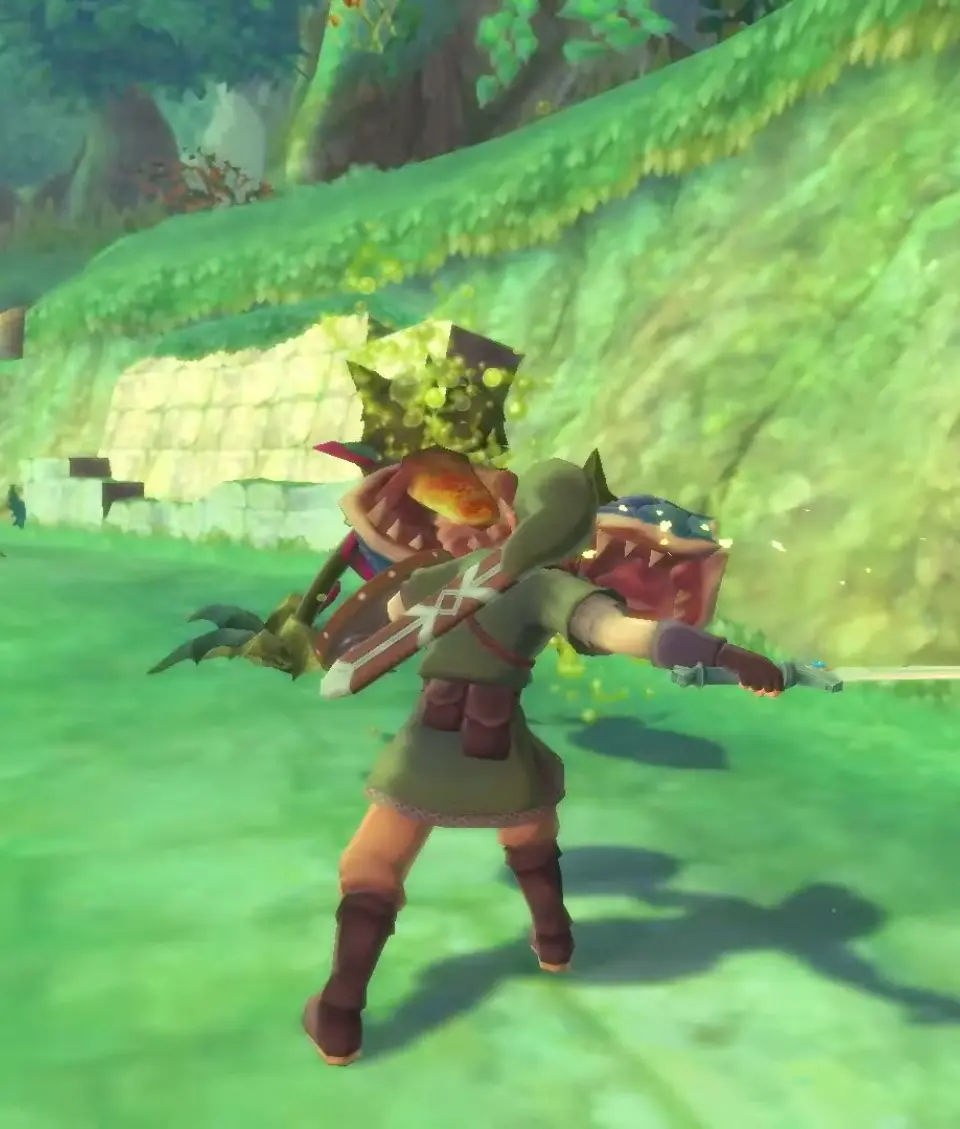
Strategic Saving with Bird Statues:
- Before Entering Dungeons: Always save at the Bird Statue located just outside the entrance to any major dungeon (e.g., Skyview Temple, Earth Temple, Lanayru Mining Facility). This ensures that if you struggle within the dungeon, you can restart from the beginning without losing progress made outside.
- Before Boss Battles: While many dungeons have a Bird Statue conveniently placed just before the final boss, it's a good habit to double-check. If there isn't one immediately adjacent, save at the last available statue before proceeding.
- After Significant Progress: Have you just completed a challenging puzzle, found a crucial item, or cleared a large area of enemies? Take a moment to find the nearest Bird Statue and save.
- Before Quitting: Always save your game before closing the software. Skyward Sword HD does not have an auto-save function that triggers upon exiting the game.
- Experimenting with Choices: While Skyward Sword HD doesn't have many branching narrative choices, saving before making significant decisions (e.g., choosing which path to take first in a multi-route area) can allow you to explore different options without commitment.
Fast Travel and Saving: A Dual Function
Beyond simply saving your game, Bird Statues also serve as essential fast-travel points. When you interact with a Bird Statue and select "Go to Skyloft", you will be instantly transported back to the central hub. This is incredibly useful for restocking supplies, upgrading gear at the Bazaar, or talking to NPCs. Crucially, when you choose to return to the Surface from Skyloft, you will be given the option to warp directly back to any Bird Statue you have previously activated. This makes exploration far less tedious.
How Fast Travel Works with Bird Statues:
- Activate a Statue: Simply interacting with a Bird Statue marks it as "activated" for fast travel purposes.
- Select "Go to Skyloft": From any activated Bird Statue on the Surface, choose this option to instantly return to Skyloft.
- Return to the Surface: When you're ready to leave Skyloft, go to the large Bird Statue located near the Goddess Statue. Interact with it and select "Go to Surface".
- Choose Your Destination: A map will appear showing all the Bird Statues you have activated. Select the desired statue, and you will be warped directly to that location.
Common Pitfalls and Best Practices:
- Forgetting to Save: This is the most common mistake. Get into the habit of saving frequently. A good rule of thumb is to save every 30-60 minutes of gameplay, or after any major accomplishment.
- Relying on "Quick Saves" (Not Applicable Here): Unlike some games, there's no quick save function outside of Bird Statues. Don't assume the game is saving automatically.
- Exiting Without Saving: Always perform a manual save before closing the game software.
- Using All Save Slots for the Same Progress: While not a critical issue for most players, if you're particularly worried about a bug or making a decision you regret, consider rotating your saves across the three available slots. For example, use Slot 1 as your main, and occasionally save to Slot 2 before a major dungeon or boss.
By understanding and utilizing the Bird Statue system effectively, you can ensure a smooth and frustration-free journey through the skies and lands of Hyrule in The Legend of Zelda: Skyward Sword HD. Happy adventuring!
100% Human-Written. AI Fact-Checked. Community Verified. Learn how AntMag verifies content