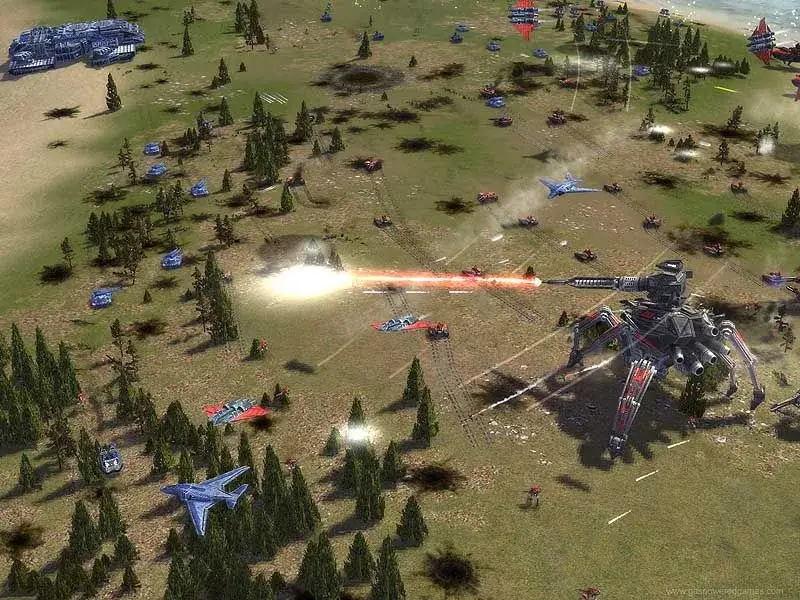
Welcome to Supreme Commander: Forged Alliance, the expansive real-time strategy game where you command vast armies in a futuristic war. You’ll establish bases, manage resources, and deploy diverse land, air, and sea units in epic battles across sprawling maps. Forged Alliance throws you into a conflict against the alien Seraphim, demanding strategic prowess from initial base setup to launching the ultimate offensive.
This guide will help you navigate the single-player campaign, focusing on mastering essential land unit strategies and achieving critical mission objectives. We'll cover everything from installation and setup to commanding your forces effectively, ensuring you're prepared for every challenge the Seraphim throw your way.
1. CONTROLS
Learn essential Supreme Commander: Forged Alliance controls, including the Ctrl+Z shortcut to select all units of a specific type on the map.
- 1Most controls in Supreme Commander: Forged Alliance are intuitive and explained in the tutorial.
- 2Modifier keys (Shift, Ctrl, Alt) can generally be combined freely, unless specified otherwise.
- 3A particularly useful shortcut not always found in the manual is Ctrl + Z, which selects all units of the selected type(s) on the entire map (minimap (the small circular map in the bottom-left corner of your screen)).
- 4For example, if your bombers are assigned to control group 4, pressing the '4' key, then Ctrl+Z, and finally Ctrl+4 will ensure all your bombers are selected and assigned to group 4, ready for deployment.
- 5Alternatively, you can zoom out, double-click on any bomber to select all units of that type, and then press Ctrl+4 to assign them to group 4.
- Experiment with combining modifier keys to discover efficient control schemes.
- Utilize the Ctrl+Z shortcut for rapid selection of all units of a specific type, especially for coordinated attacks or defenses.
- Assigning units to control groups (e.g., Ctrl+4 for bombers) allows for quick access and command during intense battles.
1.1. SELECTING UNITS
Learn how to select units, groups, and buildings in Supreme Commander: Forged Alliance using mouse and keyboard shortcuts.
- 1Basic Selection: Left-click on a unit to select it. Left-click on empty space to deselect all units.
- 2Box Selection: Left-click and drag to select all units within the drawn box. If the selection is mostly mobile units, the game will attempt to guess which type you intended and select only those.
- 3Select All of Type: Double-left-click on a unit to select all units of that same type currently visible on your screen.
- 4Select All Units and Buildings: Press Ctrl + X to select all units and buildings on your screen. Press Ctrl + C for the same function.
- 5Select All by Type: Use Ctrl + A for all air units, Ctrl + S for all sea units, Ctrl + L for all land units, and Ctrl + Z for all units of a specific type across the entire map.
- 6Select Engineers and Commander: Use Ctrl + B to select all engineers and your Commander.
- 7Select Specific Building Types: Press Ctrl + H to select all factories on screen.
- 8Select Engineers: Press Ctrl + Period to select all engineers on screen.
- 9Go To/Select Commander: Press Comma to go to your Commander, or Alt + Comma to select the Commander.
- 10Go To/Select Idle Engineers: Press Period to go to the nearest idle engineer, or Alt + Period to select the nearest idle engineer. Use Shift + Period to cycle through all idle engineers.
- 11Select Nearest Factory: Press H to select the nearest factory. Use Ctrl + Shift + L for the nearest land factory, Ctrl + Shift + A for the nearest air factory, and Ctrl + Shift + S for the nearest naval factory.
- 12Unit Groups: Use the number keys (1-0) to manage unit groups. Ctrl + [Number] assigns selected units to that group. Shift + [Number] adds units from that group to your current selection. Shift + Ctrl + [Number] selects factories belonging to that group. Units can belong to multiple groups, and these groups appear as icons on the right side of your screen. Factories assign their group numbers to newly built units.
- 13Add Idle Engineer to Group: Shift + click on a unit icon to add the nearest idle engineer to that group.
- Pay attention to the game's unit type guessing during box selection, especially with mixed unit compositions.
- Utilize unit groups extensively for quick access to key formations or specialized units.
- Remember that factories automatically assign their group number to units they produce.
1.2. GIVING ORDERS
Master Supreme Commander: Forged Alliance's command system. Learn how to issue orders like Move, Attack, Assist, and more using right-clicks and keyboard shortcuts.
This section details how to issue orders to your units in Supreme Commander: Forged Alliance, covering both mouse and keyboard commands.
Right Click: Give default order
- On terrain: Move
- On enemies: Attack (Engineers will Capture instead)
- On allies or construction: Assist (Engineers will Repair construction, Transports will Transport allied units instead)
- On transports: Transport
- On ferry points: Transport (Transports will Ferry from that ferry point instead)
- On a Move waypoint: Patrol (Undocumented)
- On an Attack waypoint: Coordinated Attack (Issue in reverse order of speed: artillery first, aircraft last. All groups will attack simultaneously)
Right Click and hold: Move in formation
While holding Right Click, press Left Click to cycle through formations. Taking formation takes priority over arriving at the location.
Ctrl + Right Click: Move in default formation
Ctrl + Alt + Right Click: Attack Move
Attack + Left Click on ground: Attack Move
Instructs units to pursue enemies before completing their move order. It is denoted as a red line with a blue Move waypoint.
Shift + Right Click: Queue this command after the current one
Shift + Left Click and hold on a command: Move the location of this command
Hotkeys:
- R: Repair
- E: Reclaim (Engineers set to Patrol will automatically Repair and Reclaim)
- P: Patrol
- A: Attack
- C: Capture
- S: Stop
- D: Dive / Surface
- F: Ferry (A transport told to Ferry will create a ferry beacon at its current location and start ferrying units to the chosen destination)
- I: Assist (Engineers and the Cybran Mantis will Repair units they are assisting. Other units will deploy in protective formation. Factories will take on the build queue and default orders of the factory they are assisting. Transports assisting a factory will transport to help carry out the default orders. Air units assisting a ferry beacon will attempt to help ferry)
- M: Move
- U: Transport (Press Transport once to load and again to unload)
- Z: Pause Construction
- O: Overcharge
- L: Launch Tactical Missile
- N: Nuke
- [: Toggle Fire State (Toggles between Fire At Will, Hold Fire and Hold Ground)
- Ctrl + K: Kamikaze (Suicide)
There are no shortcuts for upgrading units, toggling on/off cloaking and stealth, sacrificing, docking, or ordering factories to repeat orders; they must be manually clicked in the interface or Build Mode.
Similar guides you might like




100% Human-Written. AI Fact-Checked. Community Verified. Learn how AntMag verifies content