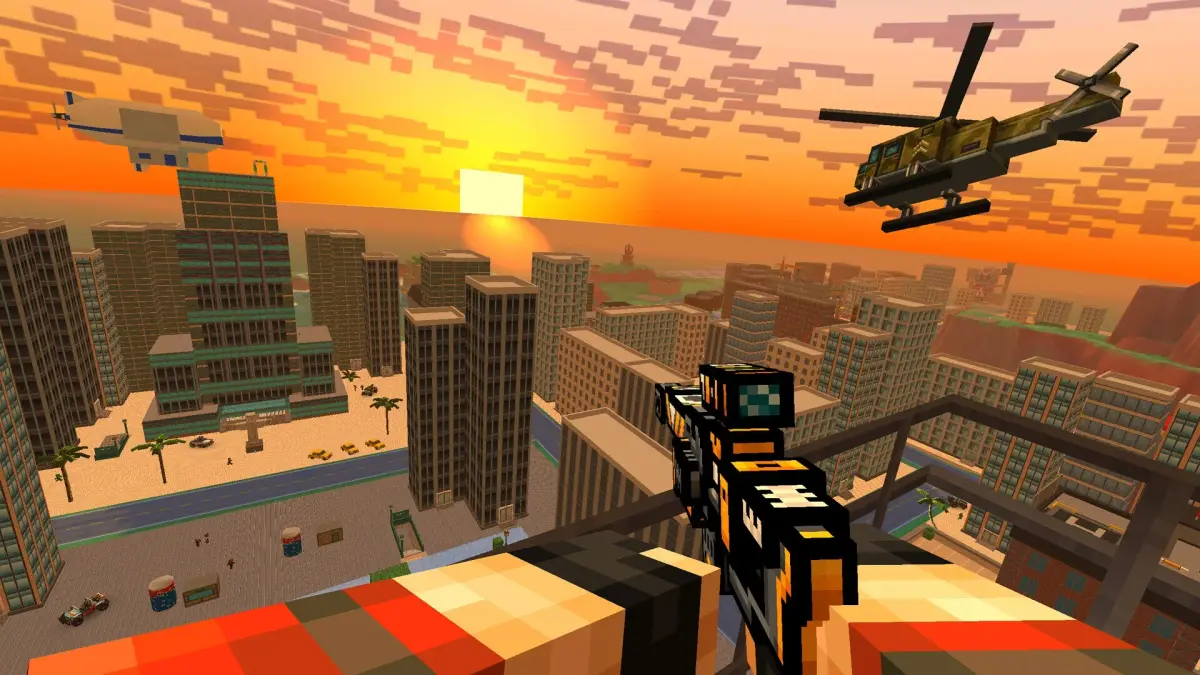
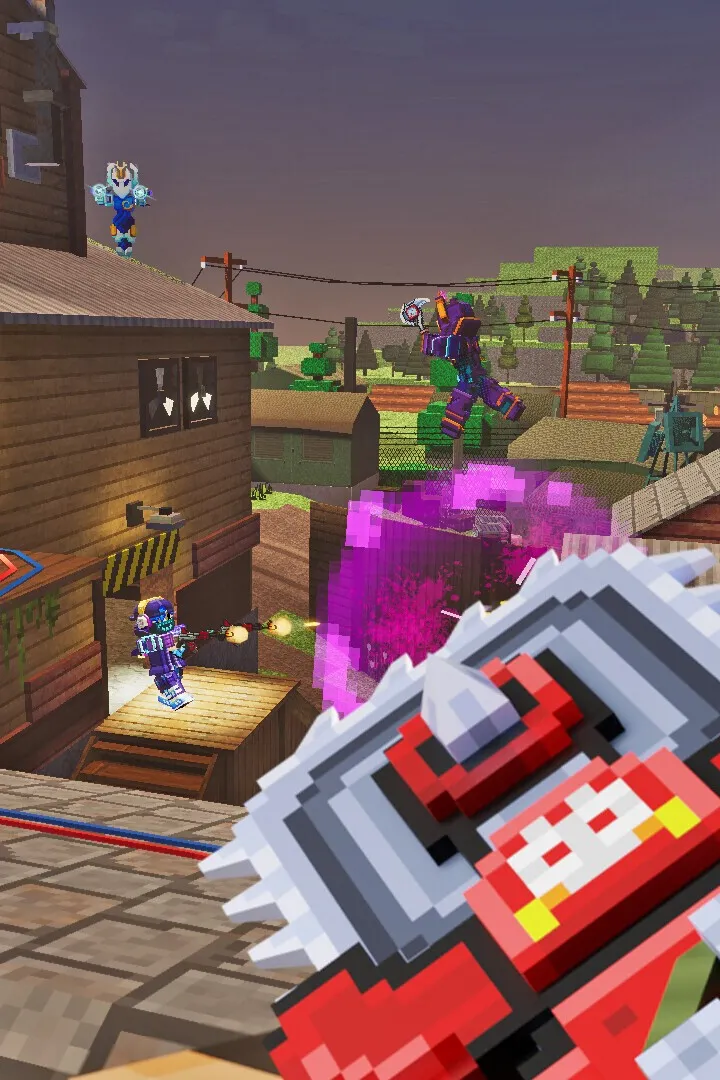
Secure your Pixel Gun 3D PC experience. Master account settings, graphics, audio, controls, and privacy for optimal gameplay.
Account Settings — Pixel Gun 3D: PC Edition Guide
Your account and settings are the gateway to personalizing your Pixel Gun 3D: PC Edition experience. Properly configuring these options ensures smooth gameplay, secure access, and a tailored interface that suits your preferences and hardware.
The account settings menu is where you manage your player profile, link external accounts for backup and social features, and adjust various in-game parameters. From graphics and audio to controls and privacy, these settings allow you to optimize performance, enhance comfort, and ensure your account remains safe and accessible. Taking the time to explore and configure these options is a fundamental step for any new or returning player.
Account Management:
- Login/Registration: Access your game account using your chosen credentials (email, social media login, etc.). If you're new, you'll create a new account here.
- Account Linking: Connect your Pixel Gun 3D account to platforms like Google Play Games, Facebook, or Steam (if applicable on PC). This is crucial for:
- Data Backup: Ensures your progress is saved and can be restored if you switch devices or reinstall the game.
- Cross-Platform Play: Allows you to play with friends on different devices.
- Social Features: Enables features like friend lists and clan integration.
- Password Reset/Recovery: Options to reset your password if you forget it, or recover your account if it's compromised.
- Username/Profile Customization: Change your in-game username or customize your player avatar and profile picture.
In-Game Settings:
These settings allow you to fine-tune your gameplay experience:
- Graphics:
- Resolution: Adjust to match your monitor's native resolution for the best clarity.
- Graphics Quality: Options like Low, Medium, High, or Ultra can impact visual fidelity and performance. Lower settings can improve FPS on less powerful hardware.
- Texture Quality: Affects the detail of surfaces.
- Shadows: Can be toggled on/off or set to lower quality to improve performance.
- Anti-Aliasing: Smooths out jagged edges on models.
- Audio:
- Master Volume: Controls the overall sound level.
- Music Volume: Adjusts the background music.
- Sound Effects Volume: Controls the volume of gunfire, explosions, and other in-game sounds.
- Voice Chat Volume: If applicable, adjusts the volume of player voice communication.
- Controls:
- Sensitivity: Adjusts how quickly your aim moves when you move your mouse or analog stick. Crucial for precise aiming.
- Keybinds: Customize which keys perform specific actions (e.g., jump, reload, use ability).
- Aim Assist: Can be toggled on/off or adjusted to help with aiming, especially on controllers.
- Auto-Fire: Some games offer an auto-fire option for primary weapons.
- Gameplay:
- Notifications: Enable or disable in-game alerts for events, messages, etc.
- Crosshair: Customize the appearance or color of your crosshair.
- HUD (Heads-Up Display): Adjust the visibility or position of on-screen elements like the minimap or health bar.
- Privacy:
- Friend Requests: Control who can send you friend requests.
- Chat Visibility: Manage who can see your chat messages.
- Data Sharing: Opt-in or out of certain data collection practices.
Tips for Optimal Settings:
- Performance First: If you experience lag or low frame rates, prioritize lowering graphics settings before adjusting anything else.
- Control Comfort: Spend time adjusting mouse sensitivity until it feels natural for your aiming style.
- Audio Cues: Ensure sound effects are loud enough to hear important cues, especially in competitive modes.
- Backup Your Account: Always link your account to a reliable service to prevent losing your progress.
By carefully configuring your account and in-game settings, you can ensure a secure, comfortable, and optimized gaming experience in Pixel Gun 3D: PC Edition.
100% Human-Written. AI Fact-Checked. Community Verified. Learn how AntMag verifies content